How to get a YouTube subscriber count
This guide explains how to obtain the @ user ID from a YouTube channel URL and a Google Cloud API Key, then configure them in the TC002 YouTube subscriber count app.
Before you begin
To use the YouTube subscriber count feature, connect TC002 to a network with internet access and enable the global network proxy. Otherwise, the device may not be able to retrieve or refresh the subscriber count.
Required parameters
- User ID: the
@user ID (YouTube handle) in the channel URL, for example@UlanziOfficial. - Token: an API Key created in Google Cloud Console.
Get the YouTube user ID (@handle)
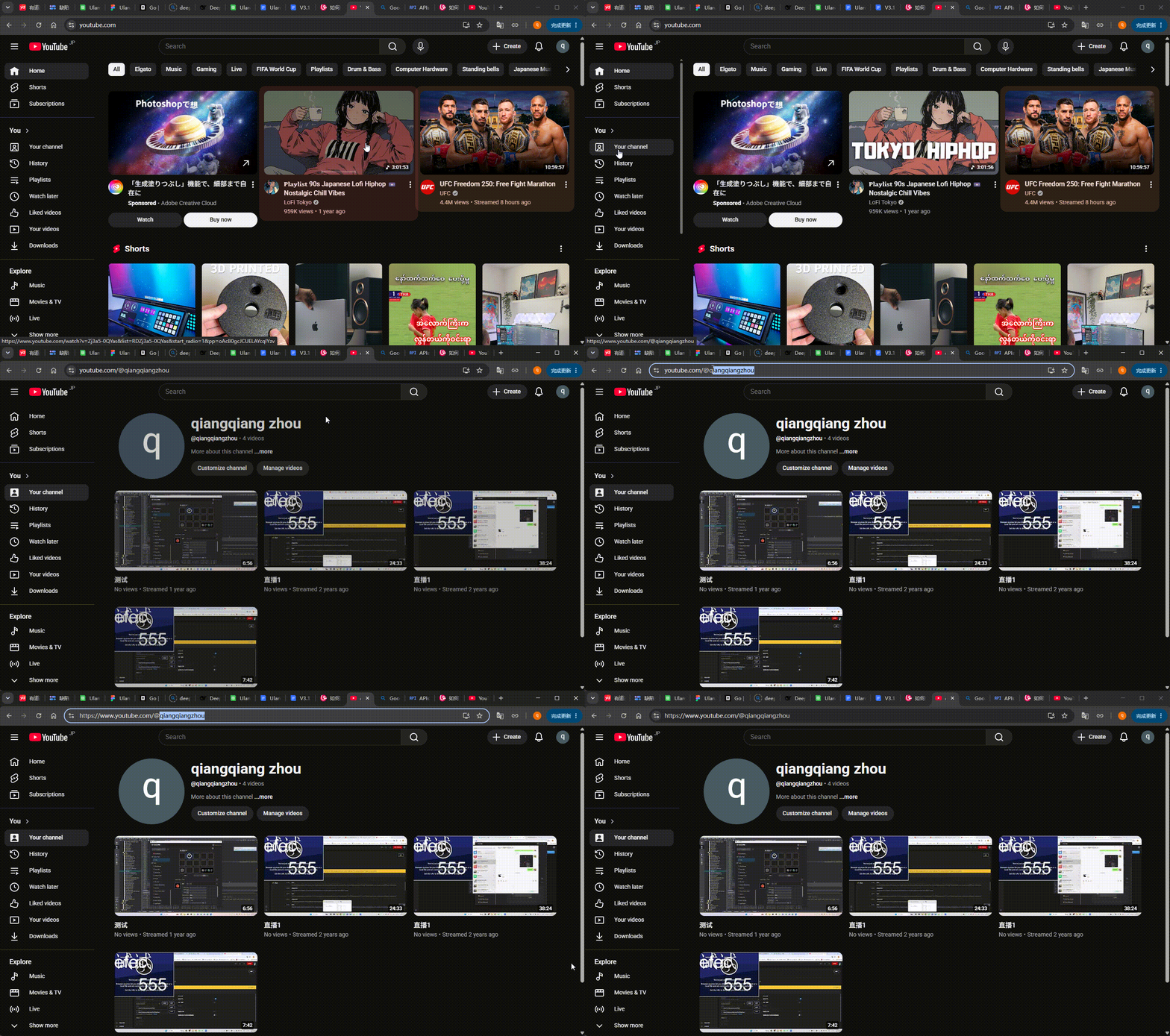
- Sign in to the YouTube website.
- Click your profile picture, then select Your channel.
- Check the channel URL in the browser address bar, for example
https://www.youtube.com/@UlanziOfficial. - Copy the complete user ID beginning with
@, such as@UlanziOfficial. Keep the@when entering it in TC002.
Do not enter the YouTube Channel ID
Do not use the Channel ID from YouTube Advanced settings, which usually begins with UC. The TC002 User ID field requires the @ handle from the channel URL.
Get a Google Cloud API Key (Token)
- Open Google Cloud Console and create or select a project.
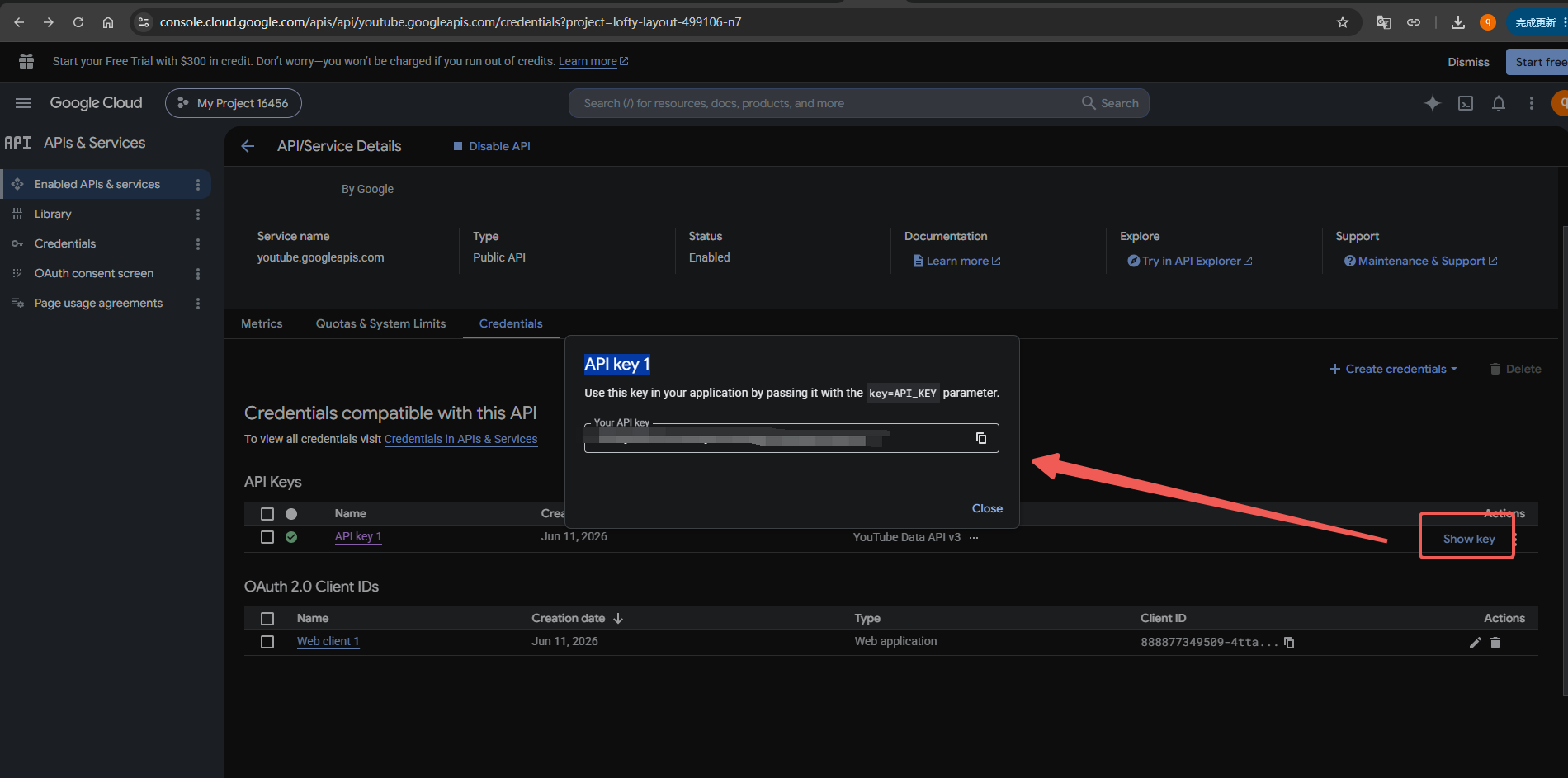
- Go to APIs & Services > Library, search for YouTube Data API v3, and enable it.
- Go to APIs & Services > Credentials, then select Create credentials > API key.
- After the key is created, select Show key, copy the API Key, and enter it in the TC002 Token field.
- We recommend adding API restrictions to the key so that it can access only YouTube Data API v3. Keep the key secure.
Configure TC002
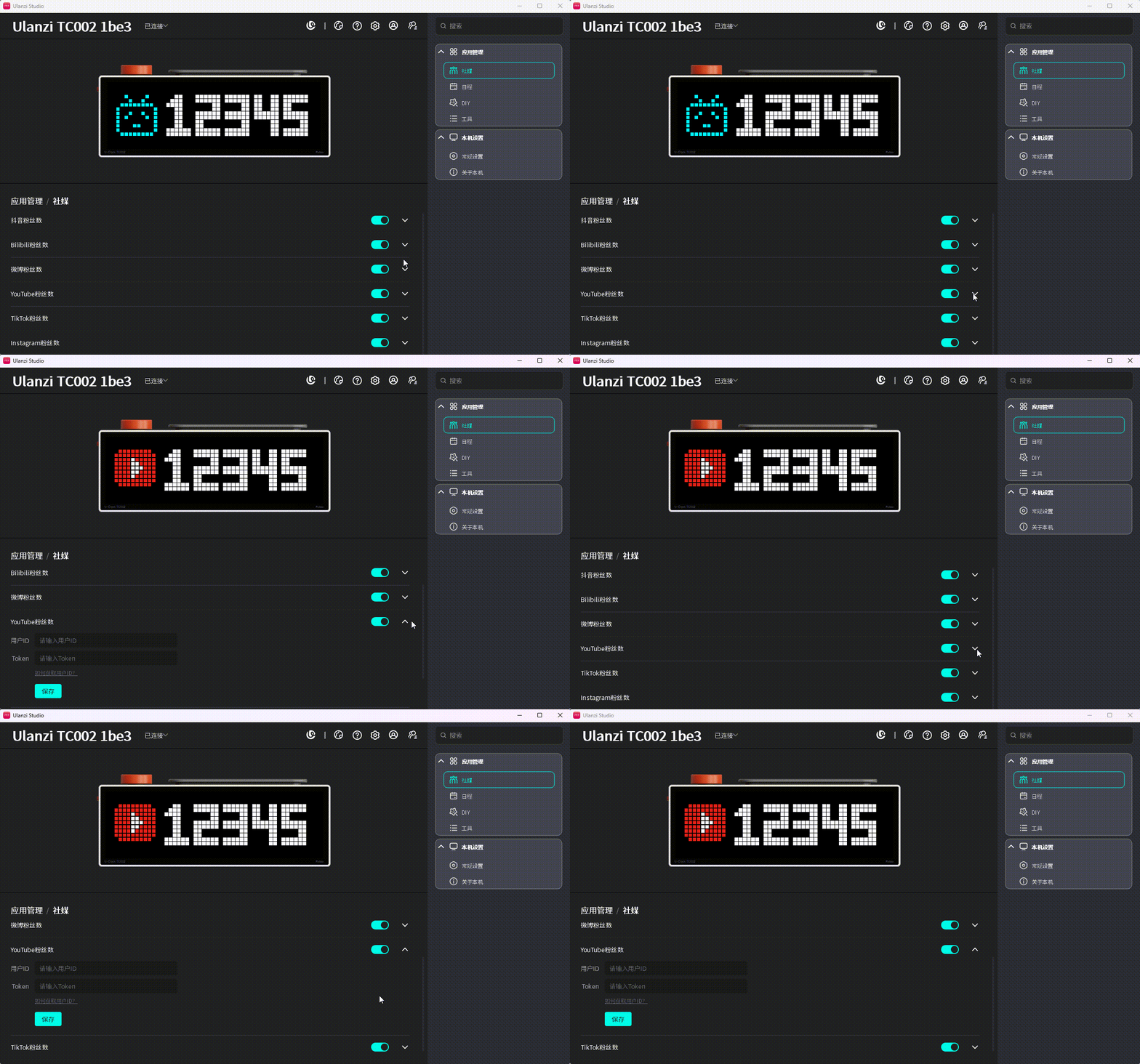
- In the TC002 Social Media app, select the parameter expand/collapse button to open the YouTube settings.
- Enter the channel's
@user ID in User ID and the Google Cloud API Key in Token. - Select Save. A successful validation shows “√” beside the button. A failed validation shows “❗” and an error message.
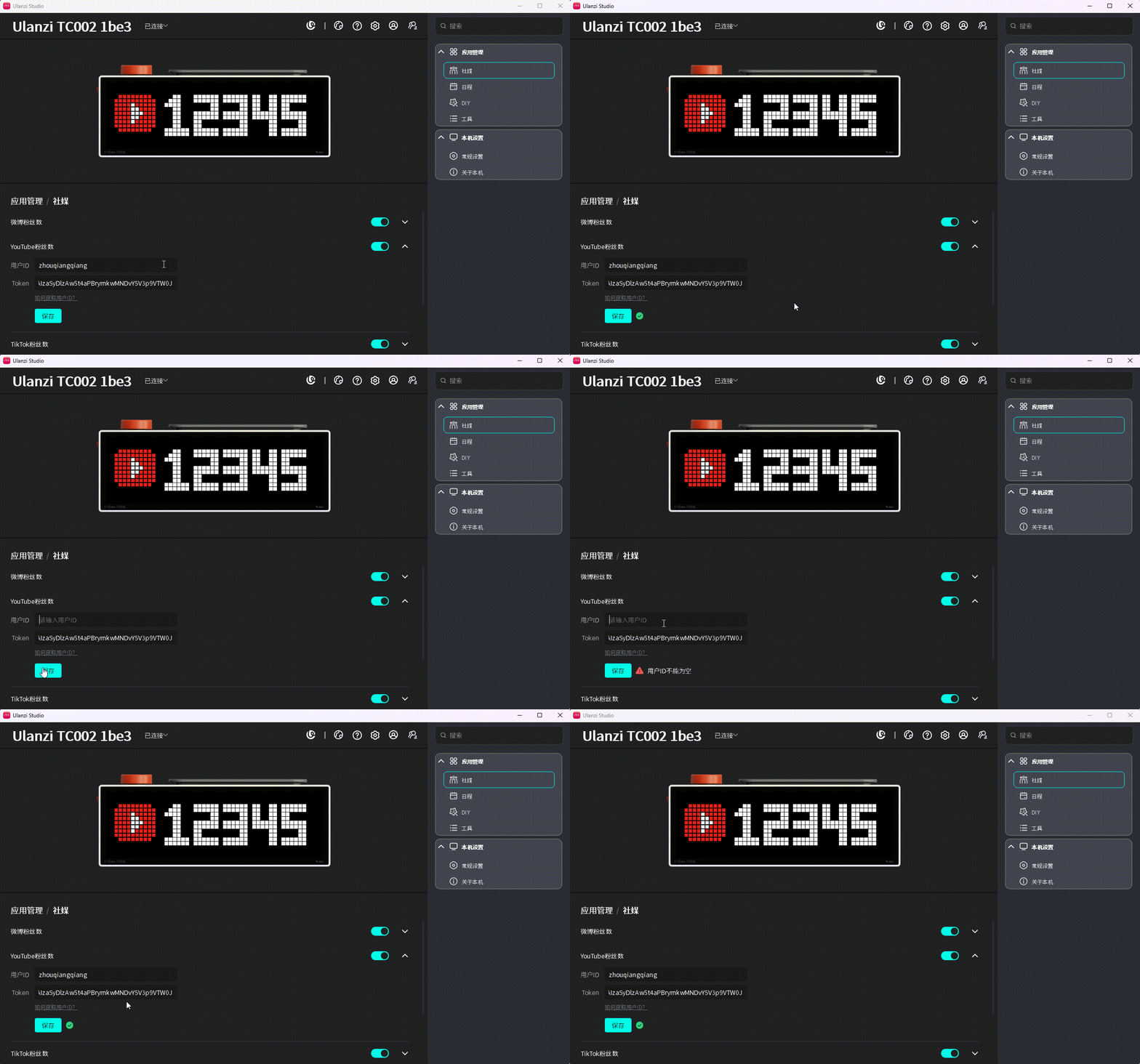
- After saving, switch TC002 to Social Media > YouTube subscriber count to view the channel's subscriber count.

Subscriber data is refreshed automatically every 5 minutes. Keep the device online; saving the configuration triggers an immediate refresh.