How to get an Instagram follower count
This guide explains how to create an Instagram app in Meta for Developers, add your Instagram professional account as a tester, generate an Instagram User Access Token, and verify that it can read the account's follower count.
The flow is intended for personal development, API debugging, and pre-launch testing. While the app is in Development mode, only app administrators, developers, and testers who accepted an invitation can use it.
Important: This guide uses Instagram API with Instagram Login on
graph.instagram.com. It is different from Instagram API with Facebook Login, which requires a Facebook Page.
1. Prerequisites
Prepare the following:
- A Meta/Facebook developer account that can sign in to Meta for Developers.
- An Instagram professional account: Business or Creator.
- Login access to that Instagram account.
- A secure place to store the generated Access Token.
If the account is personal, switch it to Business or Creator first. Instagram API with Instagram Login is designed for professional accounts.
2. Create a Meta app
Open Meta Apps, sign in, and select Create an application in the upper-right corner.

Enter the app name, contact email, and other basic details. On the use-case page, select Managing messages and content on Instagram.
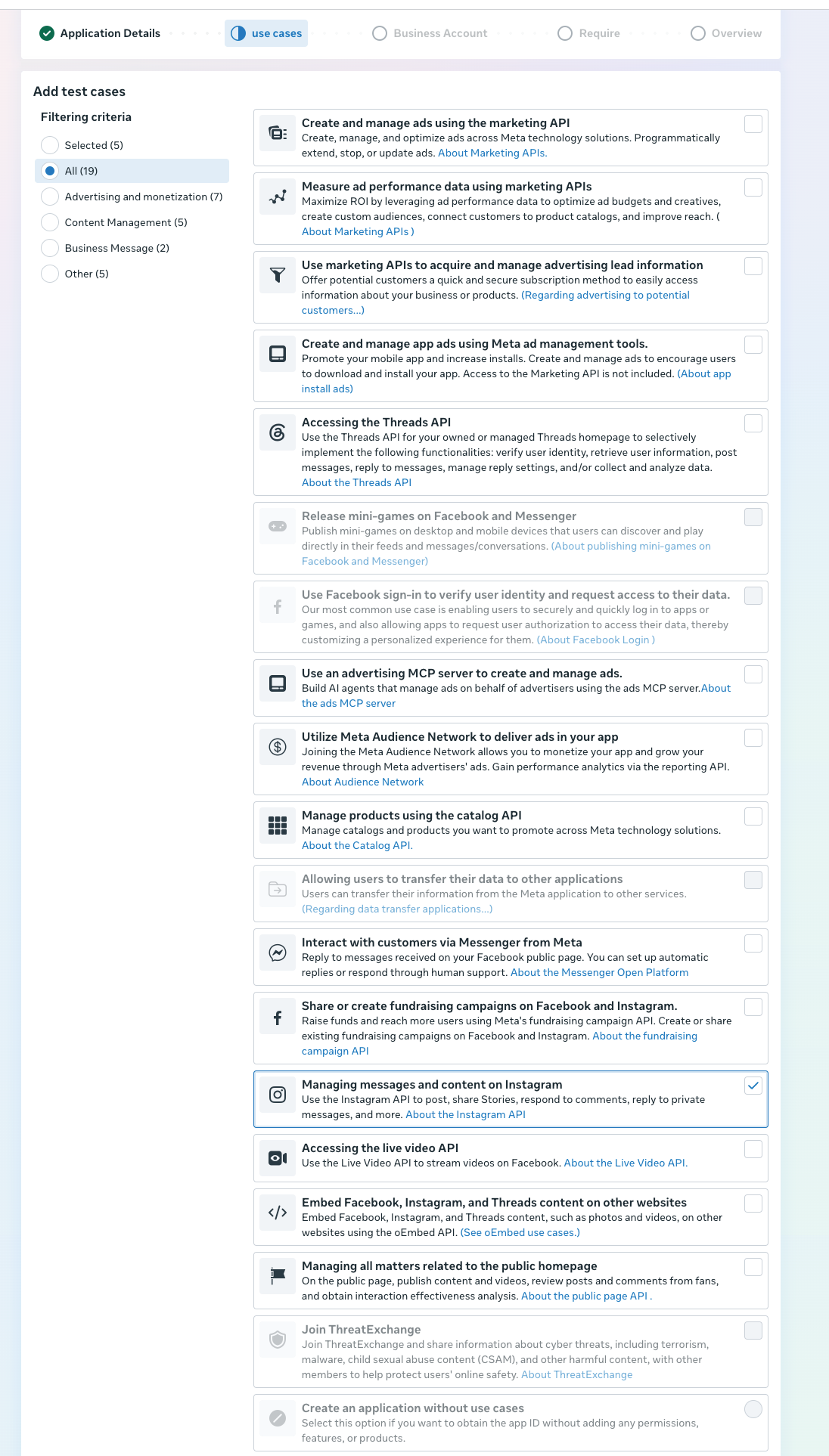
Complete the remaining prompts. After creation, the browser opens the app Dashboard.
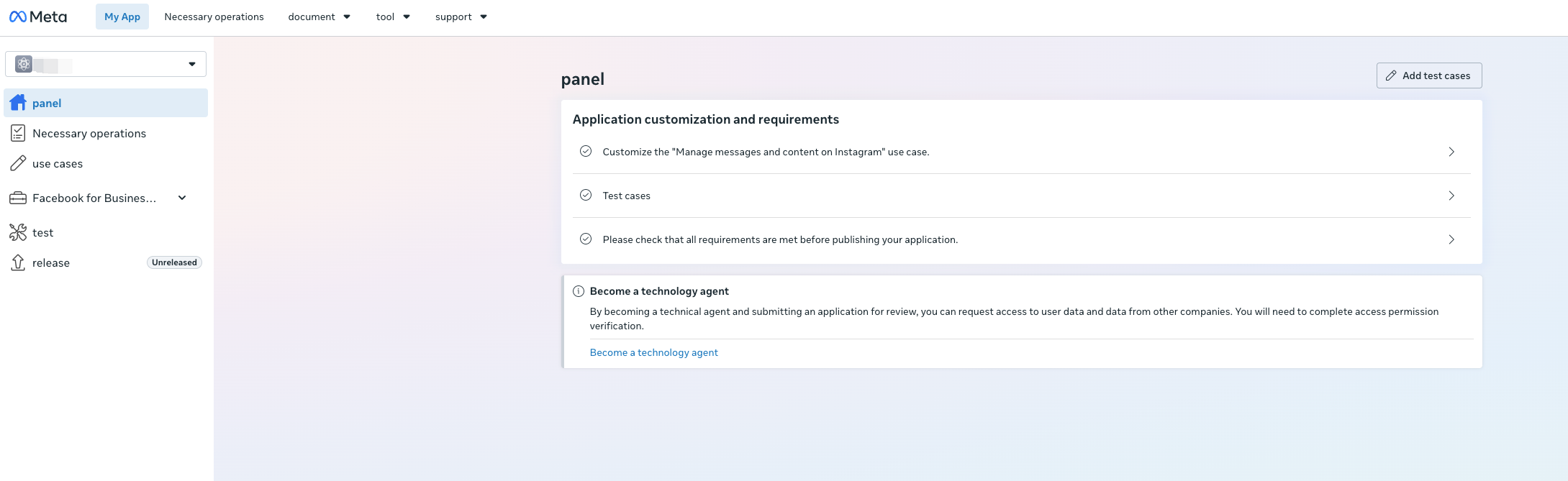
Meta changes its layout and translations periodically. If a label differs, use keywords such as Instagram, Use cases, and Application identity to locate it.
3. Add an Instagram tester
In the app Dashboard, expand Application Identity, open user management, and select Add user in the upper-right corner.
Choose Instagram testers in the dialog and enter the Instagram username to authorize. Do not include @. Confirm the matching account and send the invitation.
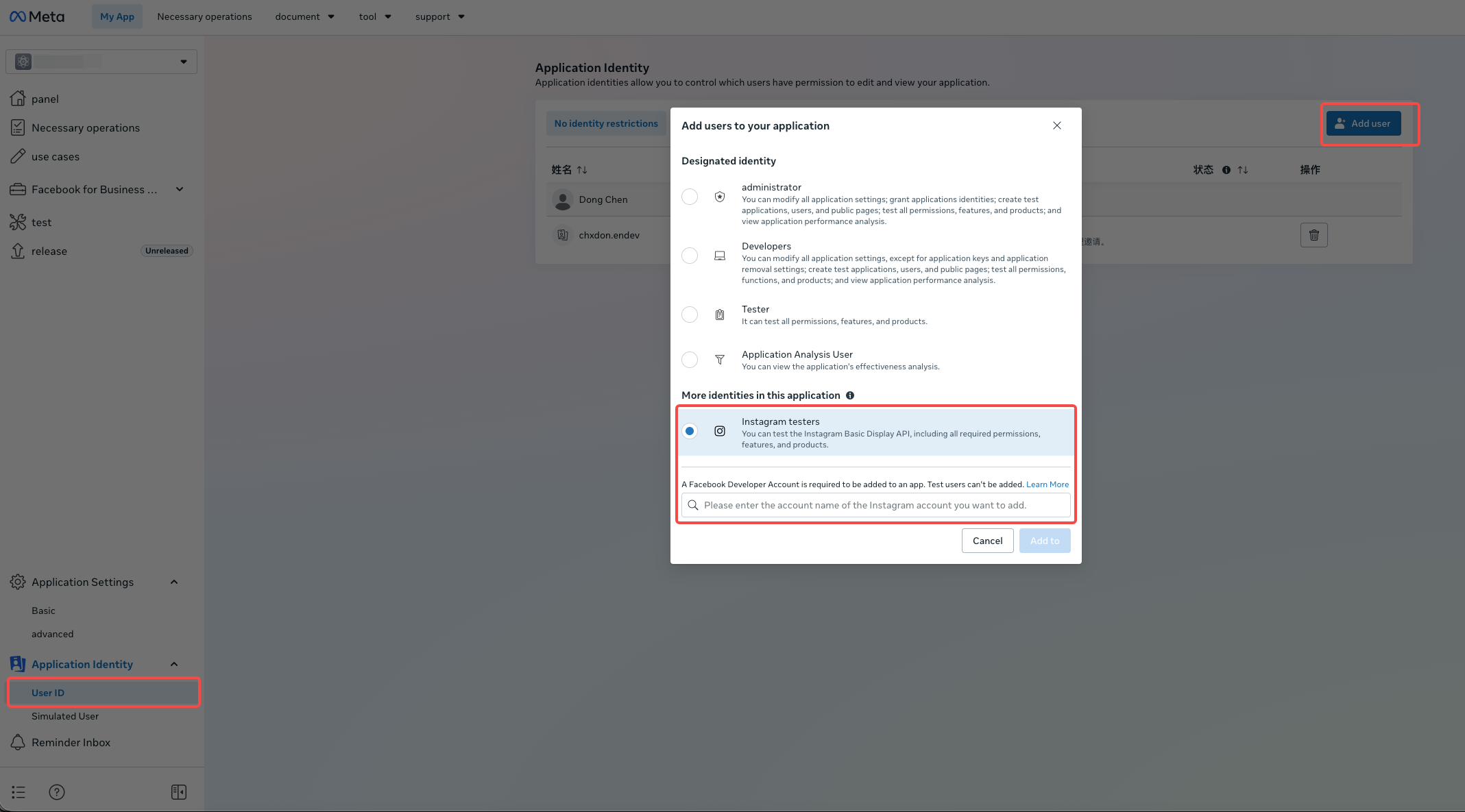
Do not select a regular Tester. Use the separate Instagram testers role shown near the bottom of the dialog.
Some pages may still show old “Instagram Basic Display API” text because Meta has not unified every label. This guide does not use the discontinued Basic Display API.
4. Accept the test invitation on Instagram
Sign in to the Instagram account you added and open:
https://www.instagram.com/accounts/manage_access/
You can also navigate through Instagram settings:
Website permissions
→ Apps and websites
→ Tester Invites
Find the app under Tester Invites and accept it. The account becomes an active tester only after accepting the invitation.
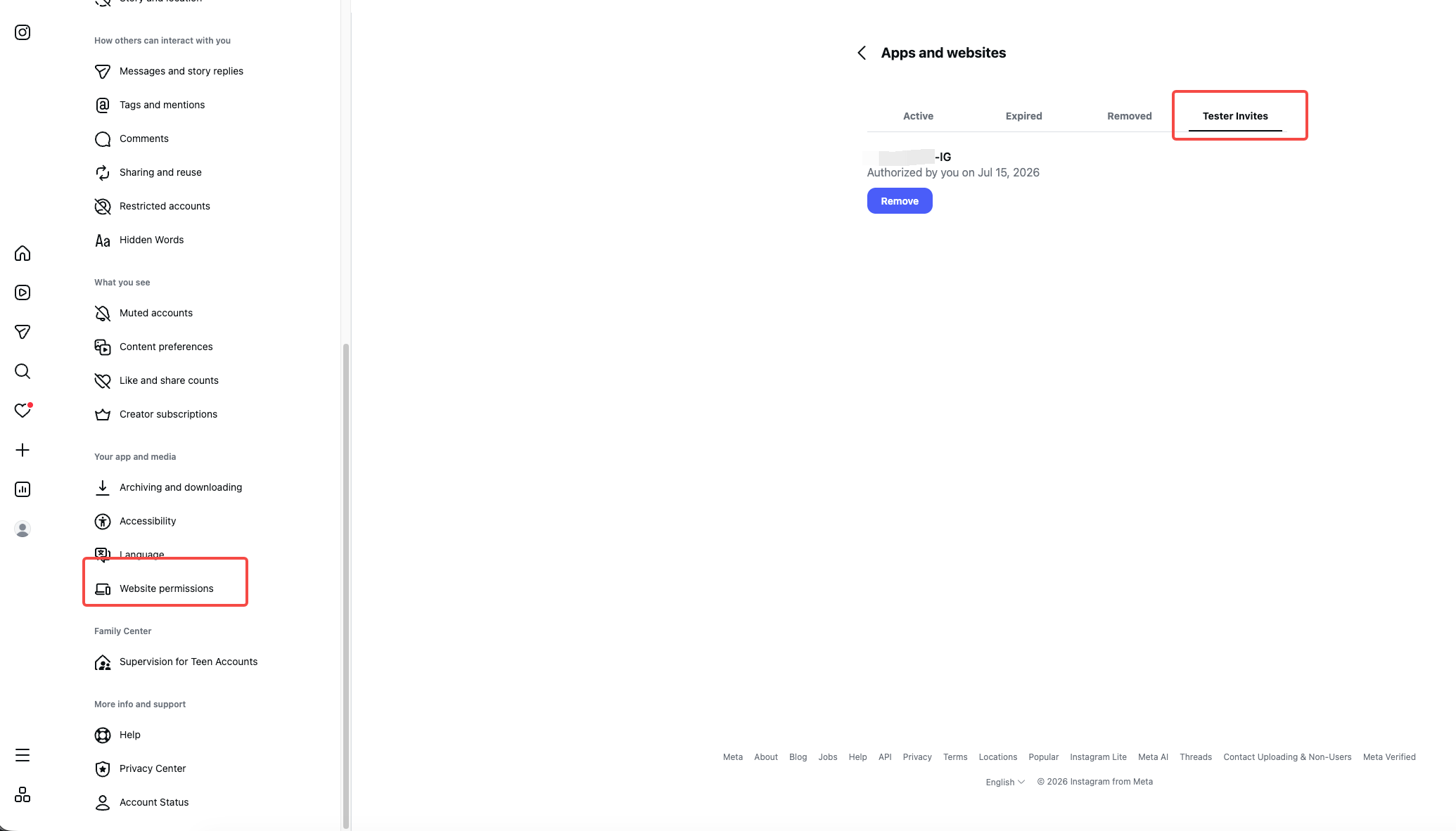
If the invitation is missing, verify that the signed-in username exactly matches the username added in the Dashboard, then sign out and back in.
5. Add the Instagram account and generate a Token
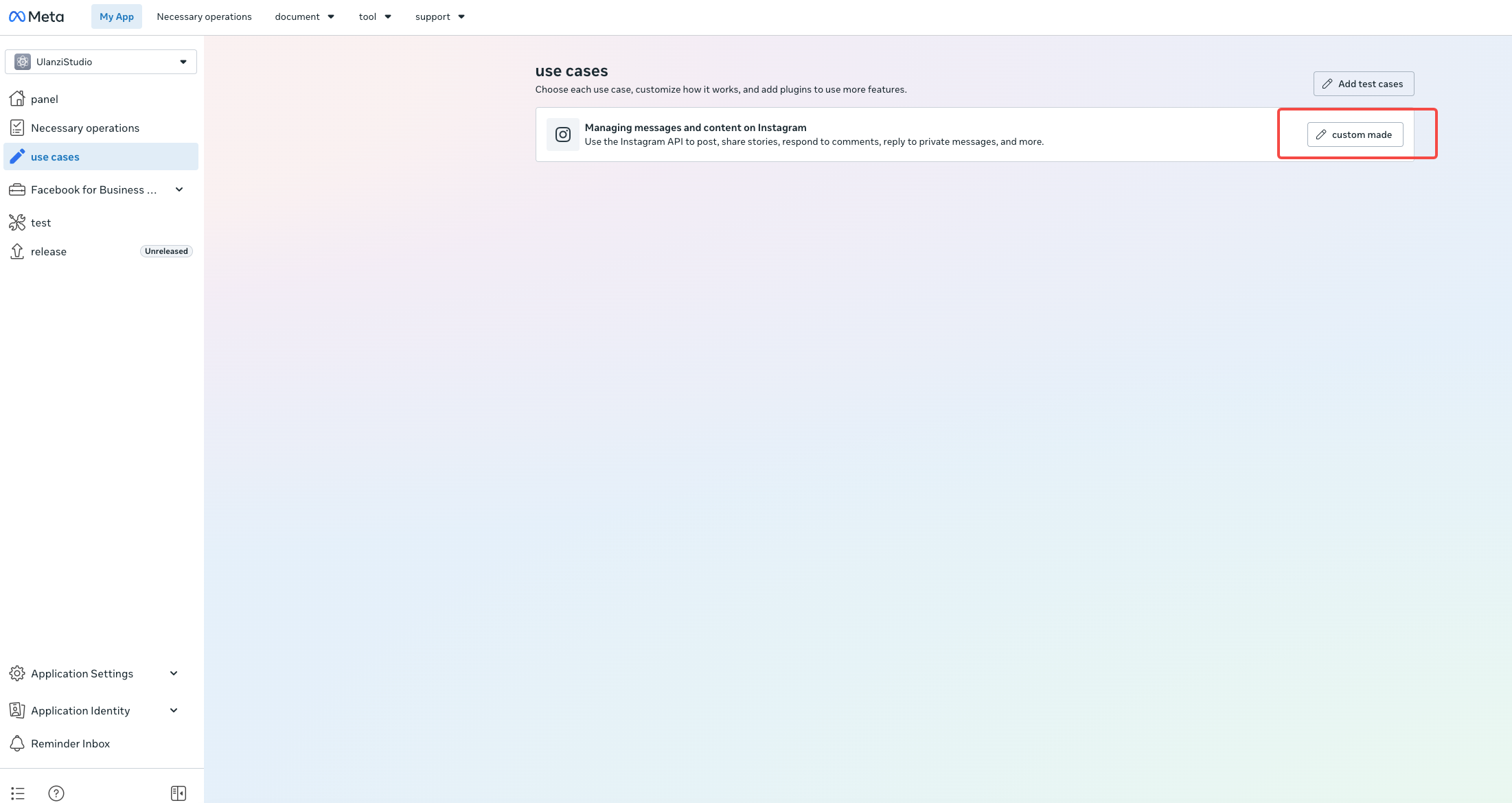
Return to the Meta app Dashboard and open Use cases. Select Customize next to the Instagram use case.
In the Instagram API configuration, select API setup with Instagram Login. The page usually lists these permissions:
instagram_business_basic
instagram_business_manage_comments
instagram_business_manage_messages
For identity and follower-count checks, the essential permission is instagram_business_basic. Request comment, message, or publishing permissions only when the app needs them.
Find Generate access password / Generate access token, select Add account, then sign in with the Instagram account that accepted the tester invitation and complete authorization.
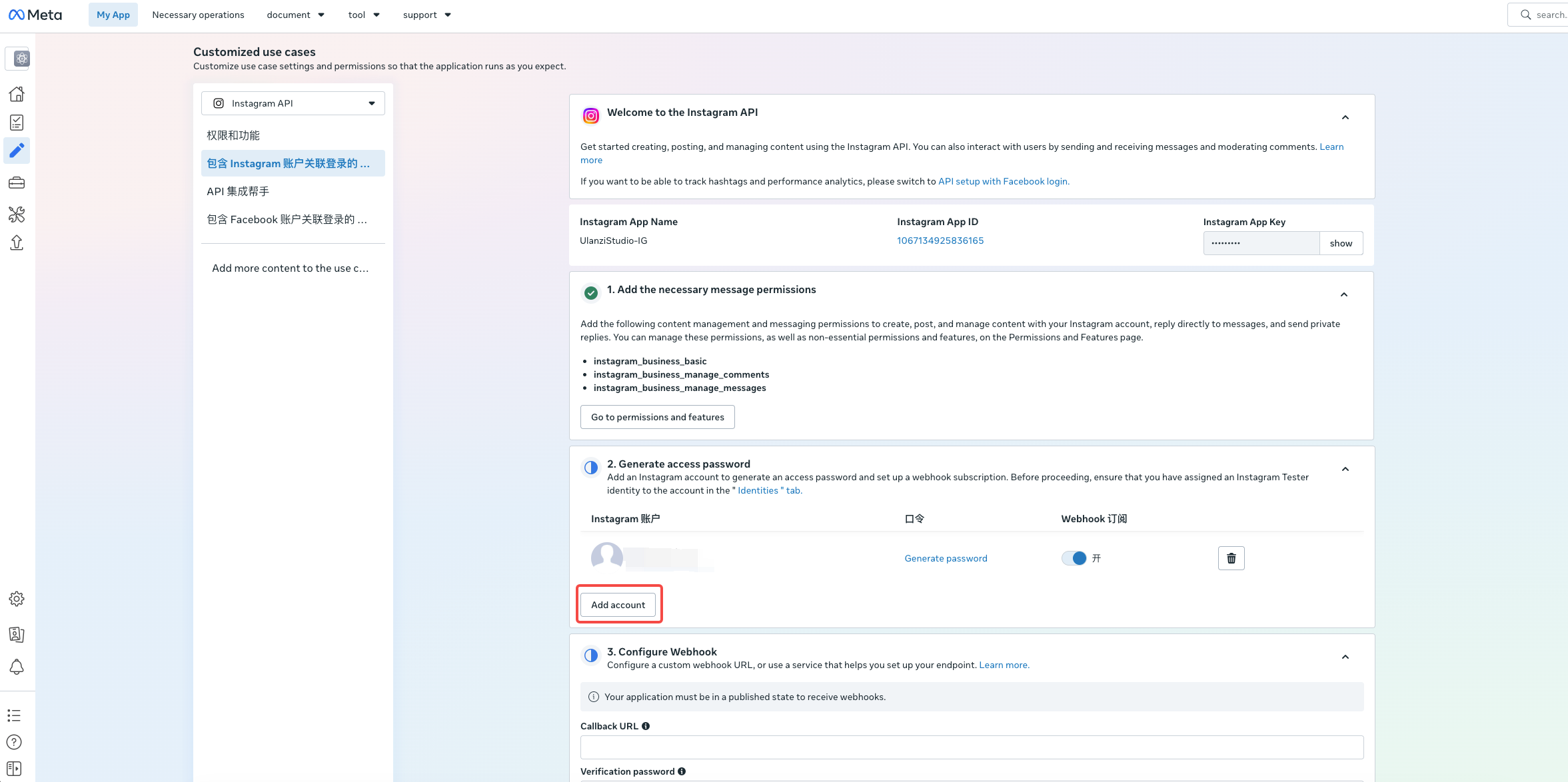
After the account is added, select Generate password / Generate token beside it. Review the prompt, confirm it, and copy the generated string.
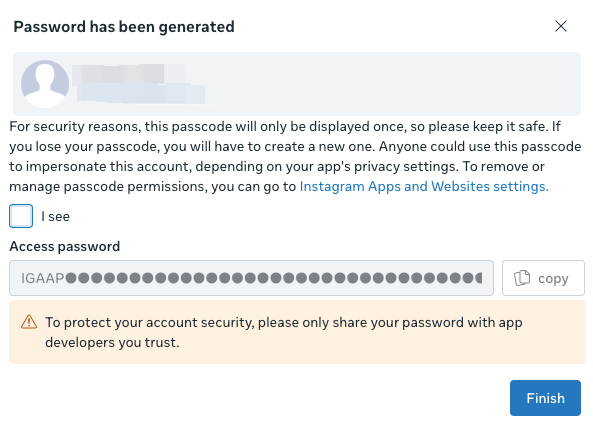
The page may call it an “Access password,” but it is an Instagram User Access Token, not the Instagram login password.
The Token is usually displayed in full only once. Store it immediately in a password manager, server secret vault, or environment variable. Never put it in source code, screenshots, chat, public logs, or Git.
6. Verify the Token with Graph API Explorer
Open Graph API Explorer and configure it as follows:
- Select
GET. - Select the
graph.instagram.comAPI host. - Select a currently supported API version, such as
v25.0in the screenshot. - Enter
me?fields=id,username,followers_countas the path. - Paste the Token into the Access Token field.
- Select Submit.
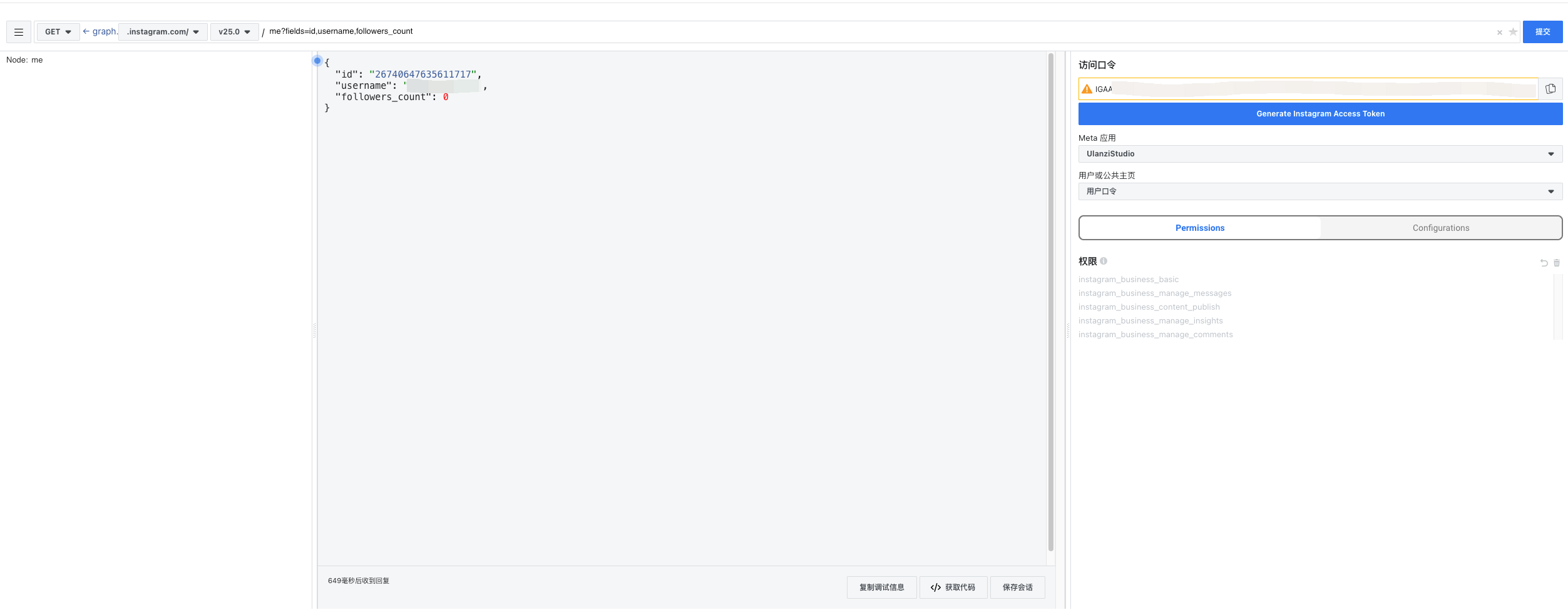
The request is equivalent to:
GET https://graph.instagram.com/v25.0/me?fields=id,username,followers_count
Authorization: Bearer <INSTAGRAM_ACCESS_TOKEN>
You can also use cURL:
curl -G "https://graph.instagram.com/v25.0/me" \
  -H "Authorization: Bearer $INSTAGRAM_ACCESS_TOKEN" \
  --data-urlencode "fields=id,username,followers_count"
A successful response looks like this:
{
  "id": "<INSTAGRAM_USER_ID>",
  "username": "your_username",
  "followers_count": 123
}
If the response contains the correct id, username, and followers_count, the Token, account authorization, and basic permission are working.
For your own professional account, the plural field is followers_count. Messaging User Profile API uses the singular follower_count for a user who interacted through direct messages.
7. Scope and limitations
The test Token generated here is primarily for development by app administrators and Instagram tester accounts.
It can directly read only Instagram professional accounts that authorized the current app. It cannot query any personal account by username or read private information from an unauthorized account.
In Development mode, only app roles and testers who accepted invitations can authorize. To support customers, implement the production Instagram Login/OAuth flow and complete app publishing, business verification, or App Review as required.
To query another unauthorized public Business or Creator account, evaluate Business Discovery under Instagram API with Facebook Login. The Instagram Login Token generated here cannot use that feature directly.
8. Frequently asked questions
1. I cannot find the Instagram user when adding the account
Confirm that the account was added as an Instagram tester and accepted the invitation under Tester Invites on Instagram. Entering the username in the Dashboard alone is not enough.
2. The API returns Invalid OAuth access token
Confirm that the host is graph.instagram.com, the Token contains no extra spaces, and it has not expired or been revoked. Do not send an Instagram Login Token to the Business Discovery endpoint on graph.facebook.com.
3. The API returns Tried accessing nonexisting field
Check the field spelling and object type. Your own professional account uses followers_count; Messaging User Profile API uses follower_count for a direct-message user.
4. Explorer works, but my application does not
Confirm that the application sends the same Token to the same API host and version. Use the Authorization: Bearer header and check that the server is not truncating the Token.
5. What should I do if the Token is exposed?
Revoke it immediately in the Meta/Instagram app authorization settings and generate a replacement. Treat every Token shown in chat, logs, screenshots, or a repository as exposed.