DingTalk
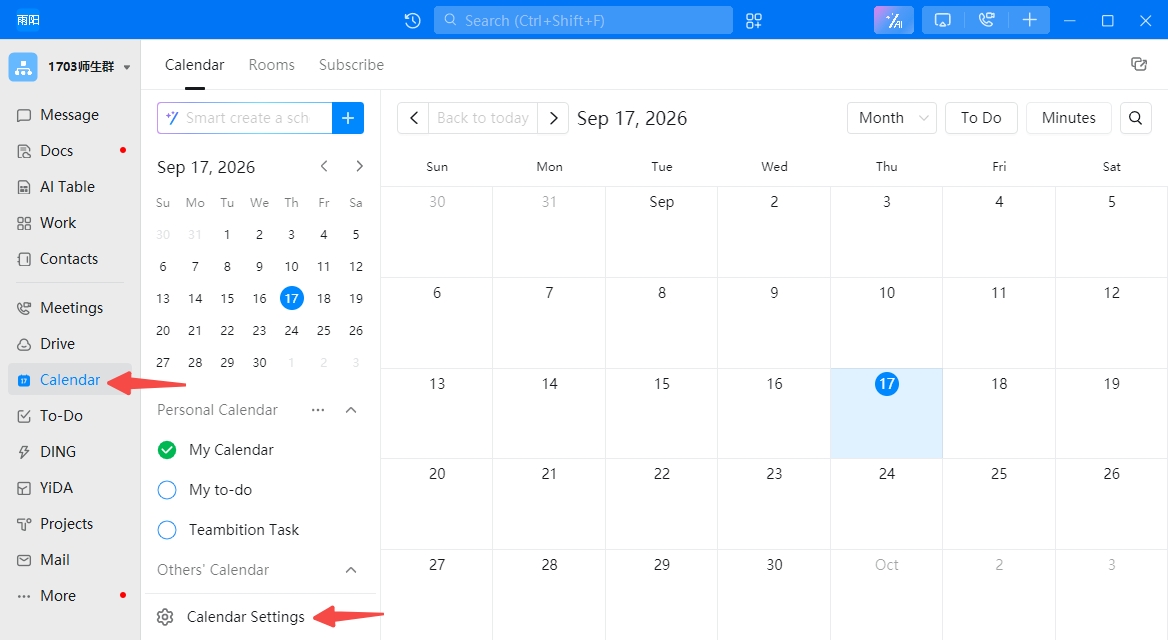
- In the DingTalk desktop app, click Calendar in the left navigation, then click Calendar Settings in the bottom-left corner
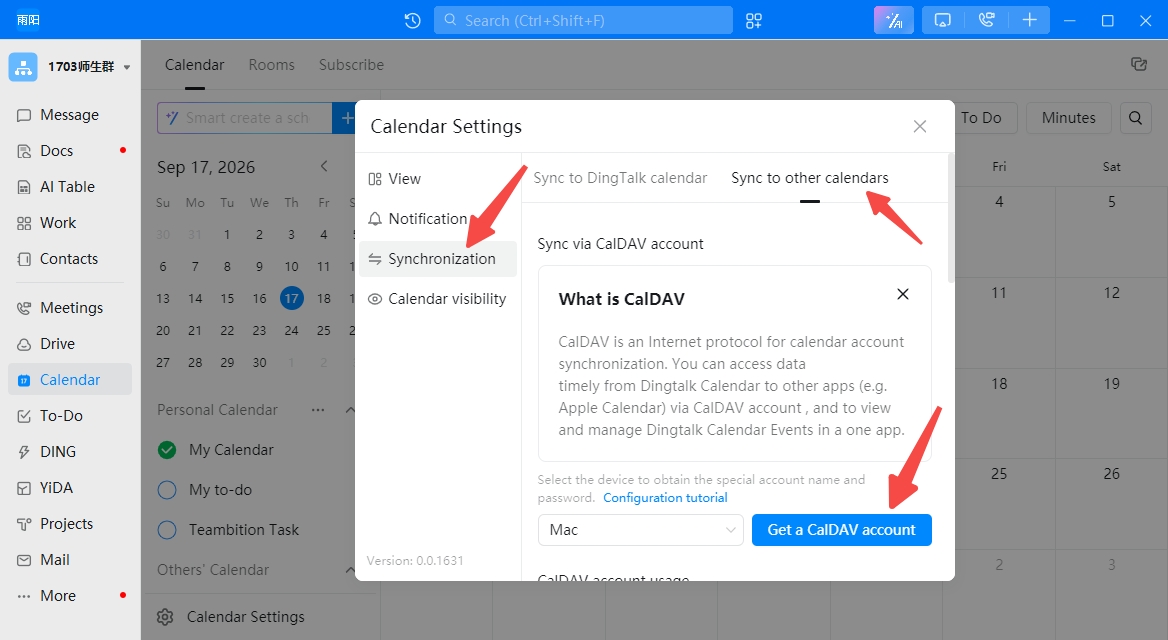
- In Calendar Settings: first click Sync, then click Sync to Other Calendars, then select a device, and finally click Get CalDAV Account
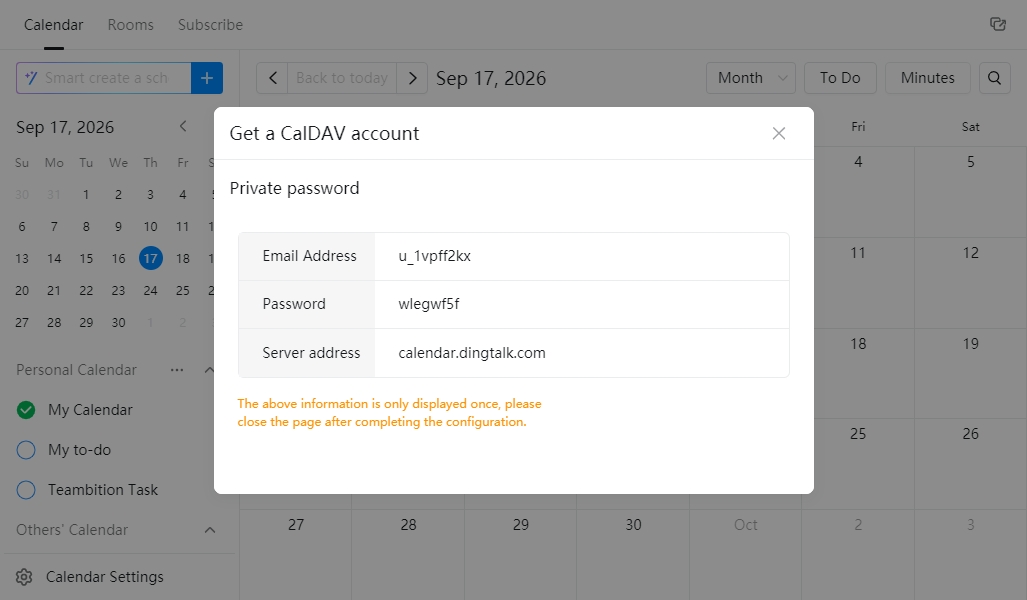
- Copy the account, password, and server address in order
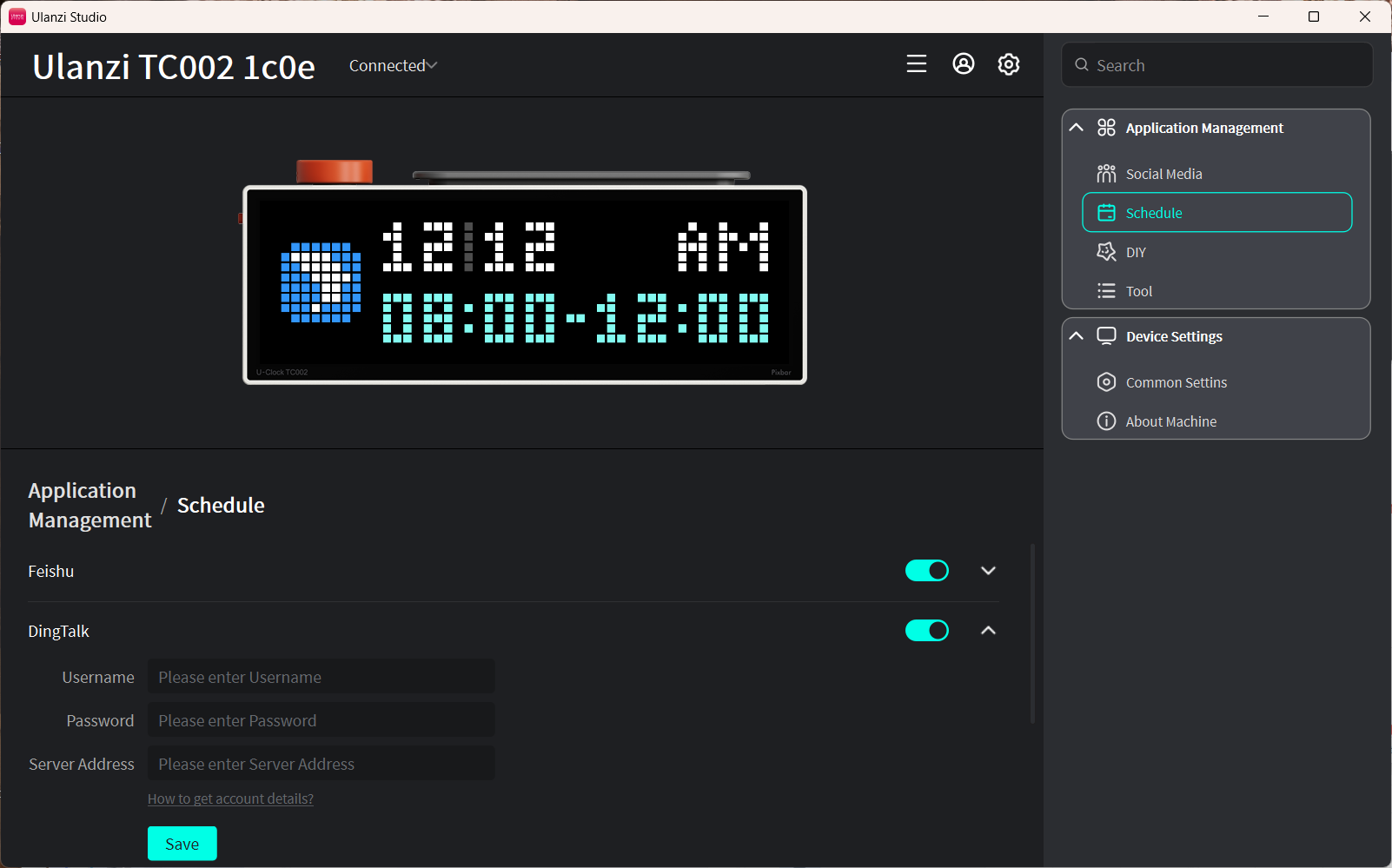
- Paste them into the account, password, and server fields in the DingTalk schedule feature, then click Save
Notes
- Only today's events are displayed, up to the two most recent entries.
- Data syncs automatically every 5 minutes.
- Keep the device connected to the internet. After modifying events, click Save in Ulanzi Studio to refresh immediately.