TC002 Setup Stuck at 100%? Troubleshooting Guide
When setup reaches 100% and stops, Ulanzi Studio has already sent the Wi-Fi configuration and is waiting for the device to connect to the local network and report that it is online. This signal is sent over UDP port 55555, and setup is only complete after Studio receives it.
Being stuck at 100% does not necessarily mean the password is wrong. If the setup screen shows an error, check the explanations below first.
Check the Error Message First
The setup screen may show one of these messages when progress is stuck at 100%:
- PWDERR: The Wi-Fi information is incorrect. The device received the credentials but could not connect because either the password or SSID is wrong. Return to the setup screen, verify the Wi-Fi name and password, and try again.
- WEAK: The signal is too weak. The router signal at the device's location is not strong enough to complete the handshake. Move the device closer to the router and run setup again.
If neither message appears, continue with the steps below.
Windows Troubleshooting
1. Check Whether the Device Joined the Network
Open your router's management page and look for a TC002 in the client list.
- Found: The device has connected to Wi-Fi, but the computer is not receiving its broadcast. Continue to step 2.
- Not found: The device did not join the network. Skip to step 6.
2. Disconnect VPNs and Disable Virtual Network Adapters
VPNs, Hyper-V, WSL, Docker, and VMware create virtual network adapters. The UDP broadcast may be routed through a virtual adapter instead of the local network.
Disconnect the VPN, temporarily disable virtual network adapters, and try again.
3. Check the Network Profile
Open Windows Settings → Network & Internet → Properties and confirm that the current connection is set to Private network, not Public network.
Public networks restrict incoming UDP traffic.
4. Check the Firewall
Open Windows Security → Firewall & network protection → Allow an app through firewall. Confirm that Ulanzi Studio is in the list and enabled for both Private and Public networks.
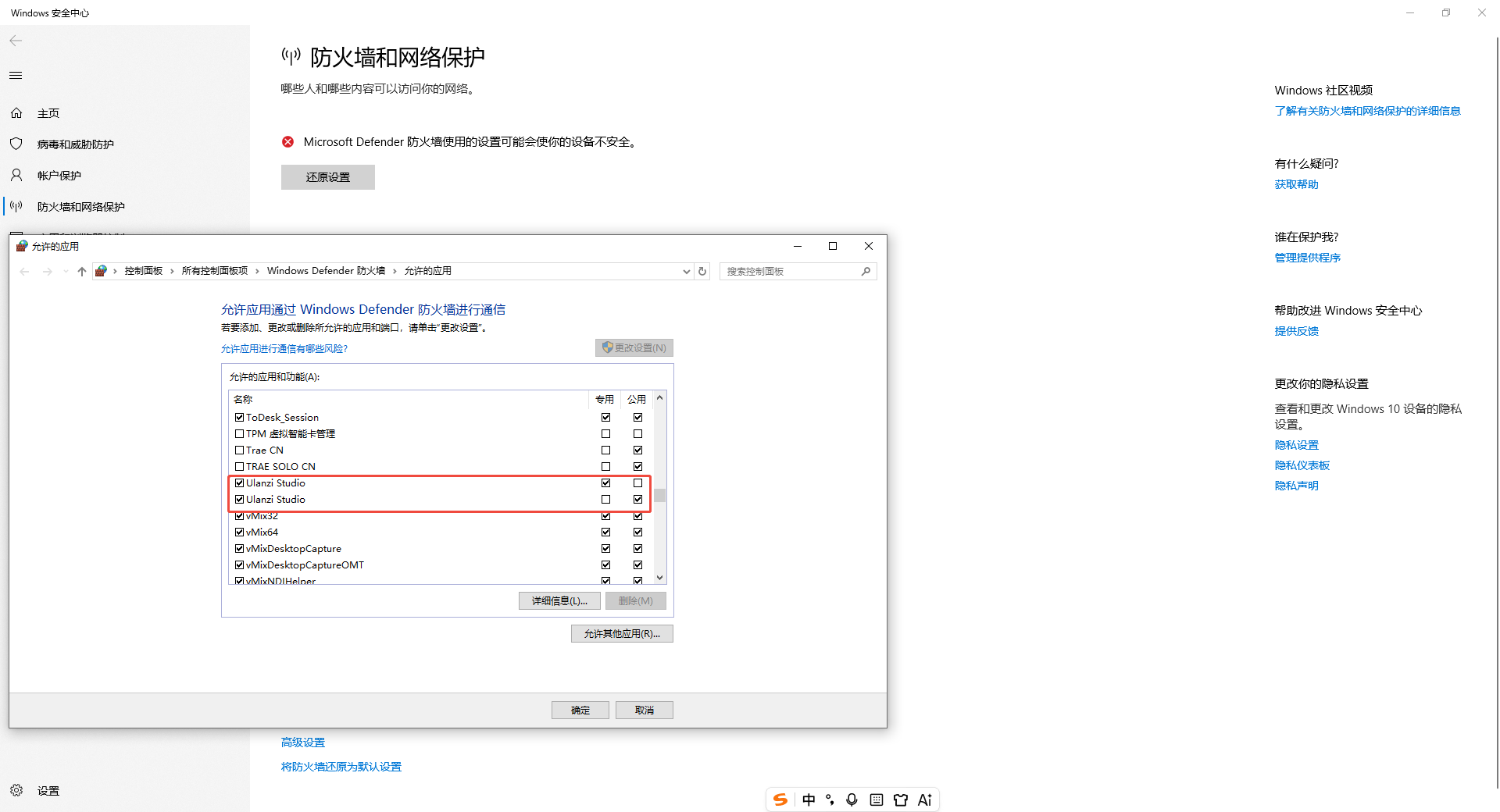
If you use third-party security software, also check its network protection or firewall rules.
5. Check Whether the Port Is in Use
If another application is using port 55555, Studio cannot receive the device broadcast.
Open Task Manager and check for other running Ulanzi instances. Keep only one Studio instance open on the computer.
6. If the Device Did Not Join the Network
If the device is missing from the router's client list, check the following:
- Make sure the Wi-Fi network is 2.4 GHz. TC002 does not support a 5 GHz-only network.
- Check the Wi-Fi security mode. WPA3-only and enterprise 802.1X networks are not supported.
- Avoid Chinese characters, spaces, or special characters in the SSID, as some firmware versions may not support them.
- Disable AP isolation and guest networks, which prevent devices from seeing each other.
- Move the device closer to the router if the Wi-Fi signal is weak.
- Re-enter the password on the Studio setup screen. Do not send your Wi-Fi password in a chat.
macOS Troubleshooting
1. Check Local Network Permission
Open System Settings → Privacy & Security → Local Network.
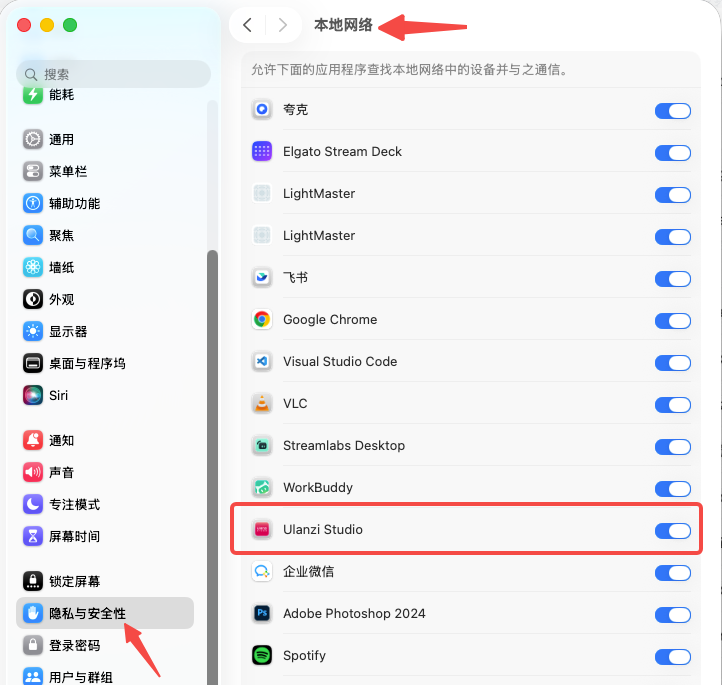
Is Ulanzi Studio listed?
- Listed and enabled: Permission is configured correctly. Continue below.
- Listed but disabled: Enable it, then restart Studio.
- Not listed: This is a known issue. Studio discovers devices through UDP broadcast, which does not trigger the macOS permission prompt, so the app may not appear in the list. A software update is required for a permanent fix. As a temporary workaround, run
tccutil reset All com.ulanzi.UlanziDeckin Terminal, restart Studio, and try again.
2. Check Whether the Device Joined the Network
As on Windows, open the router's client list and look for the TC002.
- Found: The device is online, but the Mac is not receiving its broadcast. Continue to step 3.
- Not found: The device did not join the network. Skip to step 6.
3. Disconnect VPNs and Disable Virtual Network Adapters
VPNs, Parallels, Docker, and VirtualBox also create virtual network adapters on a Mac. The broadcast may be routed through the wrong interface.
Disconnect the VPN, temporarily disable virtual network adapters, and try again.
4. Check the Firewall
Open System Settings → Network → Firewall. Confirm that the firewall is enabled and Ulanzi Studio.app is set to Allow incoming connections.
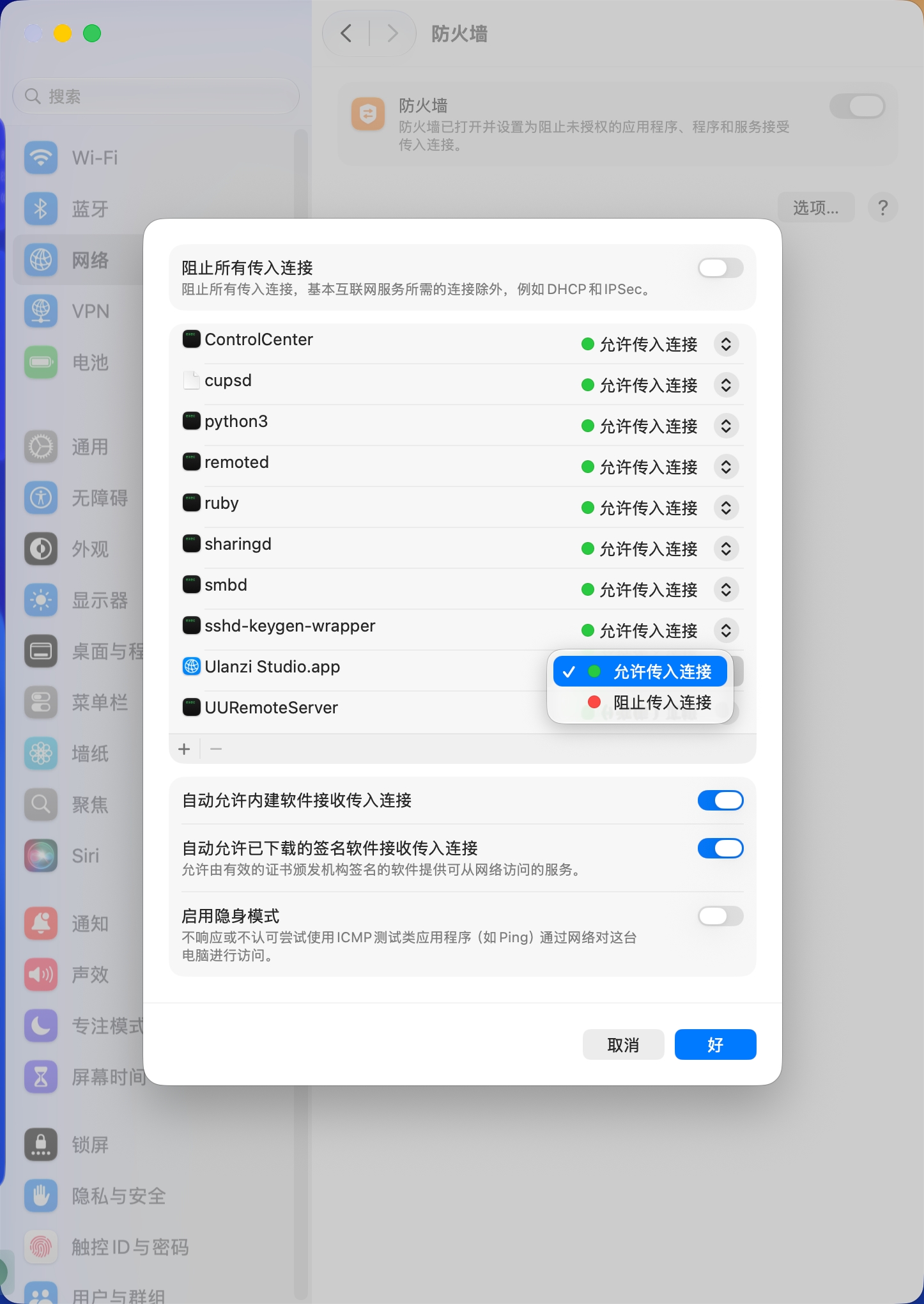
If the firewall is disabled, enable it and run setup again in Studio.
5. Confirm Both Devices Are on the Same Local Network
The Mac and TC002 must be on the same Wi-Fi subnet. If the Mac uses Ethernet while the device uses Wi-Fi, confirm that both connections belong to the same subnet.
Disable AP isolation and guest networks, which prevent devices from seeing each other.
6. If the Device Did Not Join the Network
Check the same network requirements as on Windows:
- Use a 2.4 GHz network.
- Do not use WPA3-only or enterprise Wi-Fi.
- Avoid Chinese characters, spaces, and special characters in the SSID.
- Disable AP isolation and guest networks on the router.
- Move the device closer to the router.
- Re-enter the password on the Studio setup screen.
Still Not Working?
Prepare the following information before contacting customer support:
- Operating system and exact version
- Whether the TC002 appears in the router's client list
- Wi-Fi band: 2.4 GHz or 5 GHz
- Whether a VPN or virtual network adapter is in use
- Ulanzi Studio version
This information will help us identify the problem more quickly.