Pixel Clock TC002 H5 Documentation
Wi-Fi Not Supported
1.1 Supported Network Environments
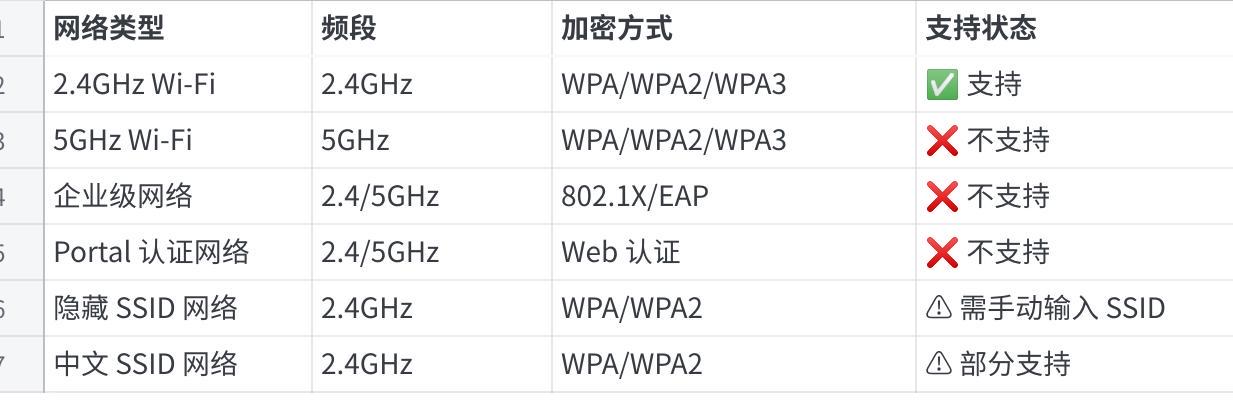
Click the image to view the full spreadsheet
1.2 Unsupported Routers/Network Types
1.2.1 5GHz Band Networks
Issue Description: The device only supports the 2.4GHz band and cannot connect to 5GHz Wi-Fi.
How to Identify:
The Wi-Fi name contains a "5G" suffix (e.g., "MyWiFi_5G").
Only the 5GHz band is enabled in the router settings.
A 5G icon is displayed when a mobile phone is connected.
Solution:
  1. Log in to the router management backend (usually 192.168.1.1 or 192.168.0.1).
  2. Go to "Wireless Settings" or "Wi-Fi Settings".
  3. Enable the 2.4GHz band.
  4. Ensure 2.4GHz and 5GHz use different SSIDs (Wi-Fi names).
  5. After saving the settings, use the 2.4GHz network to reconfigure the network.
1.2.2 Enterprise Networks (802.1X/EAP Authentication)
Issue Description: Enterprise networks requiring a username + password authentication are not supported.
Typical Scenarios:
Company office networks
School campus networks
Hotel authenticated networks
Networks requiring web page login
Solution:
  Option 1: Use a mobile hotspot
  1. Turn on the personal hotspot on your phone (2.4GHz band).
  2. Connect the device to the mobile hotspot to complete network configuration.
  3. Subsequently, it can be controlled via the local area network (LAN).

  Option 2: Contact the network administrator
  1. Apply for an independent 2.4GHz guest network.
  2. Or use a network with simple WPA2-PSK encryption.
1.2.3 Dual-Band Combined Networks
Issue Description: The router has the "Dual-Band" (Smart Connect) feature enabled, using the same name for both 2.4G and 5G.
How to Identify:
There is only one Wi-Fi name, but the device cannot connect.
The router has the "Smart Band Switching" feature enabled.
Solution:
  1. Log in to the router management backend.
  2. Find the "Dual-Band" (Smart Connect) option.
  3. Disable this feature.
  4. Set different Wi-Fi names for 2.4GHz and 5GHz respectively.
  Example:
  - 2.4GHz: MyWiFi_2.4G
  - 5GHz: MyWiFi_5G
  5. After saving, connect to the 2.4GHz network to reconfigure the network.
1.2.4 Special Characters/Non-English SSIDs
Issue Description: Wi-Fi names containing special characters, emojis, or non-English characters may cause network configuration to fail.
Unsupported Characters:
Emojis (😀🎉, etc.)
Special symbols (#$%&*, etc.)
Some Chinese characters (poor compatibility)
Solution:
  1. Change the Wi-Fi name to a combination of pure English letters + numbers.
  Recommended format: Letters + Numbers (e.g., HomeWiFi2024)
  2. Avoid using spaces and special characters.
  3. Restart the router after modification.
  4. Use the new name to reconfigure the network.
1.2.5 MAC Address Filtering
Issue Description: The router has MAC address whitelist/blacklist filtering enabled.
How to Identify:
Other devices can connect normally.
TC002 continuously shows "Connection Failed".
The router has "Device Management" or "Access Control" enabled.
Solution:
  Option 1: Temporarily disable MAC filtering
  1. Log in to the router management backend.
  2. Go to "Wireless Settings" -> "MAC Address Filtering".
  3. Temporarily disable the filtering feature.
  4. After completing network configuration, add the device's MAC to the whitelist.