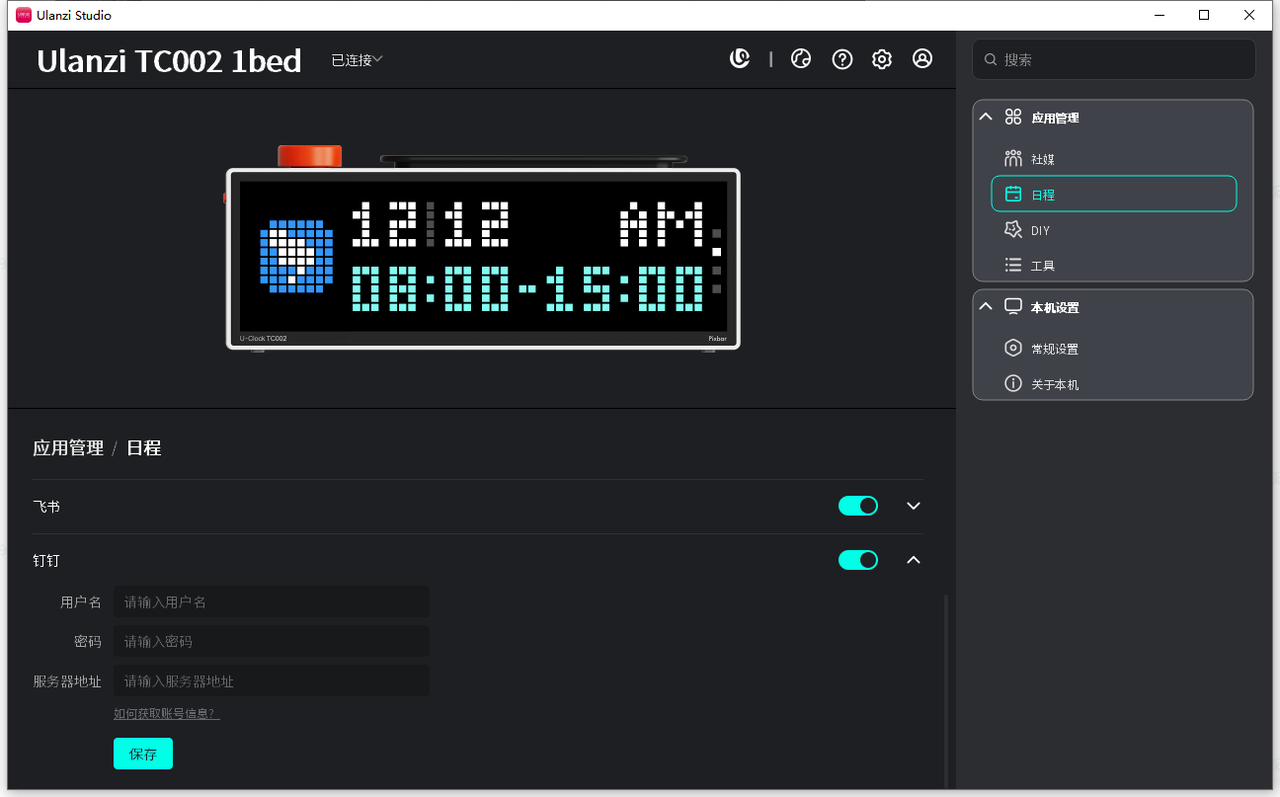
DingTalk: Get CalDAV Sync Account
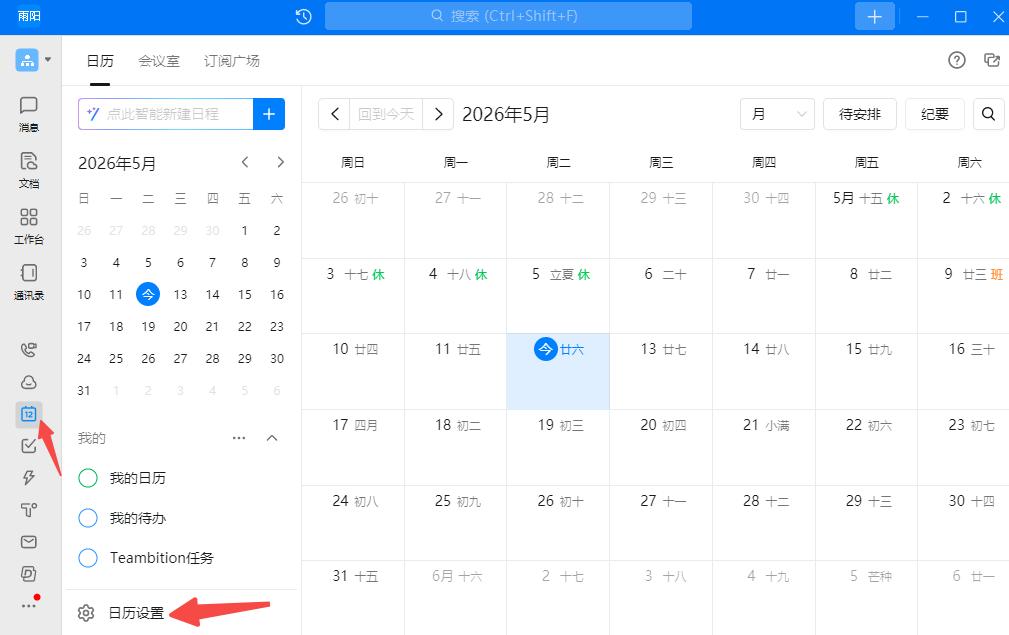
- In the DingTalk desktop app, click “Calendar” in the left navigation, then click “Calendar settings” in the bottom-left corner.
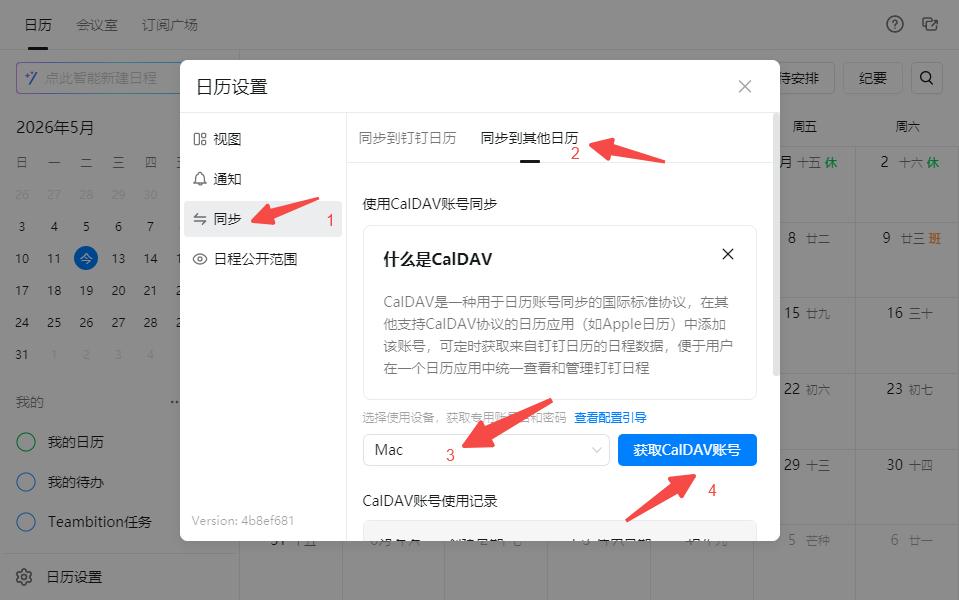
- In Calendar settings: Step 1 click Sync, Step 2 click Sync to other calendars, Step 3 click Select device, Step 4 click Get CalDAV account.
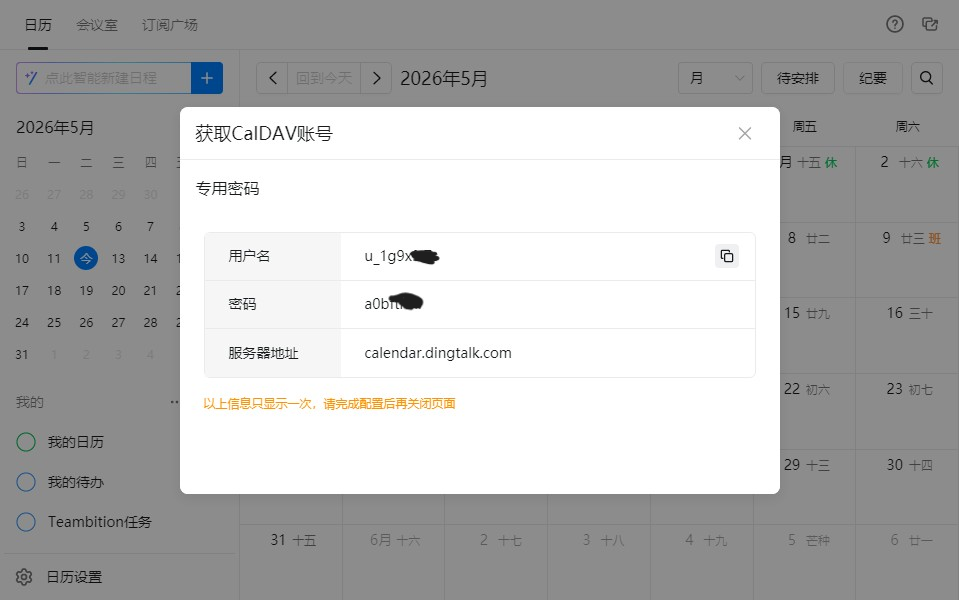
- Copy the account, password, and server address in order.
- Paste them into the account/password/server input boxes of the DingTalk Schedule feature and click Save.