Device Offline Troubleshooting Guide
2.1 Identifying Offline Status
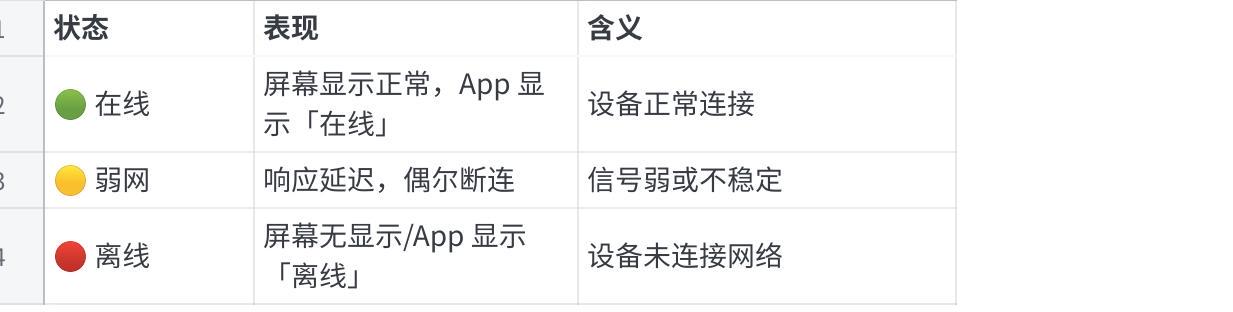
Click the image to view the full spreadsheet
2.2 Common Causes and Solutions for Offline Status
Issue 1: Offline after Router Restart/Replacement
Symptom: The device shows as offline after the router is restarted, replaced, or the password is changed.
Cause: The Wi-Fi information saved on the device does not match the new network.
Solution: Reconfigure the network.
Issue 2: Device Out of Wi-Fi Range
Symptom: The device goes offline in a specific location but recovers when moved.
Cause: Insufficient Wi-Fi signal strength (below -75dBm).
How to Check: Use your phone to check.
- Connect your phone to the same Wi-Fi network.
- Stand at the device's location.
- Check the Wi-Fi signal bars on your phone.
- Less than 2 bars indicates a weak signal.
Solution:
Adjust the device's location.
- Move the device closer to the router.
- Avoid obstruction by metal objects.
- Keep away from interference sources like microwaves and Bluetooth devices.
Issue 3: IP Address Conflict
Symptom: The device intermittently goes offline or fails to obtain an IP address.
Cause: The IP address assigned by the router's DHCP conflicts with another device.
Solution:
  Step 1: Restart the router
  1. Unplug the router's power supply.
  2. Wait for 30 seconds.
  3. Plug it back in and start it.
  4. Wait for the router to fully start (about 2 minutes).

  Step 2: Set a static IP (Recommended)
  1. Log in to the router management backend.
  2. Go to "DHCP Server" -> "Static Address Allocation".
  3. Find the TC002 device (identified by MAC address).
  4. Assign a fixed IP address (e.g., 192.168.1.100).
  5. Save and restart the device.

  Step 3: Verification
  1. After the device restarts, check if the IP is fixed.
  2. Test the stability of the network connection.
Issue 4: Too Many Devices Connected to the Router
Symptom: The TC002 frequently goes offline when there are many smart devices in the home.
Cause: The router has a limited capacity and has exceeded its maximum connection limit.
How to Check:
  1. Log in to the router management backend.
  2. Check the "Connected Devices" list.
  3. Count the number of connected devices.
  4. Compare with the router's maximum capacity:
  - Entry-level router: 10-15 devices
  - Mid-range router: 20-30 devices
- High-end router: 50+ devicesSolution:
  Option 1: Optimize router settings
  1. Disconnect infrequently used devices.
  2. Set device connection priorities (QoS).
  3. Set TC002 to high priority.

  Option 2: Upgrade the router
  1. Choose a router with a higher capacity.
  2. A router supporting Wi-Fi 6 is recommended.
  3. Consider an enterprise-grade router.

  Option 3: Network splitting
  1. Use a separate router to connect smart devices.
  2. Use the 2.4G network exclusively for IoT devices.
  3. Use the 5G network for phones/computers.
Issue 6: DNS Resolution Failure
Symptom: The device shows connected to Wi-Fi but cannot access cloud services.
Cause: The DNS server cannot resolve domain names.
How to Check:
  1. Log in to the router management backend.
  2. Check the DNS server settings.
  3. Confirm if the DNS is available:
  - Primary DNS: 114.114.114.114 (China)
  - Secondary DNS: 8.8.8.8 (Google)
- Or 1.1.1.1 (Cloudflare)Solution:
  Step 1: Modify the router's DNS
  1. Log in to the router management backend.
  2. Go to "Network Settings" -> "DNS Settings".
  3. Manually set the DNS servers:
  Primary: 114.114.114.114
  Secondary: 8.8.8.8
  4. Save and restart the router.

  Step 2: Verification
  1. After the device restarts, check the connection status.
  2. Test cloud service features (e.g., remote control).
Issue 7: Firewall/Security Software Blocking
Symptom: Accessible within the LAN, but cannot connect to cloud services (cannot retrieve schedule or social media information).
Cause: The router's firewall or security software is blocking the device's communication.
Solution:
  Step 1: Check the router's firewall
  1. Log in to the router management backend.
  2. Go to "Security Settings" or "Firewall".
  3. Temporarily disable the firewall to test.
  4. If it returns to normal, add TC002 to the whitelist.

  Step 2: Check required ports
  Ensure the following ports are not blocked:
  - TCP 80 (HTTP)
  - TCP 443 (HTTPS)
  - TCP 8883 (MQTT)
  - UDP 123 (NTP time synchronization)

  Step 3: Disable router "Parental Controls"
  1. Go to "Parental Controls" or "Access Control".
  2. Check if TC002 is restricted.
  3. Remove the restriction or add an exception.
2.3 Offline Troubleshooting Flowchart
Environment Optimization
  ✅ Recommended Practices:
  - Place the router in the center of the house.
  - Maintain an unobstructed line of sight between the device and the router.
  - Use a separate 2.4GHz network for IoT devices.
  - Regularly update the router firmware.

  ❌ Practices to Avoid:
  - Placing the router in a corner or cabinet.
  - Placing the device near interference sources like microwaves or Bluetooth speakers.
  - Using dual-band combined networks causing frequent band switching.
  - Leaving the router running for long periods without a restart.
Technical Support Email: ustudioservice@ulanzi.com