How to Set Up Automatic Profile Switching in Ulanzi Studio
1. Overview
Automatic profile switching is a context-aware feature in Ulanzi Studio. It lets you link different key layouts (profiles) to specific applications on your computer, such as Jianying, Photoshop, or DaVinci Resolve.
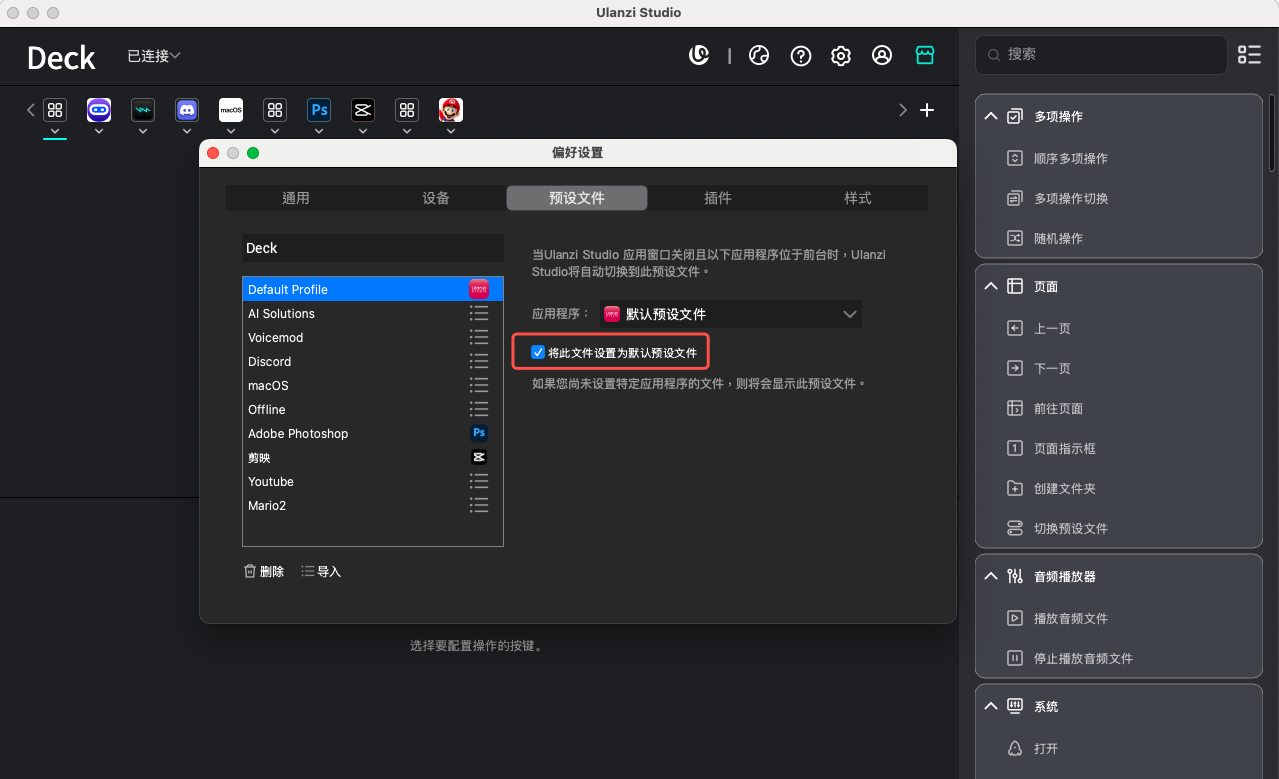
Once a profile is linked, minimize the Ulanzi Studio window and switch to that application. Your macro keypad will automatically switch to the corresponding profile without any manual action. You can also select a profile and enable “Set this profile as the default profile.” When you switch to an application without a linked profile, the keypad returns to the default profile you selected (your home layout).
Key benefits:
- Seamless workflow: each application has its own layout, turning your macro keypad into a dedicated productivity tool.
- Greater efficiency: skip manual profile changes and focus on your work.
- Customization: create a unique shortcut panel for each application you use for video editing, design, office work, or communication.
Example use cases:
- Video creation: opening Jianying switches the keypad to editing shortcuts for timeline cuts, transitions, and filters. Switching to a browser restores the browsing control panel.
- Design: in Photoshop, keys control brushes, layers, and other tools.
- Office work and development: use keys for compiling and debugging in an IDE, or for formatting and quick sending in email and document applications.
- Streaming and entertainment: use voice and item shortcuts in a full-screen game, then switch to streaming controls and scene selection in your streaming application.
2. Before You Begin
- Connect your macro keypad to the computer and make sure Ulanzi Studio recognizes it.
- Create and save a profile for the application you want to link, such as a profile named “剪映”.
3. Setup Steps
Goal: link the “剪映” profile to the JianyingPro application (剪映专业版) so it switches automatically.
Step 1: Open the Target Application
- Open the application you want to link, such as JianyingPro.
- This is optional, but opening the application first makes it easier to identify and select it later.
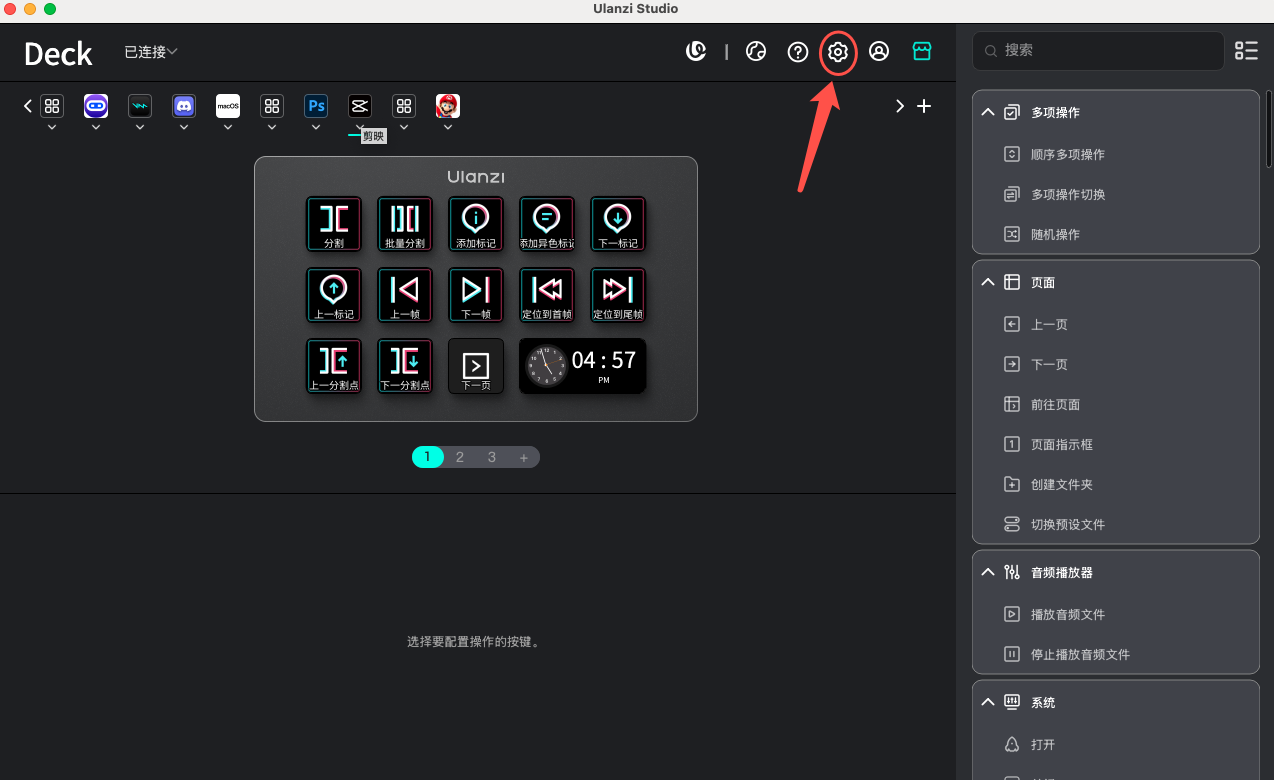
Step 2: Open Settings in Ulanzi Studio
- Open the Ulanzi Studio desktop application.
- Click Settings (the gear icon) in the upper-right corner of the main window.
Step 3: Link a Profile to an Application
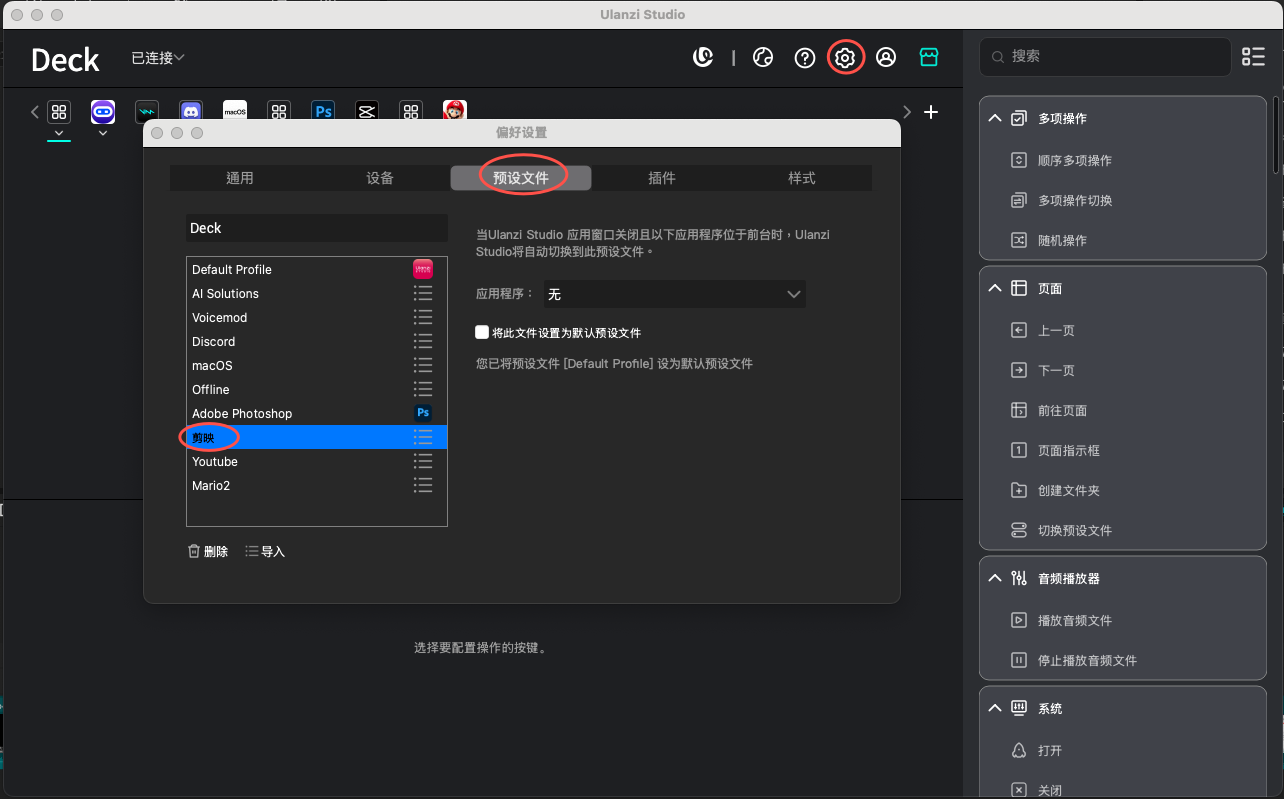
- In the settings window, open the Profiles tab.
- Select the profile you want to switch to automatically, such as “剪映”, in the list on the left.
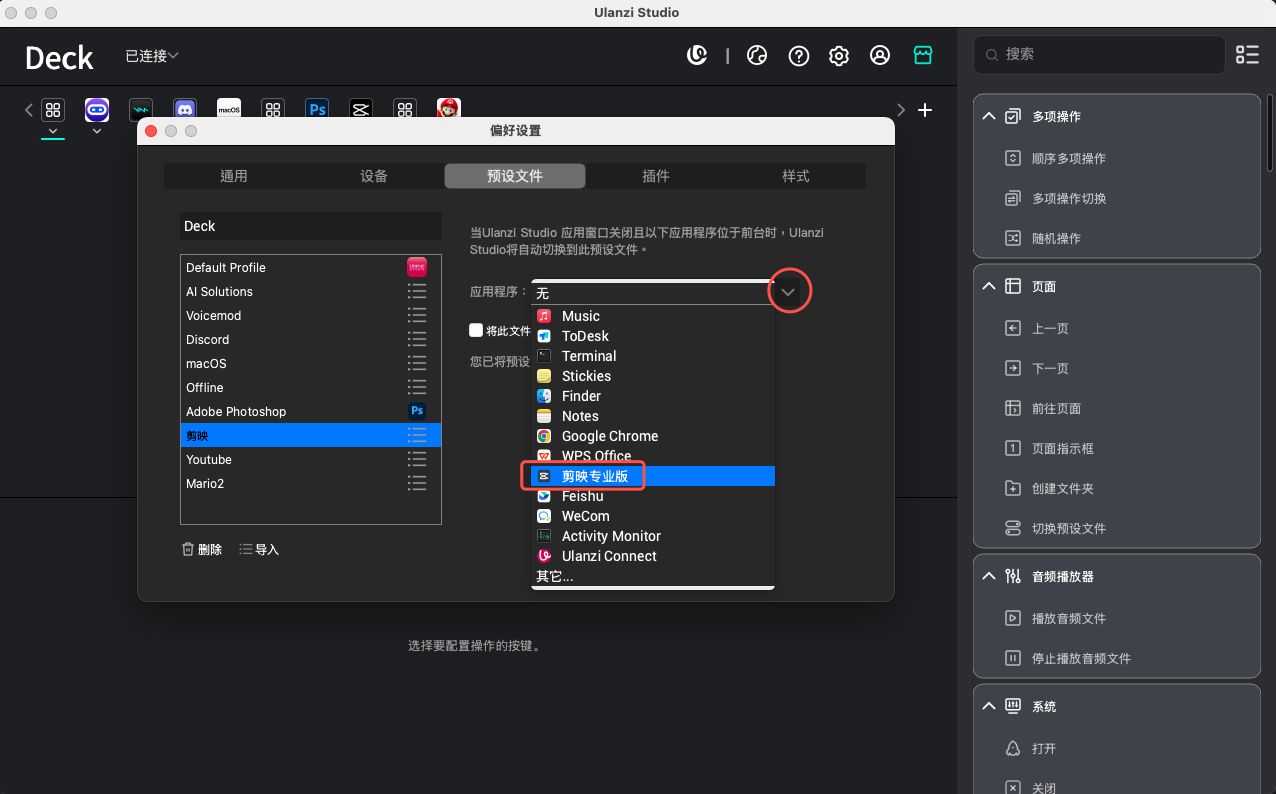
- In the details area on the right, open the Application dropdown. Ulanzi Studio lists the application windows currently running on your system. Select the application you want to link, such as JianyingPro.
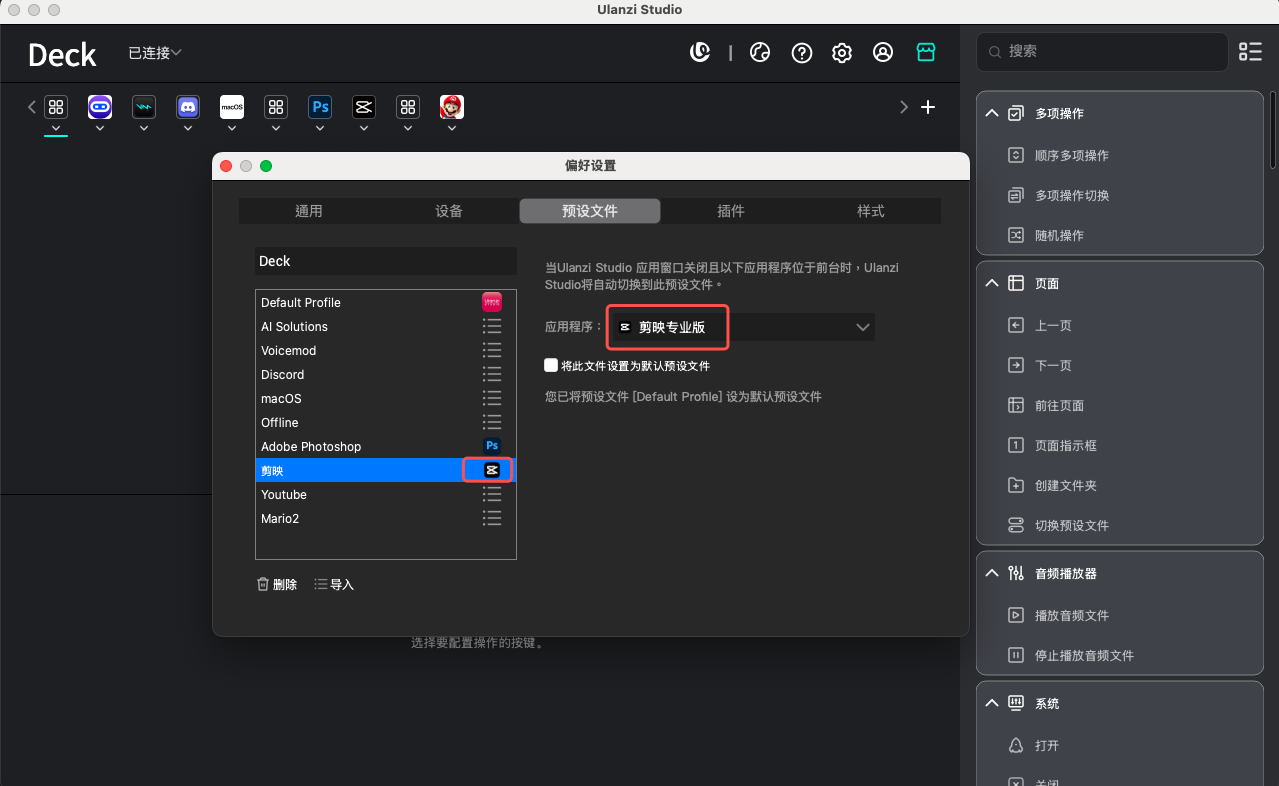
- The link takes effect immediately. When JianyingPro becomes the foreground application, Ulanzi Studio automatically switches to the “剪映” profile.
Step 4: Minimize Ulanzi Studio and Test
- Required action: Click the “X” button on the Ulanzi Studio window to close it. This normally minimizes the application to the system tray (notification area) rather than quitting it. Keeping it running in the background is required for automatic switching.
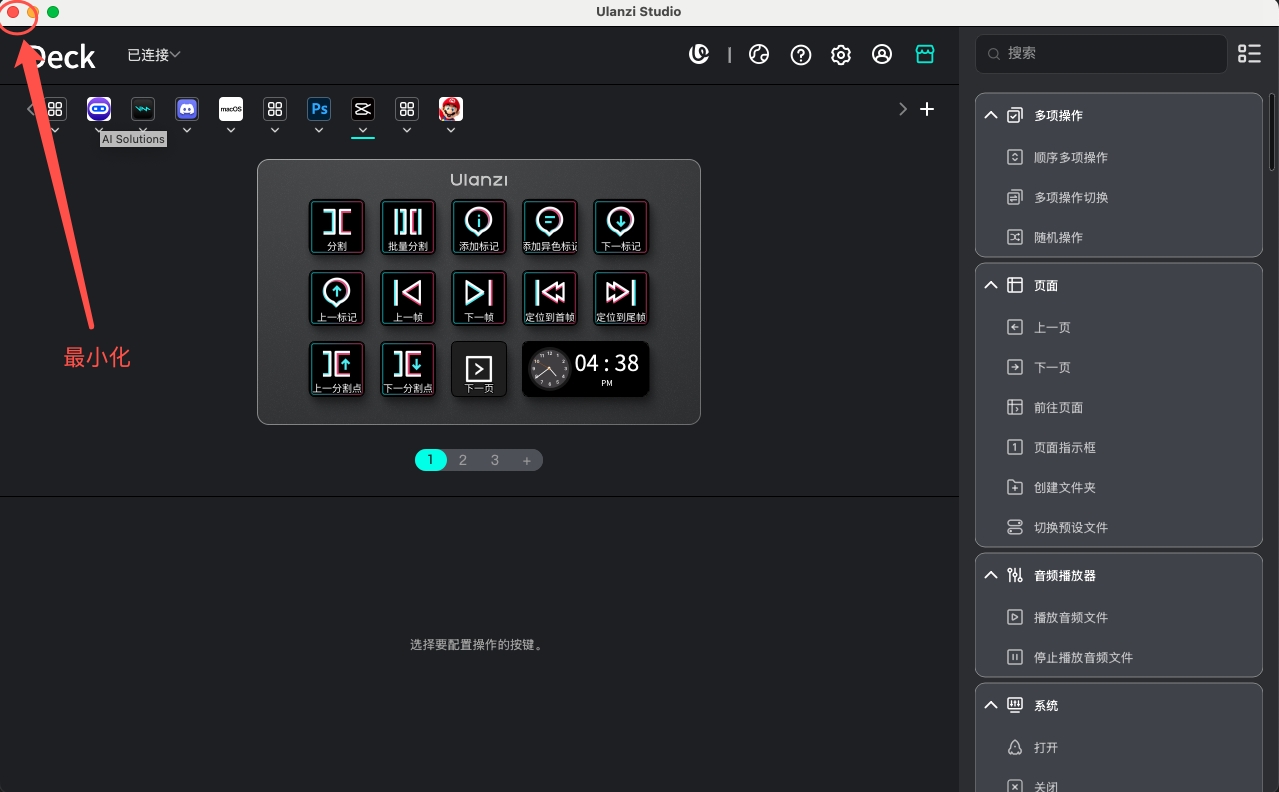
Switch focus to the linked application, such as the JianyingPro window.
Check your macro keypad:
- Its screen, if equipped, should now show the “剪映” profile layout.
- Press a profile key to check that its function works in JianyingPro.
Step 5: Set a Default Profile (Your Home Layout, Optional)
- If you want the device to show a specific profile when no linked application matches, set that profile as your home layout.
- Select the profile you want to use as the default, such as “Default Profile”, in the Profiles list.
- Enable the “Set this file as the default profile” checkbox in the settings on the right.
- Test by switching focus to an application without a linked profile, such as the desktop or Notepad. The keypad should return to the “Default Profile” home layout you selected.
4. Manage Multiple Switching Rules
Repeat Step 3 to link different applications to additional profiles. Ulanzi Studio manages these rules automatically.
- View rules: open Profiles settings to see the configured application-to-profile links.
- Edit or remove a rule: find the relevant profile and select another application, or choose “None” to remove the link.
5. Profile Links for Multiple Devices
If you have multiple Deck devices, you can link applications to profiles on each device using the same method.
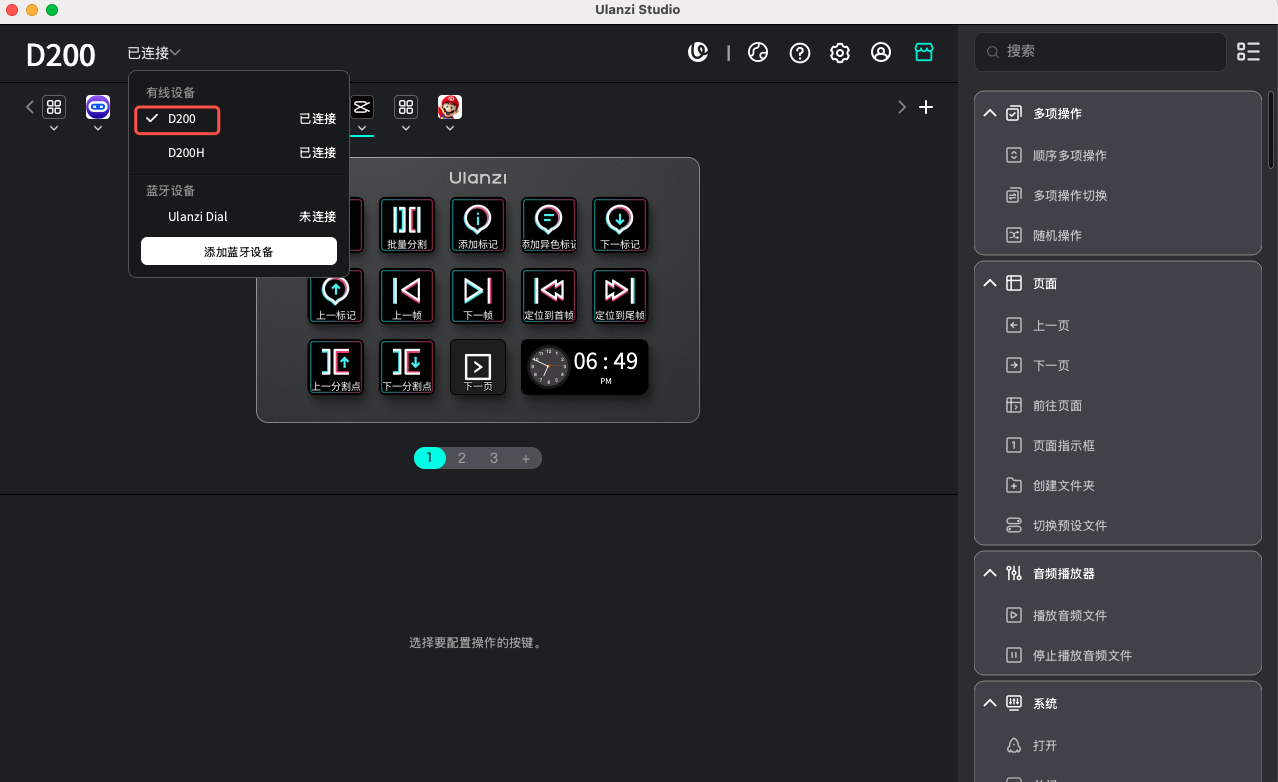
- Select the target device: open the device dropdown at the top of the Ulanzi Studio main window and switch to another device, for example from D200H to D200.
- Repeat the linking steps for that device: open Settings → Profiles and configure the links as described above. They apply only to the currently selected device (D200 in this example).
6. FAQ and Troubleshooting
1. Why Doesn't the Keypad Switch Automatically?
- Check that Ulanzi Studio is running: It must remain active in the background, with its icon visible in the system tray. Quitting the application stops automatic switching.
- Check the application link: Return to settings and confirm the selected application name. Software updates can change installation paths or produce multiple application windows; link the application again if needed.
- Restart Ulanzi Studio: quit it completely, open it again, and minimize it once more.
2. How Do I Correct a Link to the Wrong Application?
Open Profiles settings, select the profile, and choose the correct application from the automatic-switching dropdown on the right. The new selection replaces the old link.
3. How Do I Disable Automatic Switching for a Profile?
Open Profiles settings, select the profile, and choose “None” from the automatic-switching dropdown to remove the link.
4. Do I Need to Set Up the Rules Again After Quitting Ulanzi Studio?
No. The links are saved in the application configuration. After you reopen and minimize Ulanzi Studio, automatic switching works as before.
5. Do Rules for Different Devices Affect Each Other?
No. Each device stores and applies its own automatic-switching rules independently.