Ulanzi Studio V3.2.0 Vibe Key Software Guide
Welcome to Ulanzi Studio V3.2.0. This guide helps you get started with Ulanzi Vibe Key and its companion software.
1. About Ulanzi Vibe Key
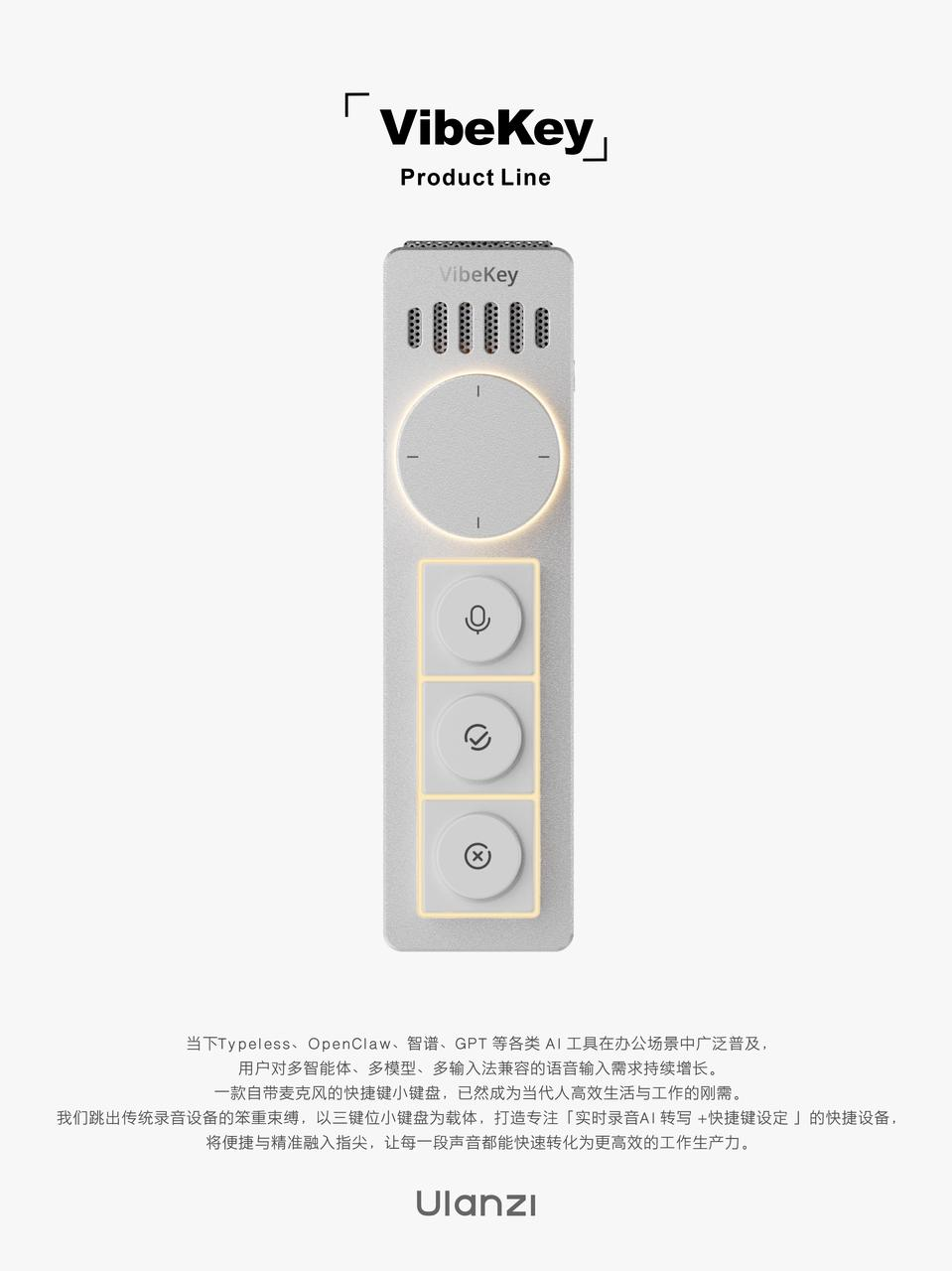
Product name: Vibe Key
Model: AU05
Vibe Key is an efficiency tool designed for Vibe Coders and a hardware companion built specifically for Vibe Coding workflows.
Target users
- Heavy AI coding users
- Vibe Coding enthusiasts
- Content creators
- Knowledge workers who need efficient human-AI collaboration
Key benefits
- Hold to speak, release to send: Hold a key to speak, then release it to send a voice command or execute an action.
- High-frequency AI workflow controls: Three core keys and one knob cover voice input, confirm, reject, and instant actions.
- Compact and magnetic: Supports MagSafe magnetic mounting for handheld use or attachment to a stand, laptop, or monitor.
- Premium build quality: Supports hot-swappable switches and uses a CNC-machined metal body with custom keycaps.
- App ecosystem and customization: Customize presets online, import presets from the app marketplace, and choose Full Bright, Power Saving, or Working lighting modes.
Typical scenarios
- Desktop coding: Attach Vibe Key to the side of a laptop, hold to speak, and release to send an AI instruction.
- Mobile work: Use it handheld or attach it magnetically in a café, on a train, or in another mobile-work setting.
- Creative writing: Use voice input for long prompts and quickly confirm or reject generated content in Claude, ChatGPT, and similar tools.
2. Ulanzi Studio
Ulanzi Studio Desktop is a versatile control panel for creators, streamers, and office users. It provides fast access to software and hardware functions through customizable configurations.
Core features
- Software integration: Integrates commonly used tools and platforms for instant control.
- Configuration and customization: Assign functions to match your workflow.
- Multi-platform support: Compatible with Windows and macOS.
- Supported devices: Ulanzi D200, D200H, D100H, D200X, TC002, and Vibe Key (AU05).
Suitable for
Content creators, livestreamers, office users, technology enthusiasts, and music producers.
3. Quick Start
3.1 System requirements
| Platform | Requirement |
|---|---|
| Windows | Windows 10 or later |
| Mac (Apple silicon) | macOS 12.0 or later |
| Mac (Intel) | macOS 12.0 or later |
3.2 Download Ulanzi Studio
Download and install the version for your operating system.
3.3 Connect and identify the device
- Open Ulanzi Studio V3.2.0 or later.
- Connect the Vibe Key USB Dongle receiver to your computer.
- Select the recognized
Vibe Keyin the device list to open the device configuration page. - On first use, check the device status and microphone permissions to ensure voice input works correctly.
4. Main Interface
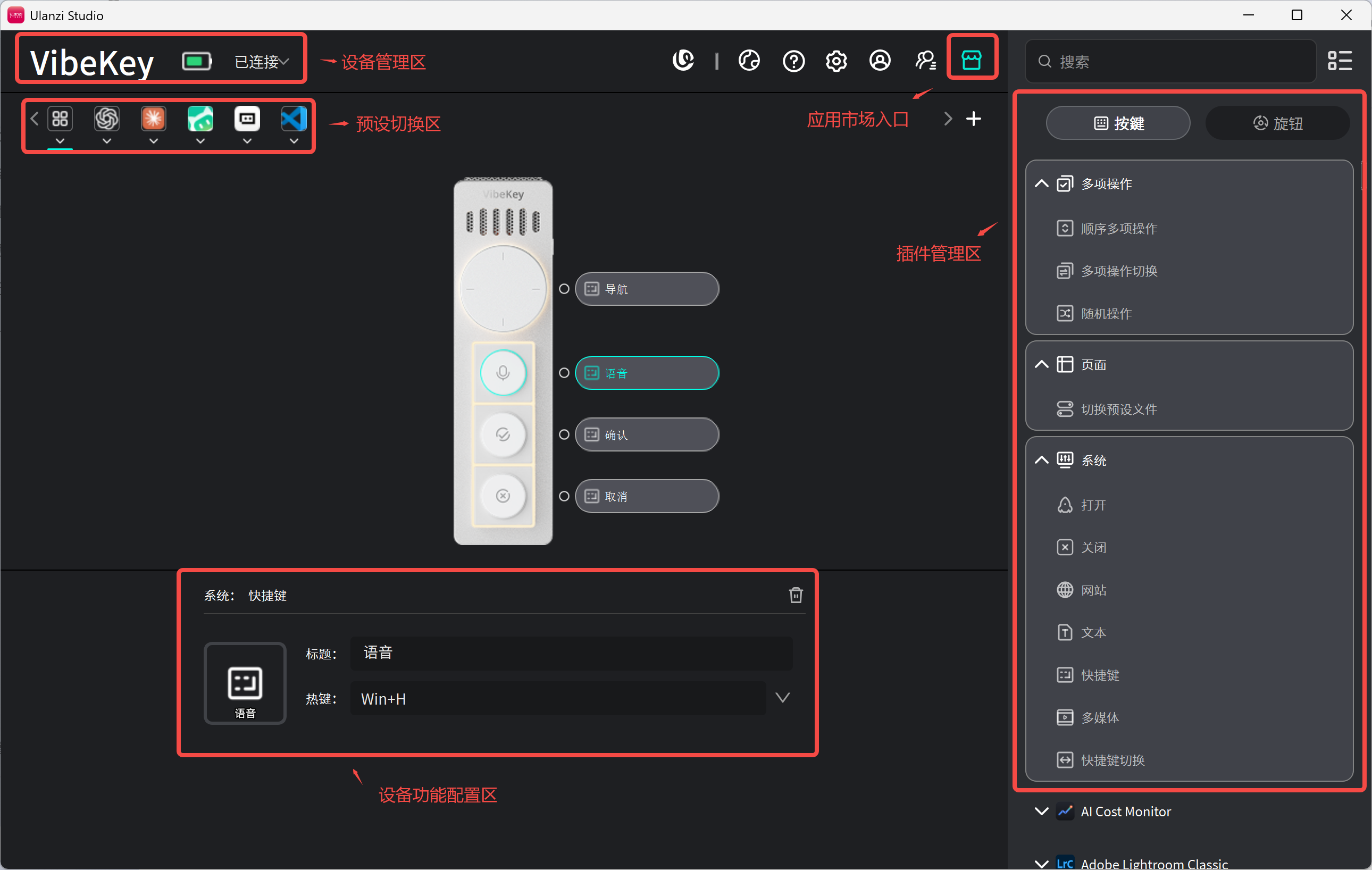
Ulanzi Studio uses a consistent skeuomorphic interface. Its main areas include:
- Device management: View the current device and switch between devices.
- Preset switching: Quickly switch between presets.
- App Marketplace: Open the marketplace from the upper-right App Store button.
- Plugin management: Browse plugin functions in the list on the right.
- Device function configuration: Drag plugin functions onto keys and the knob.
5. Core Features
5.1 Vibe Key controls
Vibe Key uses three core keys and one knob for frequent AI collaboration actions:
- Voice input: Hold to speak, then release to send or execute the instruction.
- Confirm: Accept an AI result or continue to the next step.
- Reject: Cancel, go back, or reject the current result.
- Knob: Configure it for scrolling, zooming, switching conversations, or another shortcut.
Voice input can be implemented by assigning a shortcut from a third-party voice-input app, such as Typeless, Doubao Input, WeChat Input, or another app that supports shortcut activation.
5.2 Configure key functions
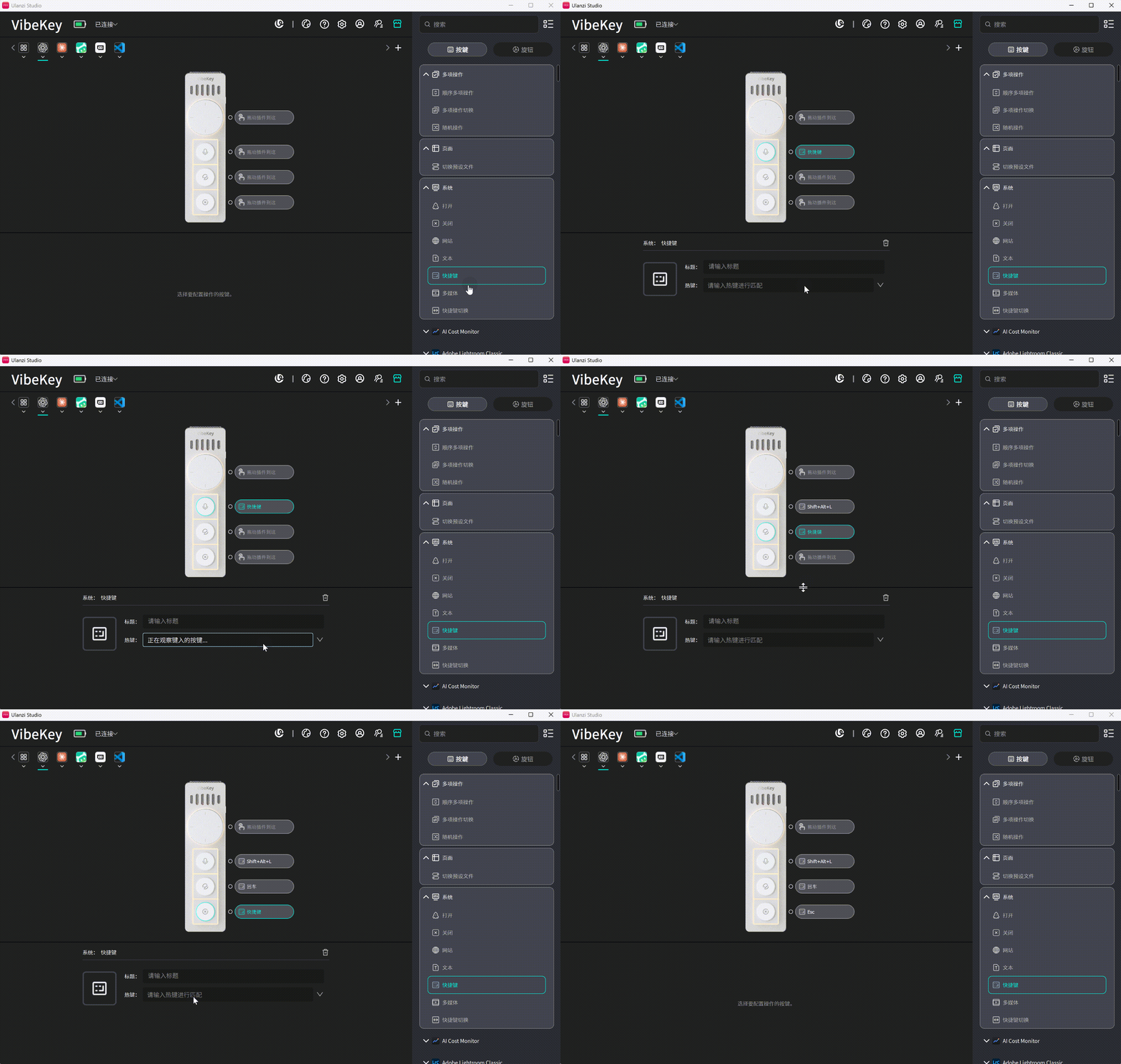
- Click the Keys tab in the plugin area on the right.
- Select a plugin function, such as Shortcut.
- Drag the function onto a key in the device preview.
- Configure and save the function parameters.
5.3 Configure the knob
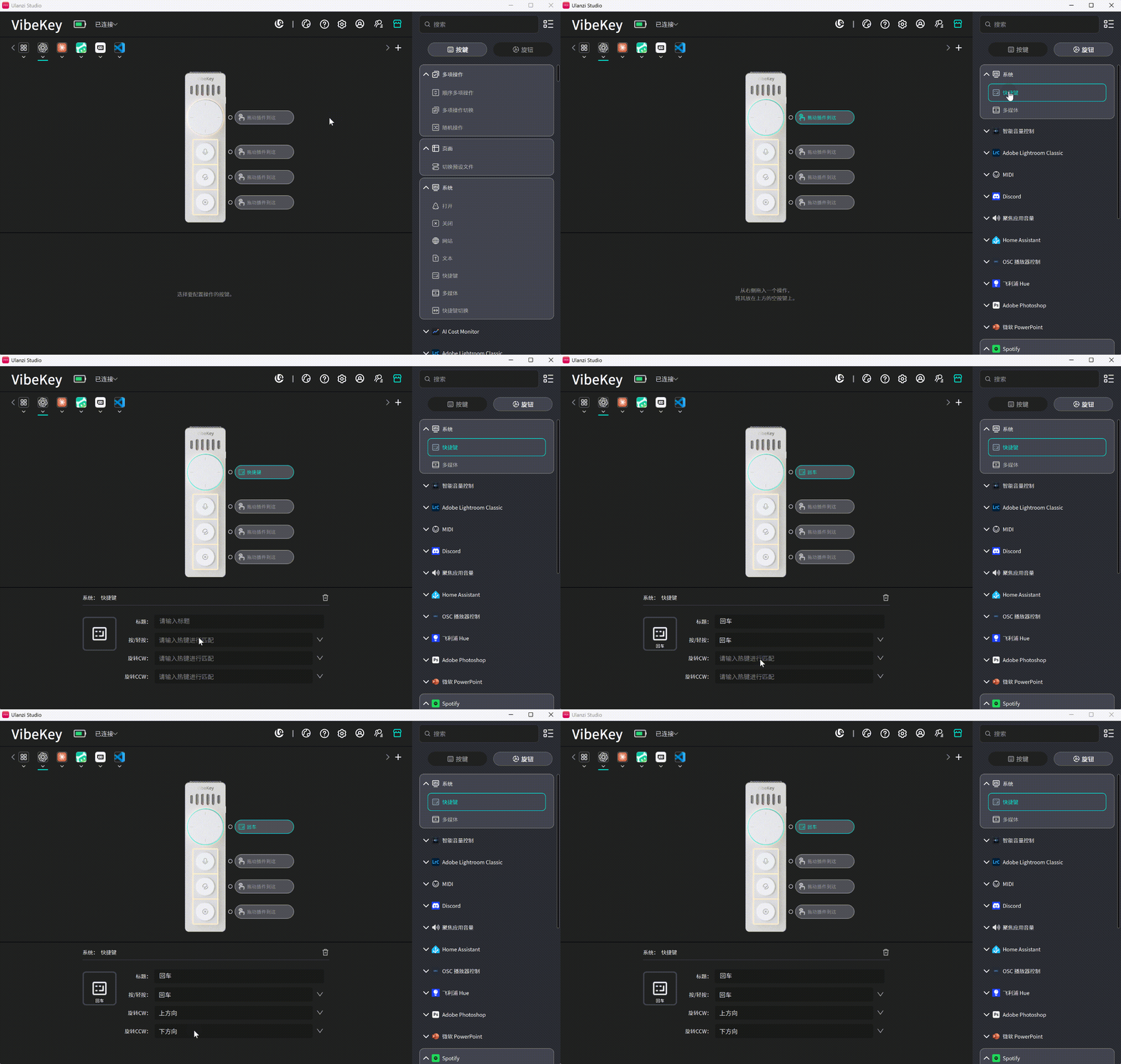
The physical Vibe Key knob supports the following actions:
- Rotate CW: Rotate clockwise.
- Rotate CCW: Rotate counterclockwise.
- Press / tap: Press the knob.
To configure it, click the Knob tab in the plugin area, select a function, drag it onto the knob in the device preview, and configure its parameters.
5.4 Configure lighting modes
Go to Ulanzi Studio Home → Preferences → Device → Lighting Mode. The factory default is Working mode.
- Full Bright: Suitable for desktop use and easy status monitoring.
- Power Saving: Suitable for mobile work or when you want less lighting.
- Working: Provides lighting feedback for device or AI collaboration status.
Currently, Claude and ChatGPT (formerly Codex) support AI status display.
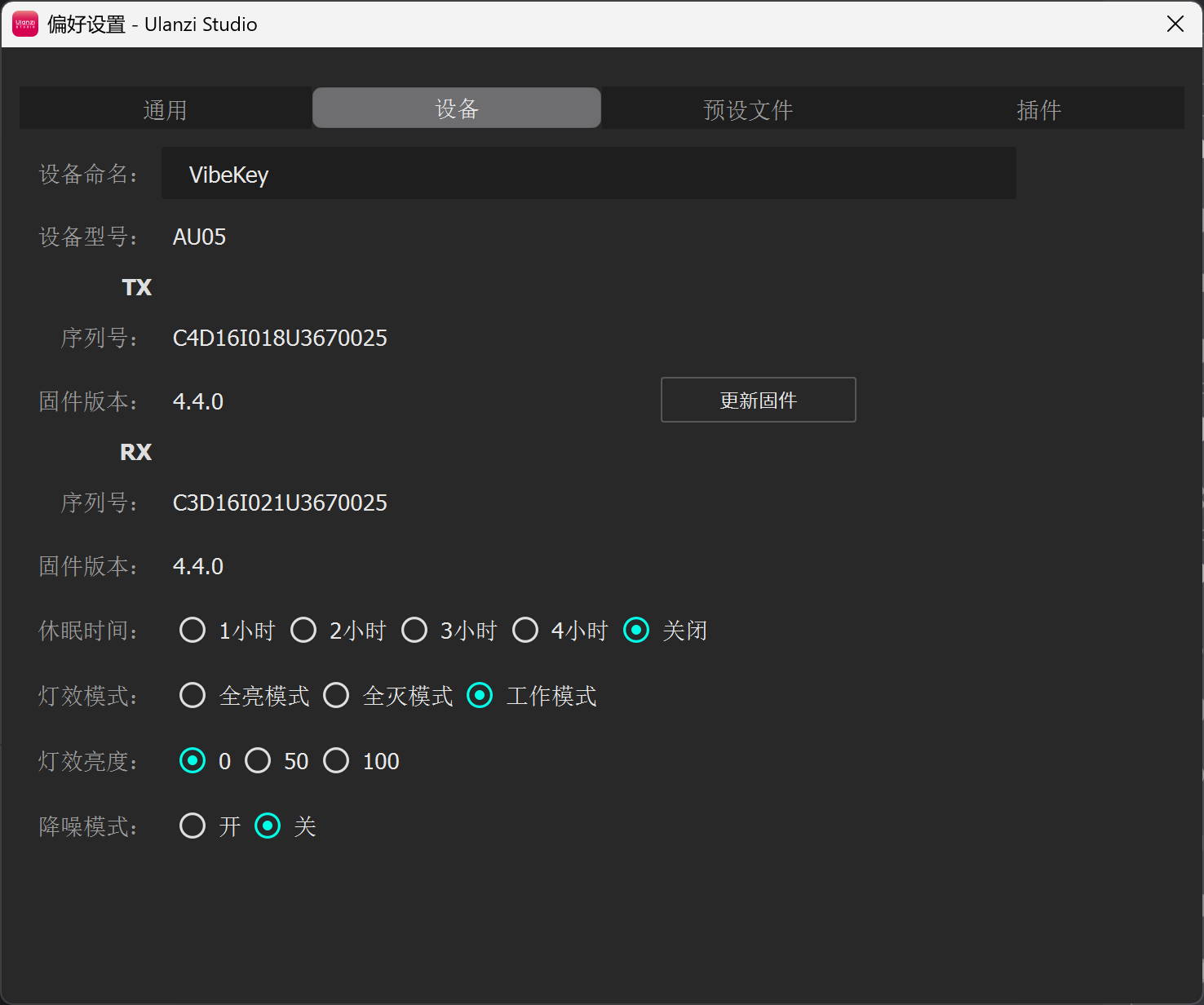
5.5 Configure sleep time
The device enters standby after five minutes of inactivity and powers off after one hour in standby. Press any key to wake it. Go to Home → Preferences → Device → Sleep Time to choose one, two, three, or four hours, or disable sleep.
5.6 Configure noise reduction
Go to Home → Preferences → Device → Noise Reduction to enable or disable noise reduction.
5.7 Create a preset
Use the built-in default preset
After installing Ulanzi Studio, open the app and connect Vibe Key to use the default preset.
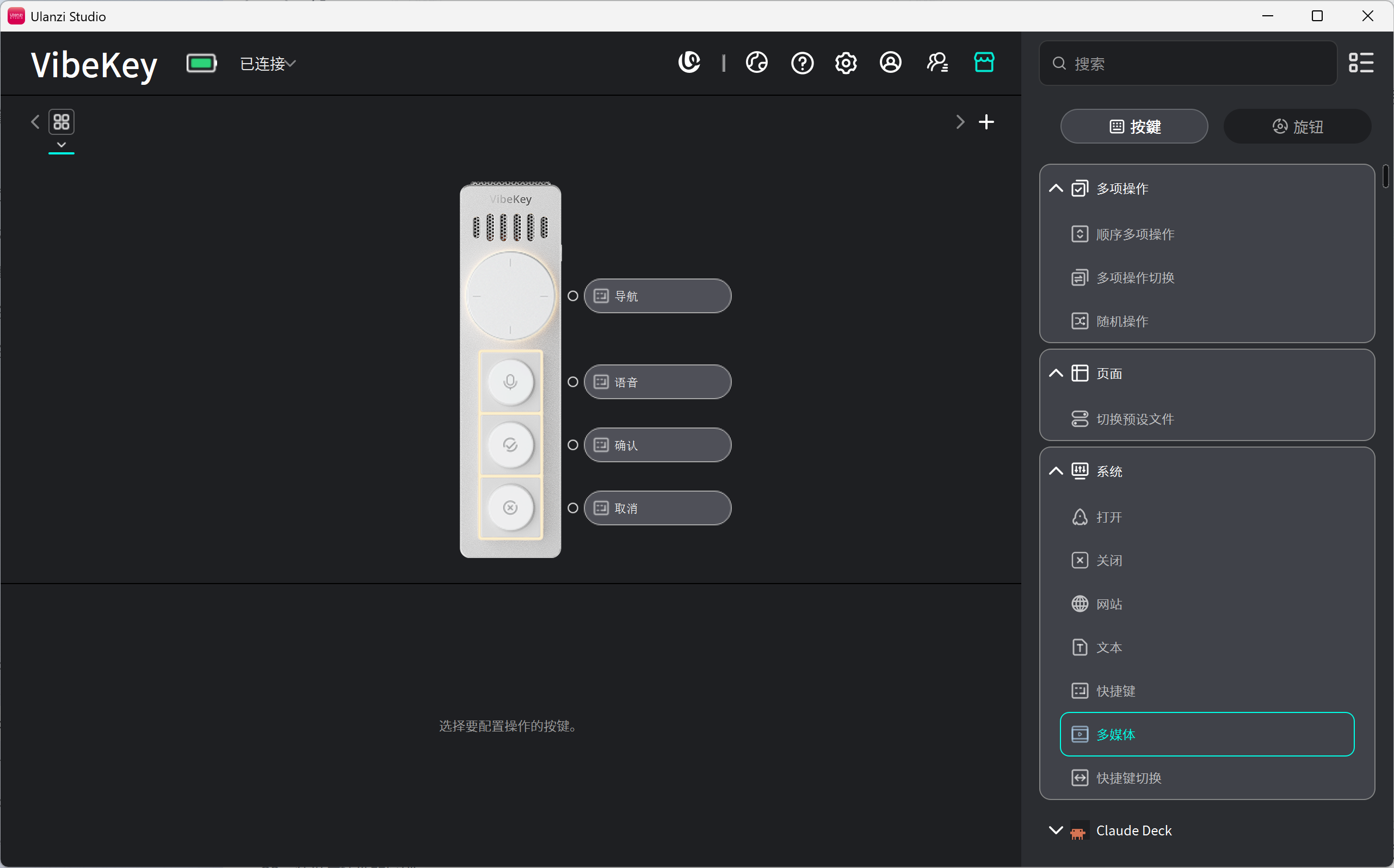
Create your own preset
- On the Home page, click the
+next to the presets. - Choose Create Default Preset, Create Linked Preset, or Import Local Preset.
- Name the preset and click Confirm.
5.8 Configure automatic preset switching
Automatic preset switching links a preset to a specific application. When the target application becomes the foreground window, the device loads the linked preset automatically. When you switch to an unlinked application, it returns to the default preset.
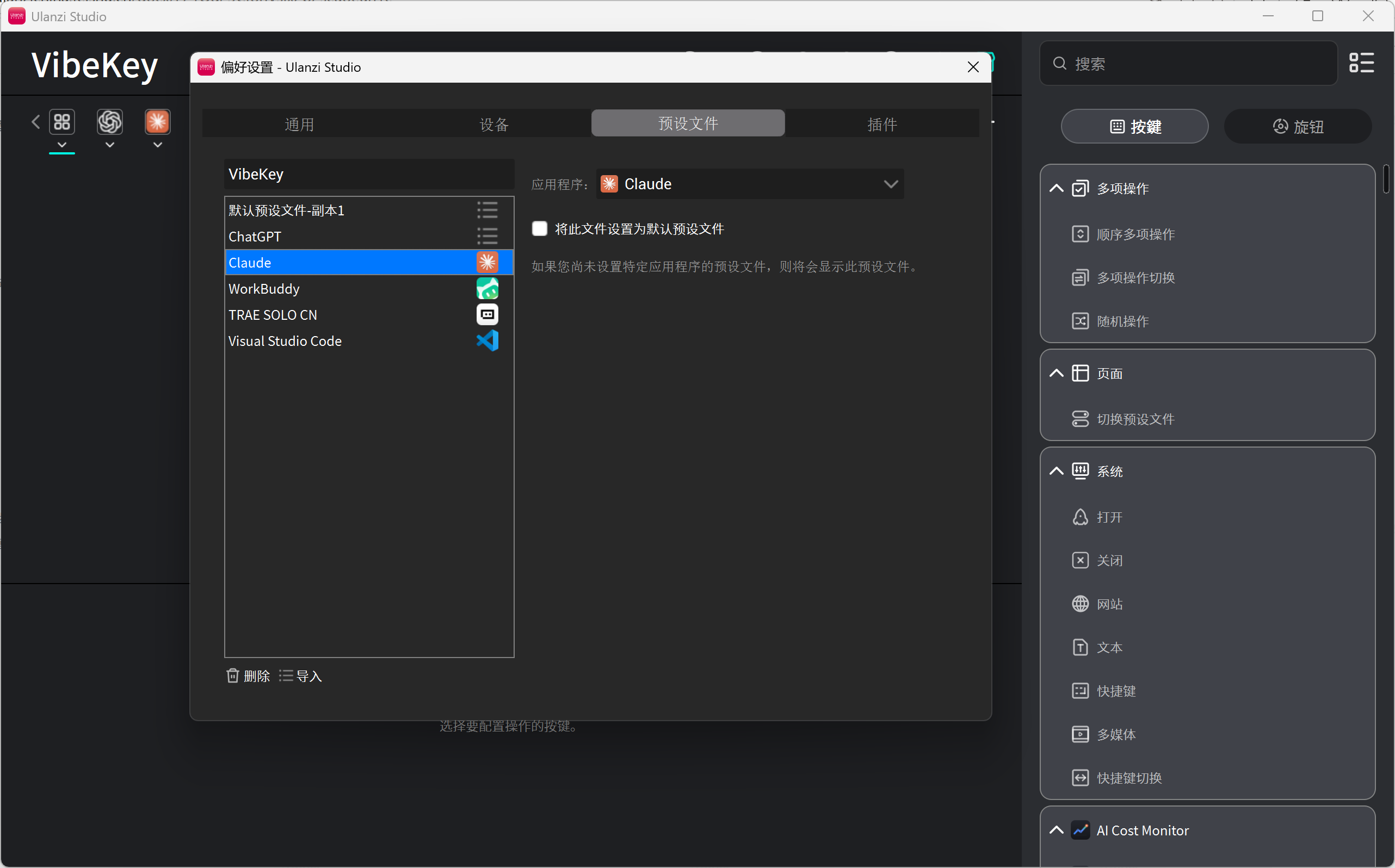
Setup steps
- Start the AI app you want to link, such as ChatGPT, Claude, WorkBuddy, or Trae.
- Open Ulanzi Studio and click Preferences in the upper right.
- Open Presets and select the preset to switch to automatically.
- In Applications, select the target app from the list of running applications.
- The link takes effect immediately.
Start the target app before creating the link so that Ulanzi Studio can identify the correct application window.
Detailed guide: Automatically switch presets
The global automatic-switching toggle is located at Preferences → General → Preset Settings.