Ulanzi AU05-X Software Guide (WorkBuddy Co-Branded Edition)
Hello! Welcome to the Ulanzi Studio app.
This guide will help you quickly get started with the Ulanzi Vibe Key and its companion software for a more efficient, focused, and enjoyable workflow.
About the Ulanzi Vibe Key
The AU05-X is an AI voice keypad and microphone co-developed by WorkBuddy and Ulanzi for Vibe Workers. It is the first productivity companion in its category to store AI workflow presets directly on the hardware. It comes with three WorkBuddy interaction modes—Default, Quick Dispatch, and Multitasking—which you can switch in Ulanzi Studio, helping you turn ideas into results quickly.
Designed for:
- Heavy users of AI coding tools
- Vibe Coding enthusiasts
- Content creators
- Knowledge workers who need efficient human–AI collaboration
About Ulanzi Studio
Ulanzi Studio Desktop is a multifunction control-panel app designed for content creation, game streaming, and office work. Its customizable configurations provide quick access to software and hardware controls.
Core features:
- Software integrations for immediate, seamless control of your favorite tools and platforms
- Flexible setup and customization to match your working habits
- Support for Windows and macOS
1. Quick Start
1.1 Get to Know Vibe Key
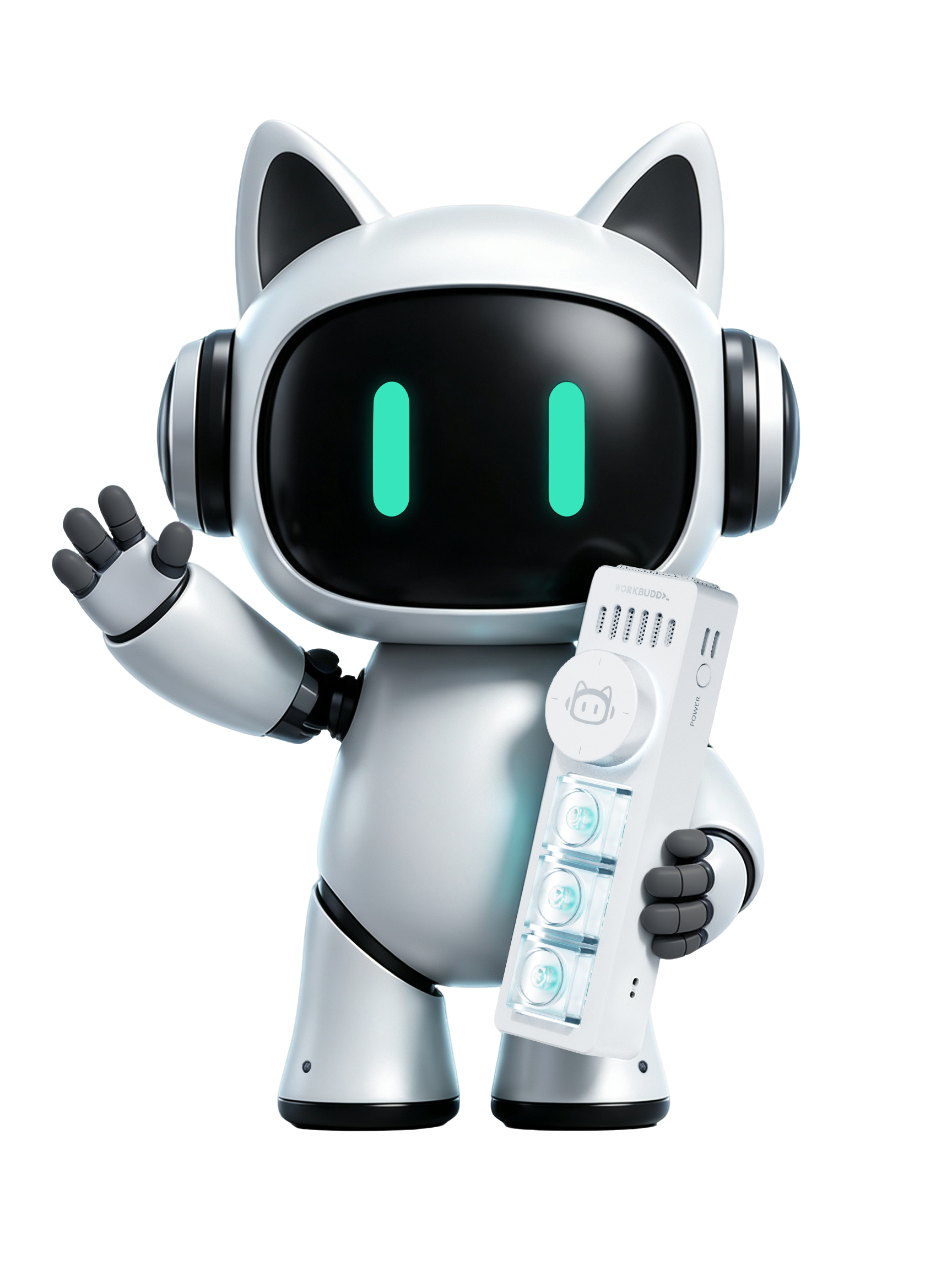
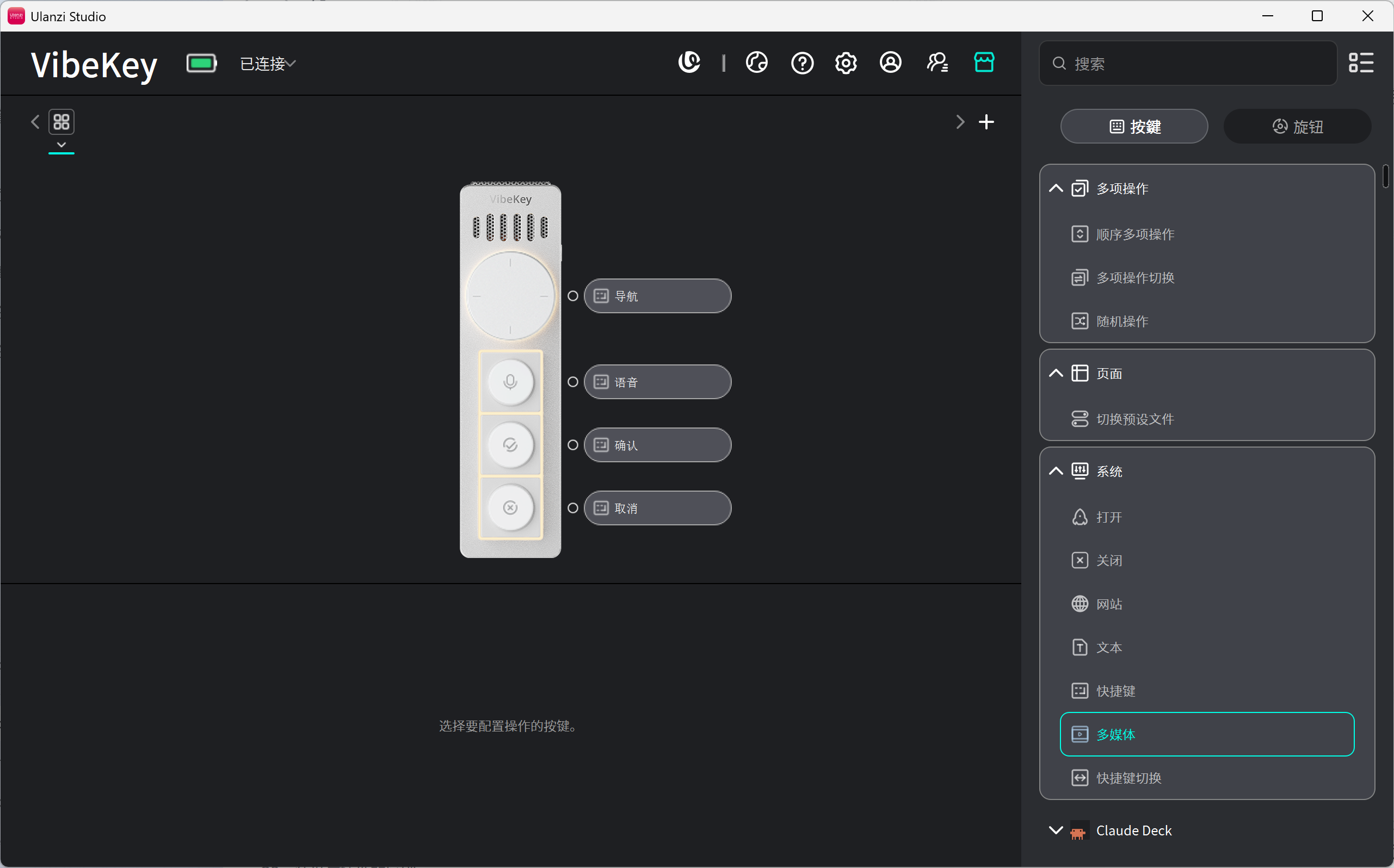
Vibe Key uses three main keys and one knob for common AI collaboration actions:
- Voice input: Hold to speak, then release to send or execute the instruction.
- Confirm: Accept an AI-generated result or continue to the next action.
- Cancel: Cancel, go back, or discard the current result.
- Knob: Configure scrolling, zooming, session switching, or another shortcut to suit your workflow.
USB Dongle (receiver): Vibe Key requires its receiver and communicates with the computer through it.
1.2 Connect and Pair
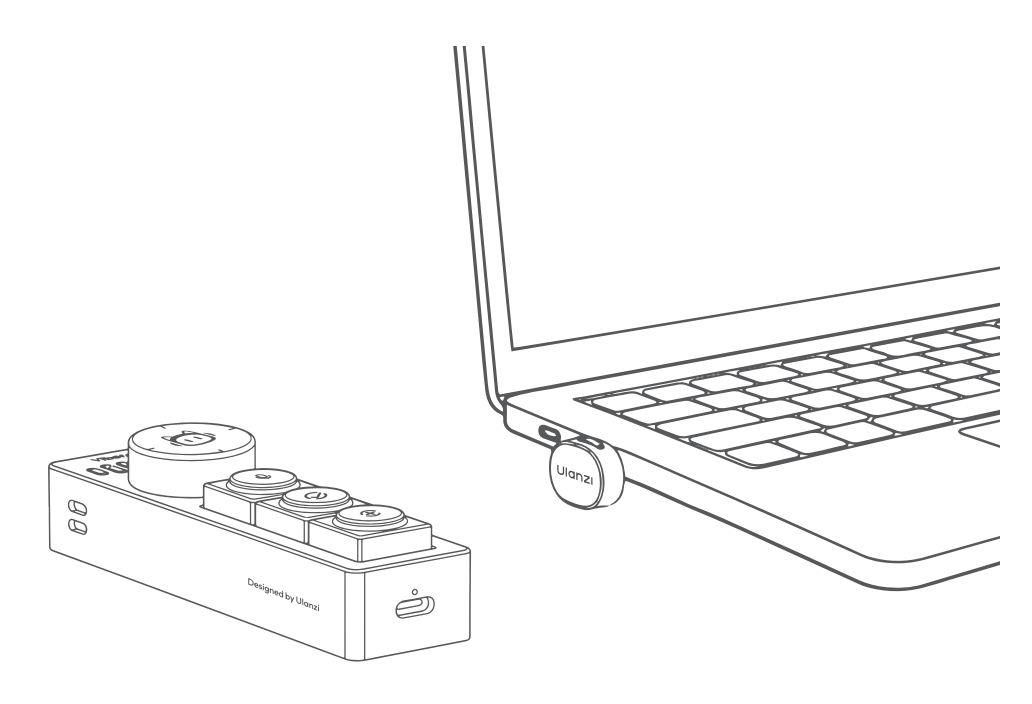
- Remove Vibe Key and the USB Dongle stored beneath the inner packaging. Connect the Dongle to a USB-C port on your computer, then press and hold the power button on the right side of Vibe Key for three seconds. The device connects to its Dongle automatically, and the Dongle remains steadily lit after a successful connection. Each device and receiver is paired one-to-one at the factory and is ready to use without manual pairing.
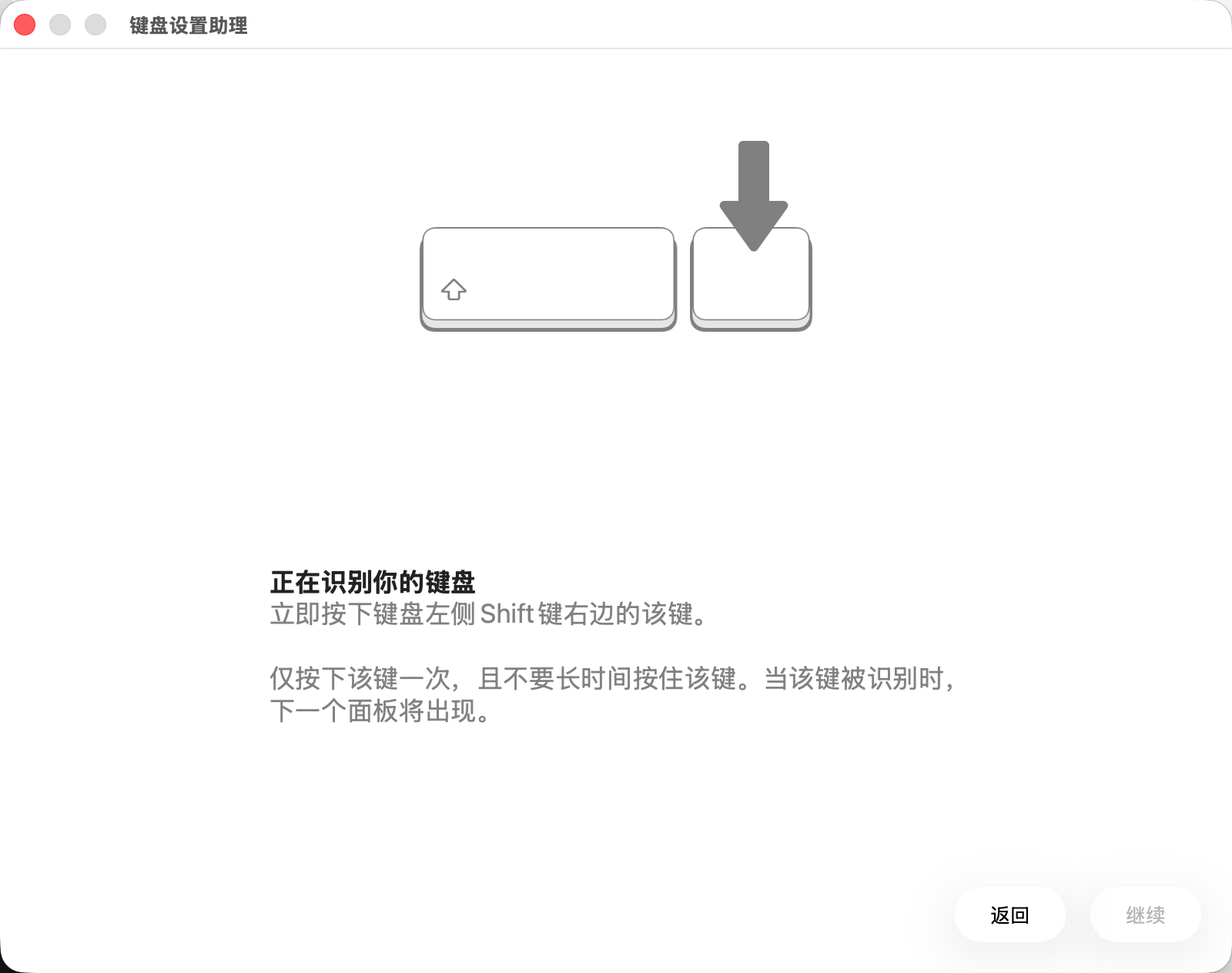
After pairing on macOS, Keyboard Setup Assistant may appear once. You can ignore it and select Back.
macOS applies stricter recognition rules to third-party accessories. This prompt does not appear on Windows.
The WorkBuddy co-branded Vibe Key comes with a default WorkBuddy interaction setup and works out of the box. Install Ulanzi Studio only if you want to customize shortcuts or use Quick Dispatch and Multitasking modes.
- Download and open Ulanzi Studio V3.3.6 or later.
- China: ulanzi.cn/software/ulanzi_studio
- International: ulanzi.com/pages/ulanzi-app
- Download and install the version for your operating system.
| Platform | System requirement |
|---|---|
| Windows | Windows 10 or later |
| Mac (Apple silicon) | macOS 12.0 or later; Apple silicon only |
| Mac (Intel) | macOS 12.0 or later; Intel processors only |
- Open Ulanzi Studio and select the detected
Vibe Keyin the device list to enter its configuration page.
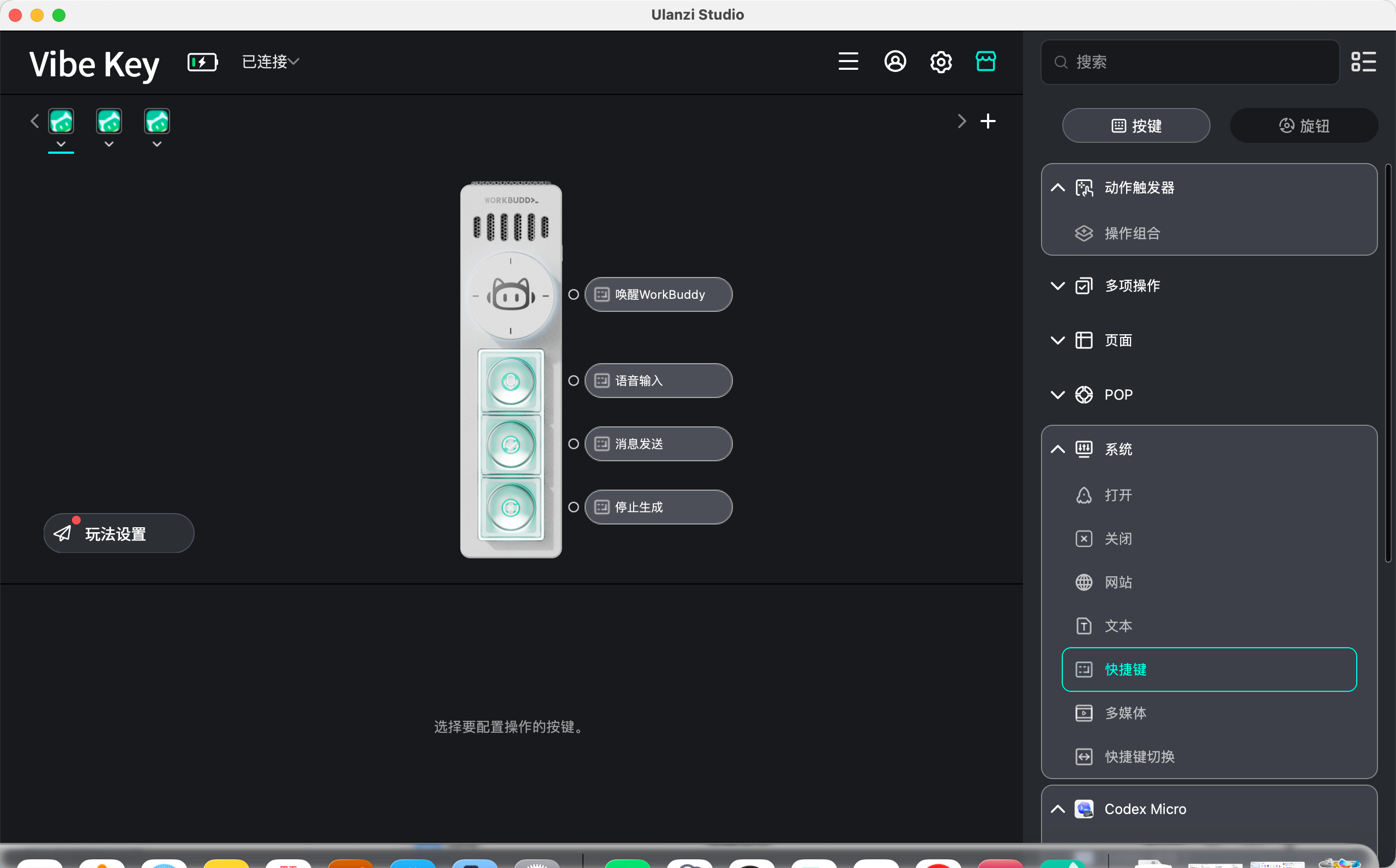
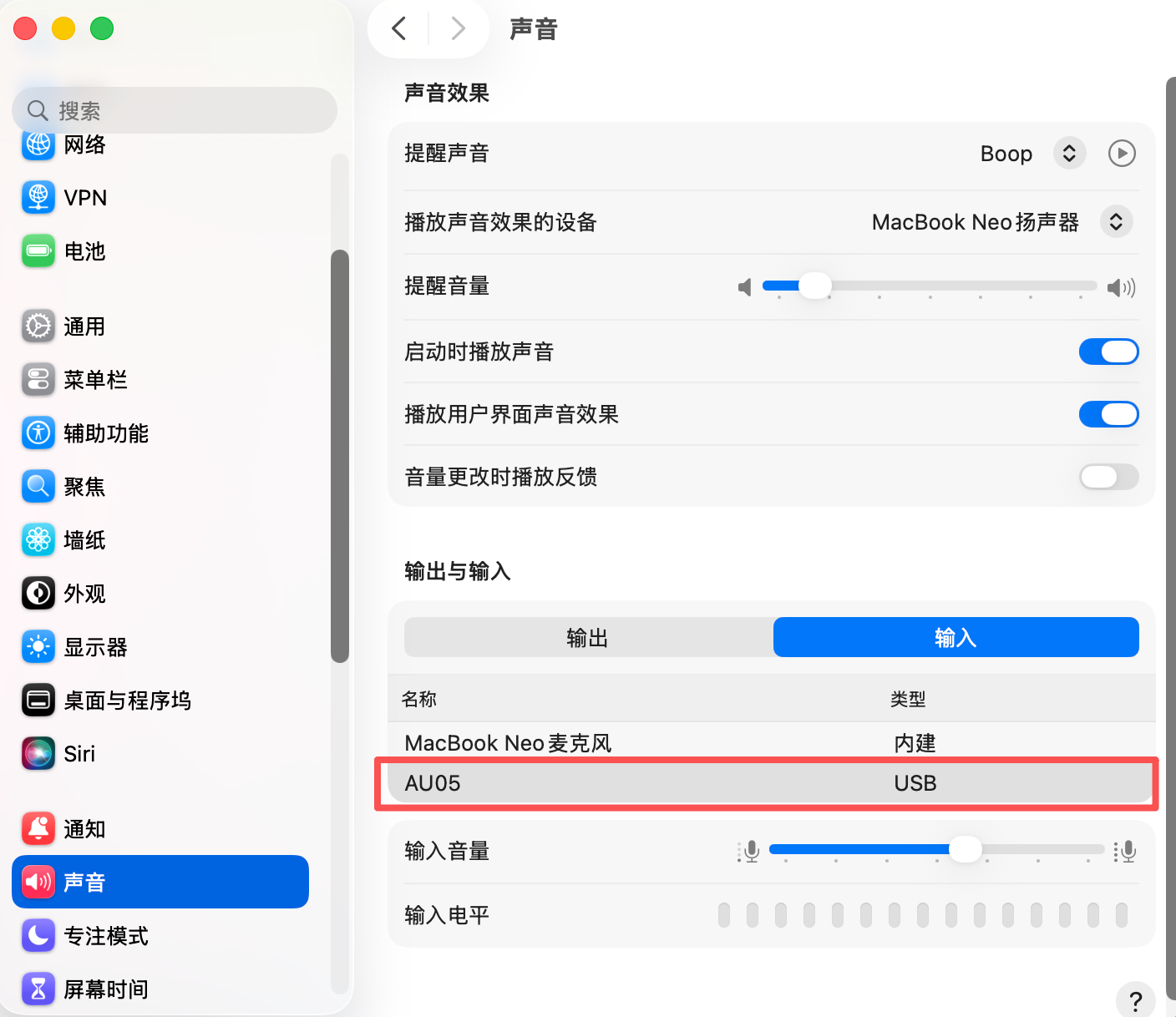
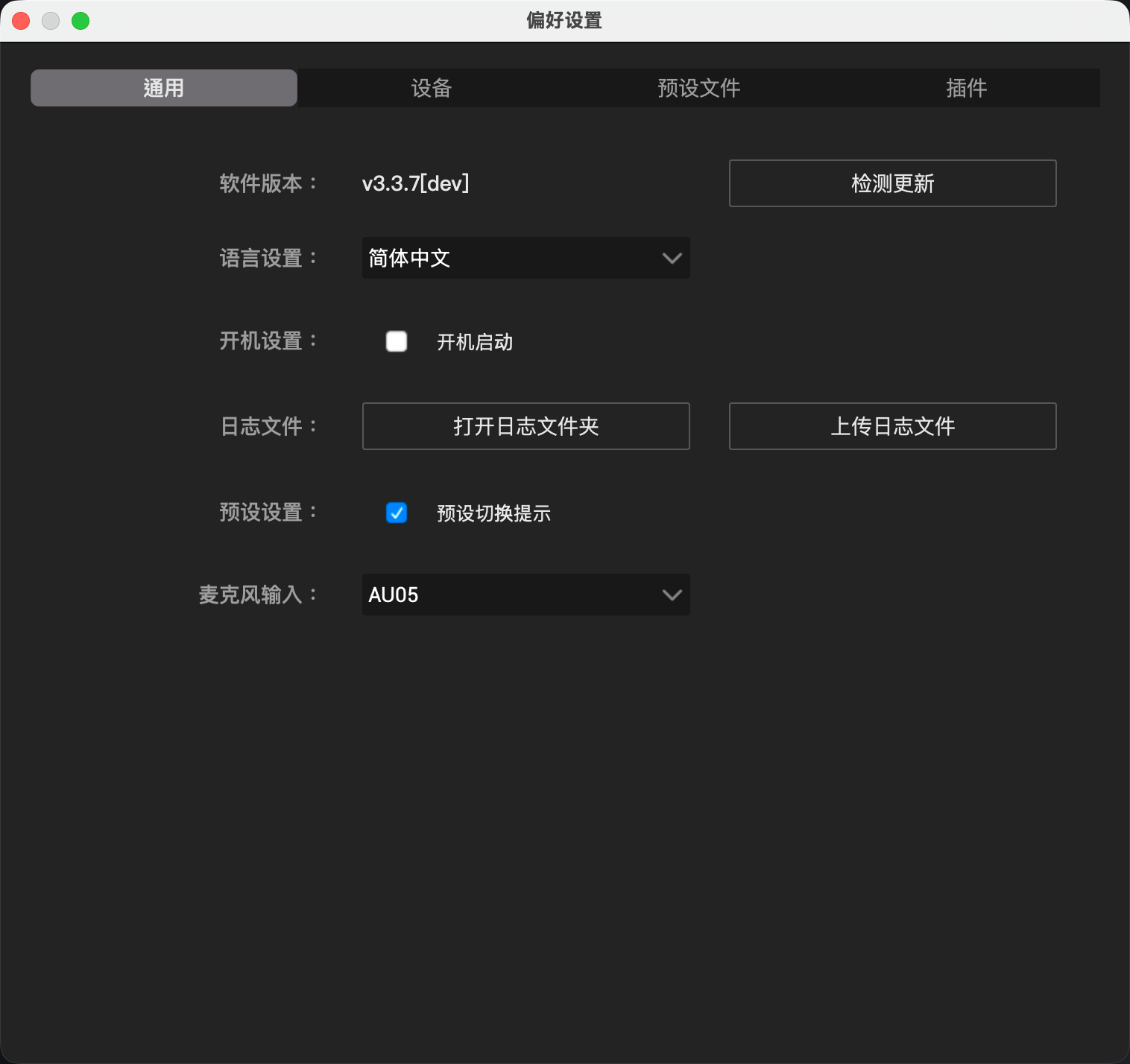
Before first use, check the device status and microphone permission so voice input works correctly.
- On macOS, go to System Settings → Sound → Input and select AU05 as the microphone input.
- You can also set it in Ulanzi Studio under Preferences → General → Microphone Input.
1.3 App Interface Overview
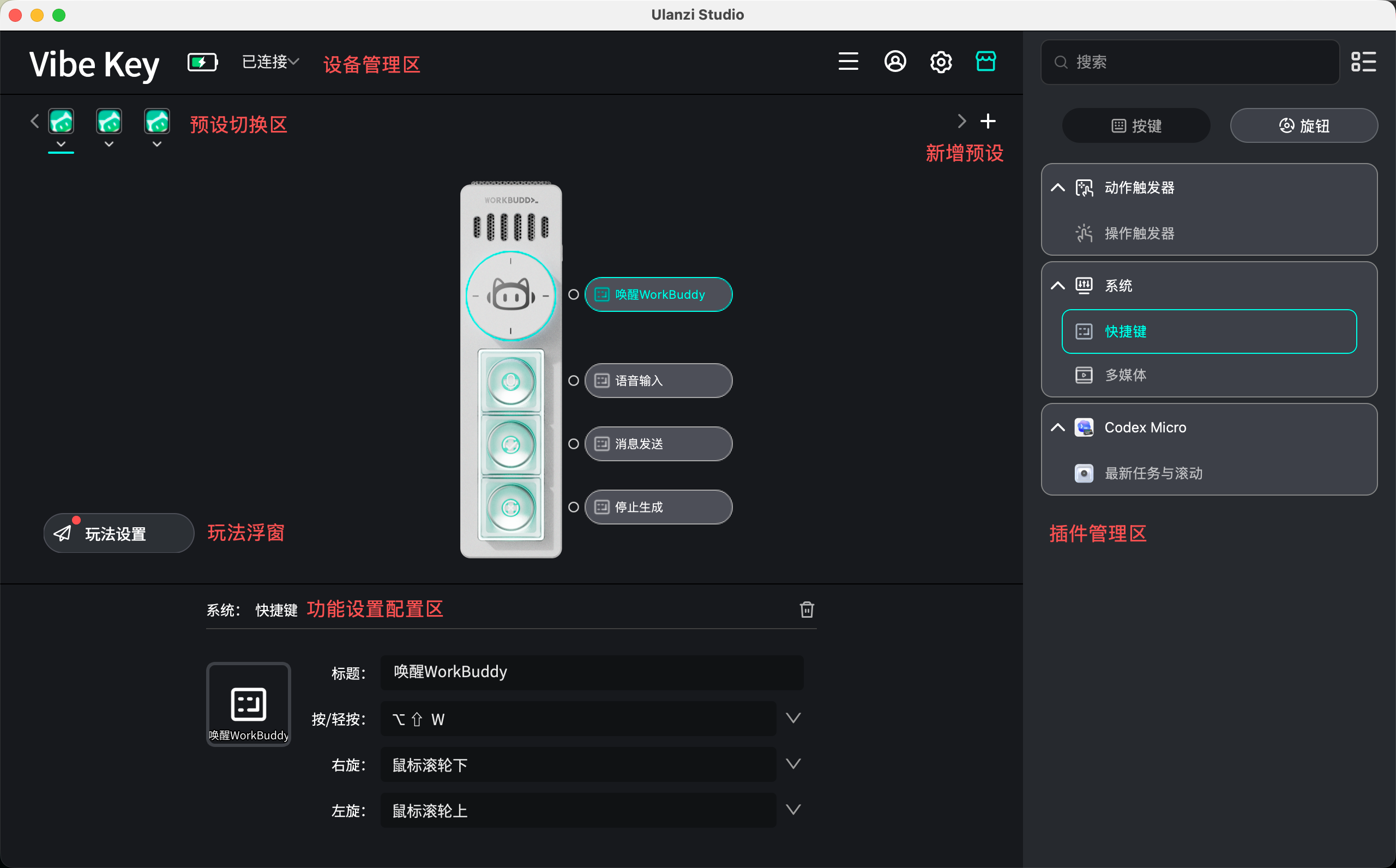
Ulanzi Studio uses a consistent skeuomorphic design that is both attractive and easy to use.
The main areas are:
- Device management: View and switch the current device.
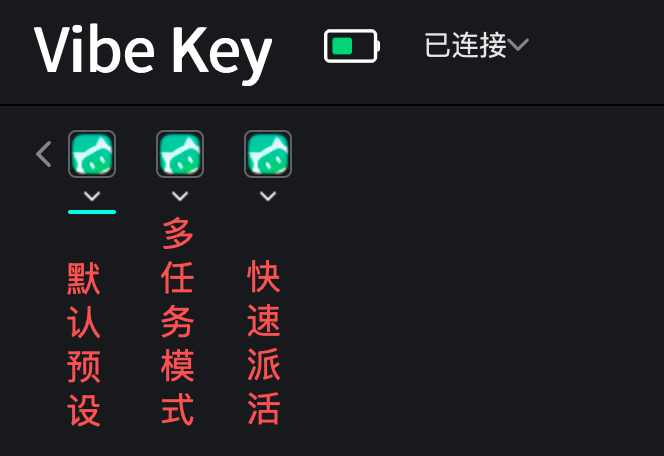
- Preset switcher: Quickly switch among the three WorkBuddy interaction modes; each mode can be customized.
- Marketplace: Open the App Store from the upper-right corner.
- Plugin management: View supported plugins in the list on the right.
- Device configuration: Drag plugin actions onto keys and knob controls.
2. Core Features
2.1 Factory Presets
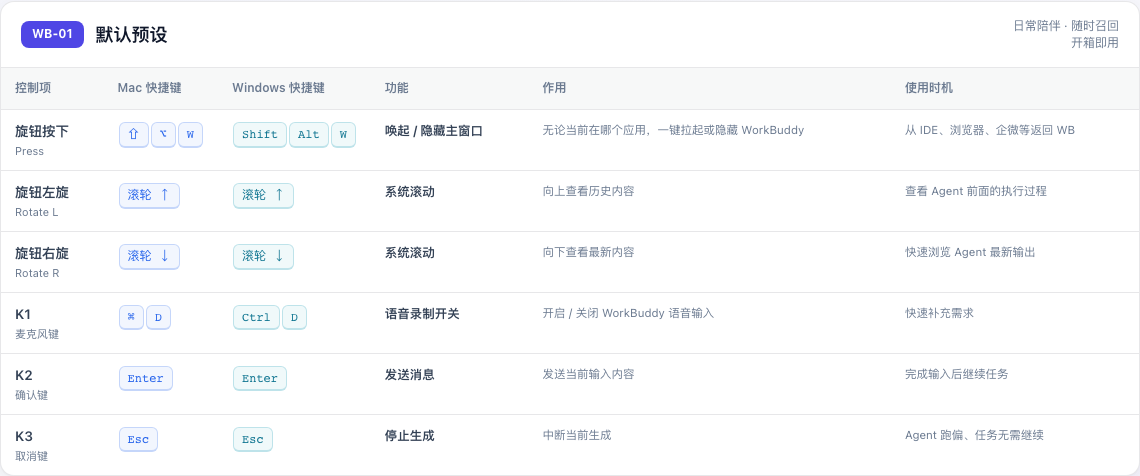
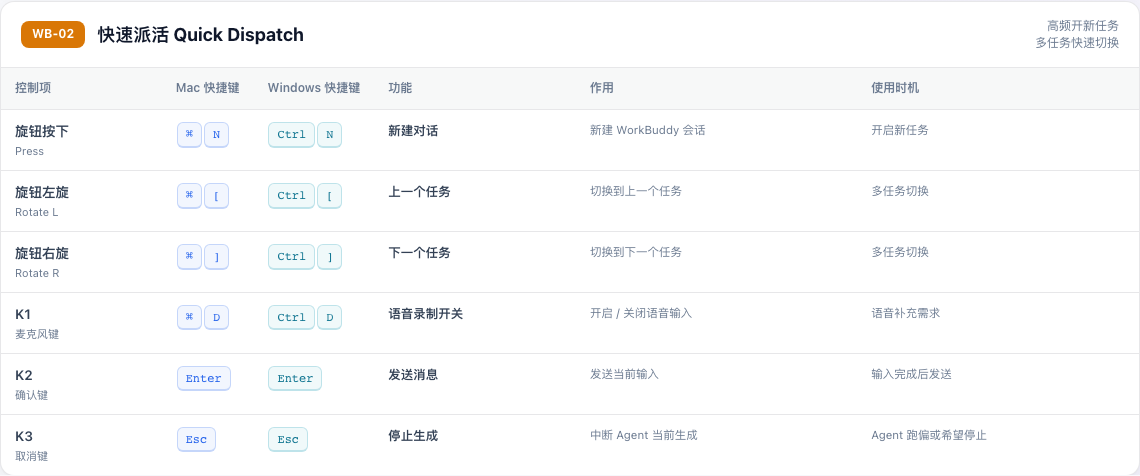
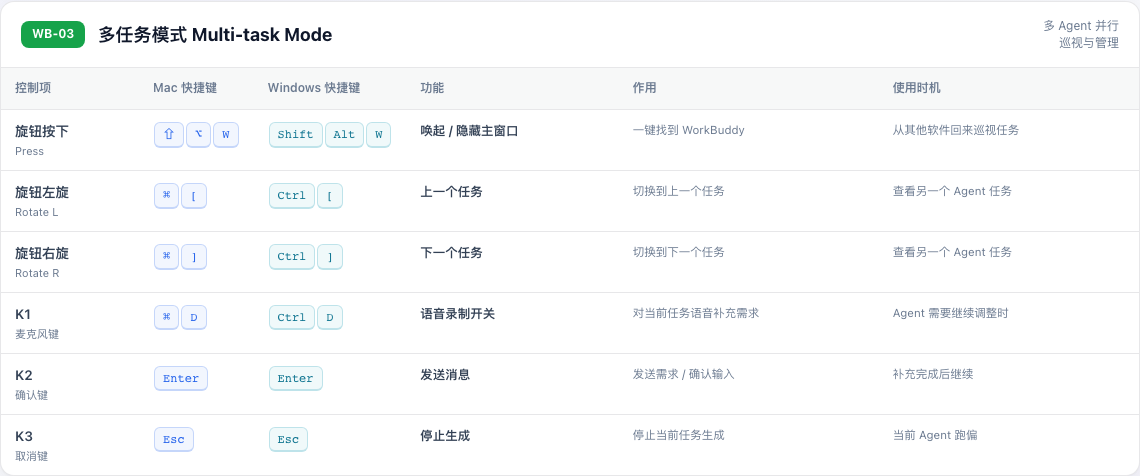
The co-branded Vibe Key ships with three presets: Default, Multitasking, and Quick Dispatch. Select the appropriate mode in the app for your current development workflow.
Shortcut mappings and explanations for the three modes:
2.2 Voice Input
By default, the co-branded Vibe Key invokes Command+D to activate WorkBuddy's own voice input, which supports up to 60 seconds per recording. Longer voice input can be entered in multiple segments.
You can also bind the shortcut of a third-party voice-input app. Change the shortcut value under Preset → Voice Input → Shortcut to trigger that tool quickly.
Compatible voice-input tools include:
- Typeless
- WeChat Input Method
- Other voice-input tools that support keyboard shortcuts
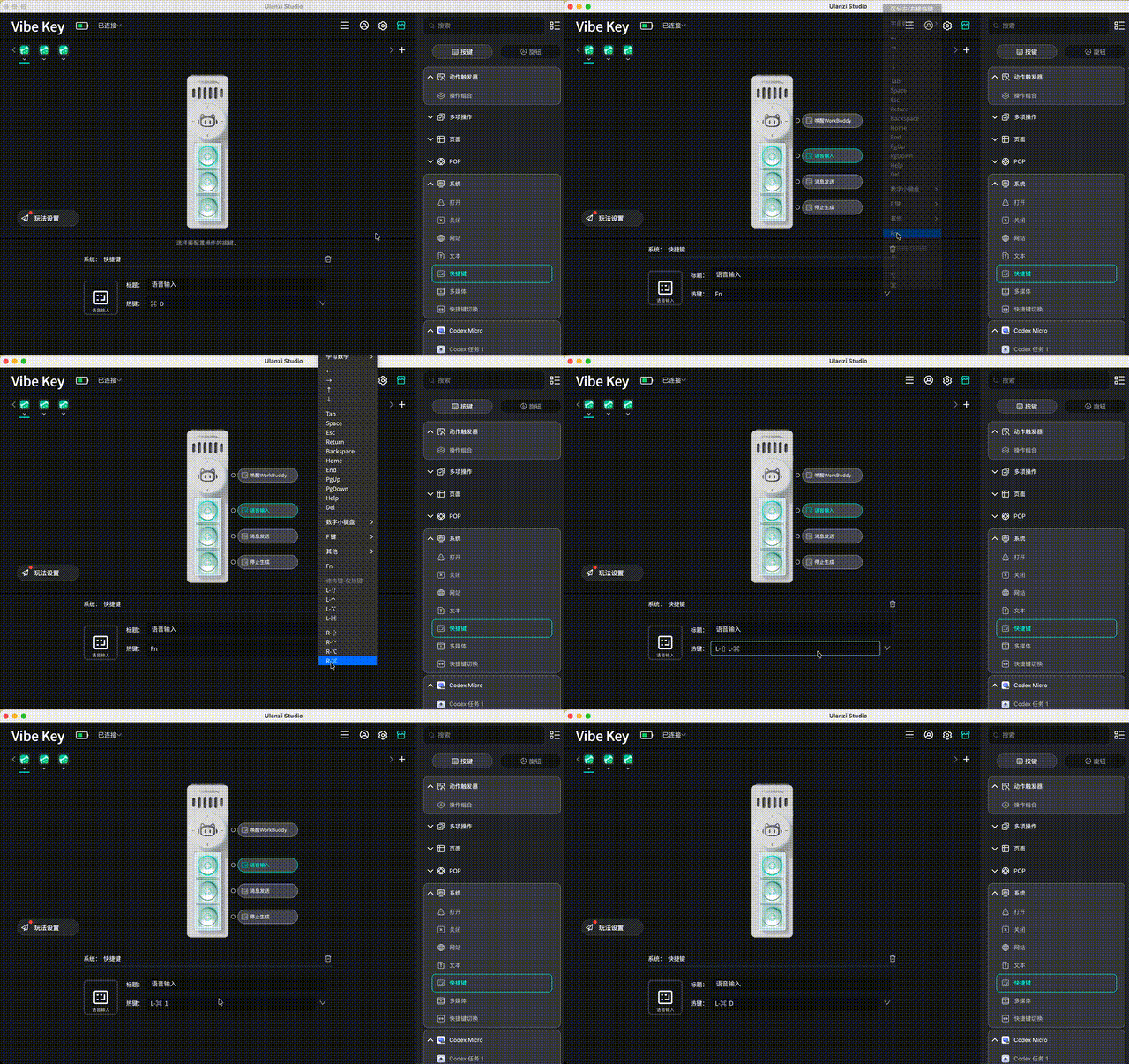
Some third-party apps have key-detection compatibility issues while Ulanzi Studio is open. If necessary, close Ulanzi Studio in the background before triggering the shortcut.
2.3 Configure Key Actions
Basic configuration:
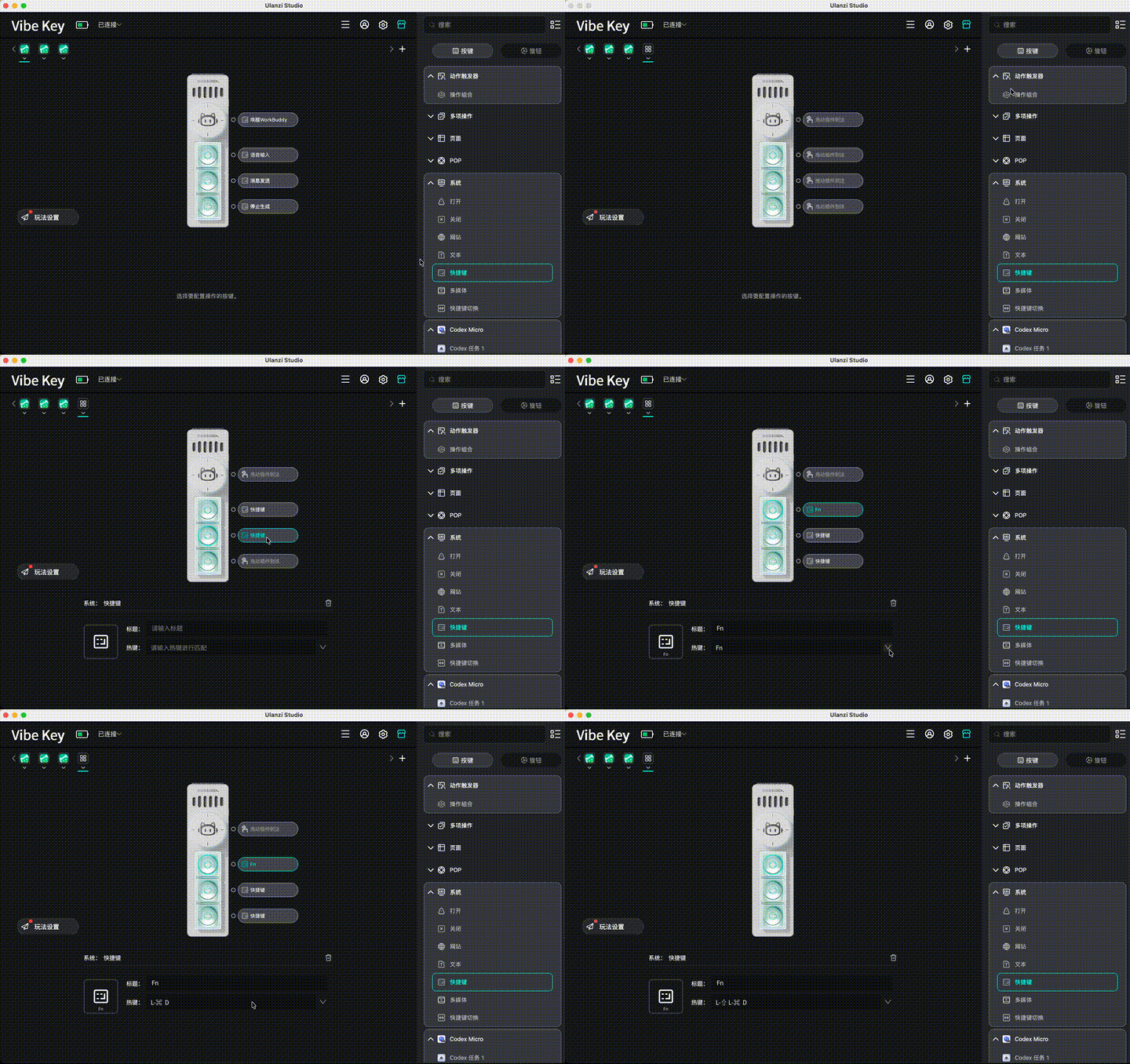
- Create a new default preset and find System → Shortcut in the plugin area on the right.
- Drag the Shortcut action onto a key in the device preview.
- Configure the action. Shortcut recording, special modifier keys, and separate left/right modifiers are supported.
2.3.1 Configure an Action Trigger
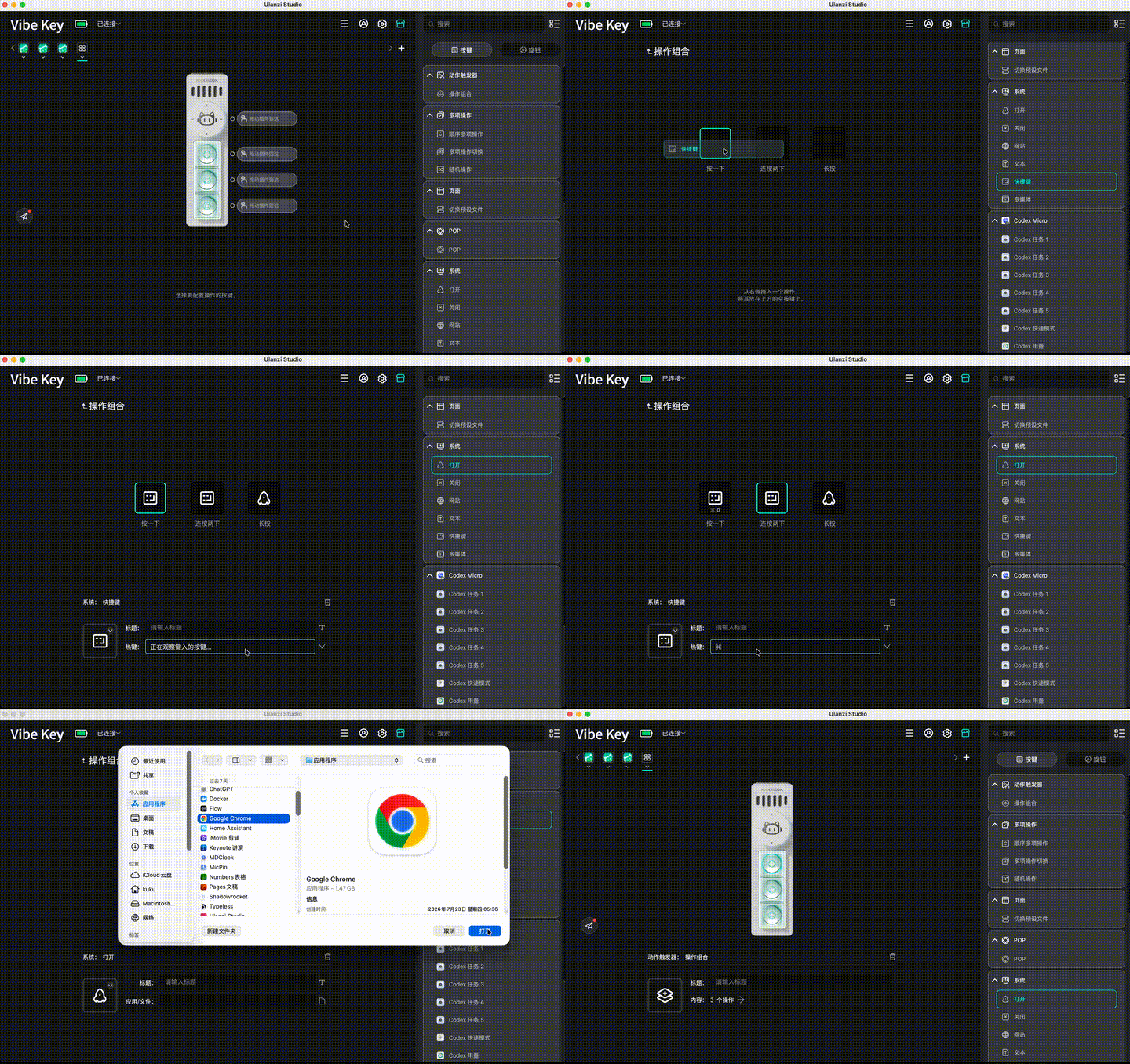
- Find Key → Action Trigger in the plugin area on the right.
- Configure actions for single press, double press, and long press.
- Drag shortcuts or other actions onto a key in the device preview.
- Configure the action. Shortcut recording, special modifier keys, and separate left/right modifiers are supported.
2.4 Configure the Knob
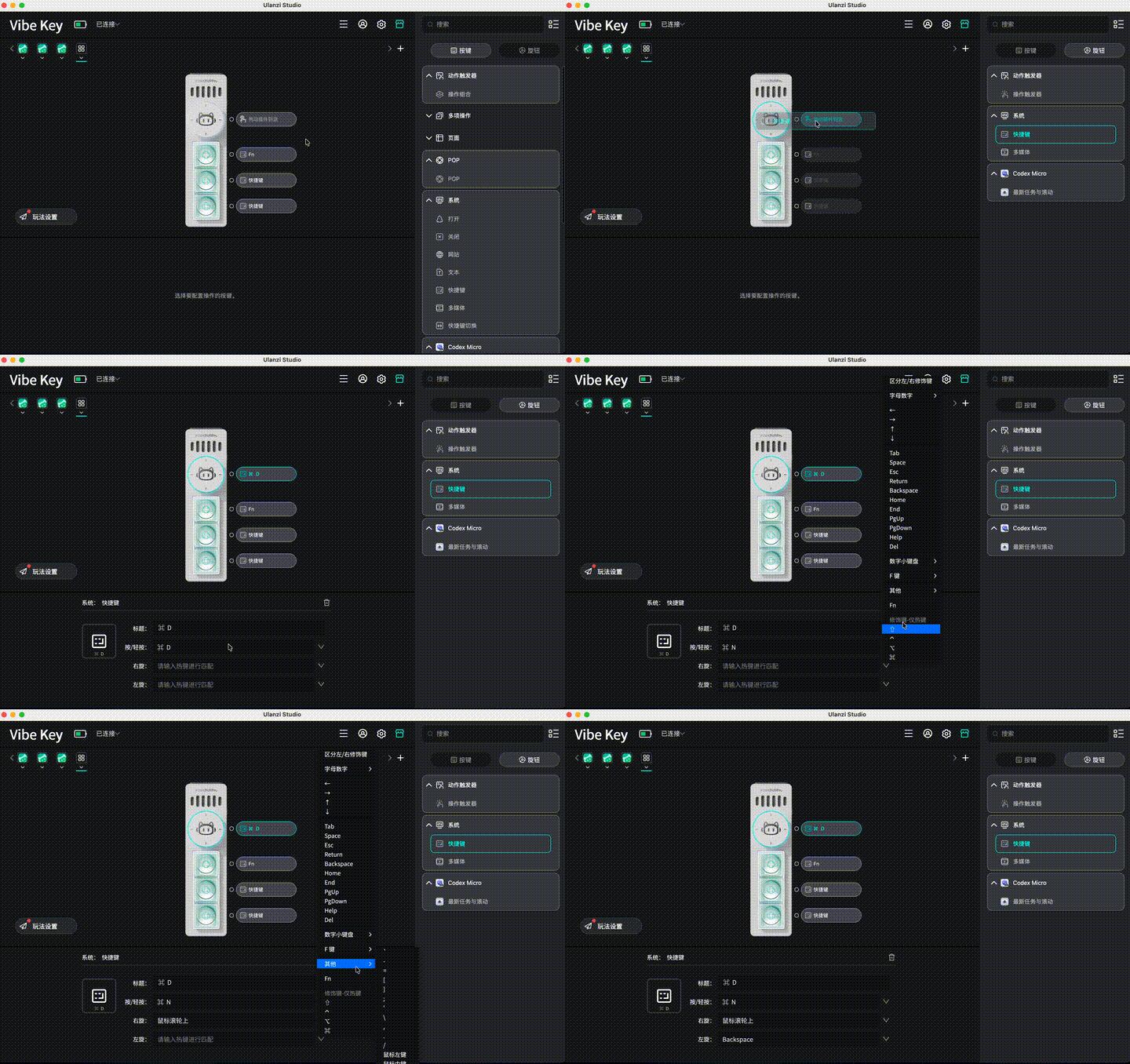
Vibe Key has one physical knob that supports rotation and pressing.
Knob actions:
- Rotate CW: turn clockwise
- Rotate CCW: turn counterclockwise
- Press/tap: press the knob
Basic configuration:
- In the plugin area on the right, select the Knob tab and choose an action such as Shortcut.
- Drag the action onto the knob in the device preview.
- Configure its parameters.
2.5 Configure Lighting Mode
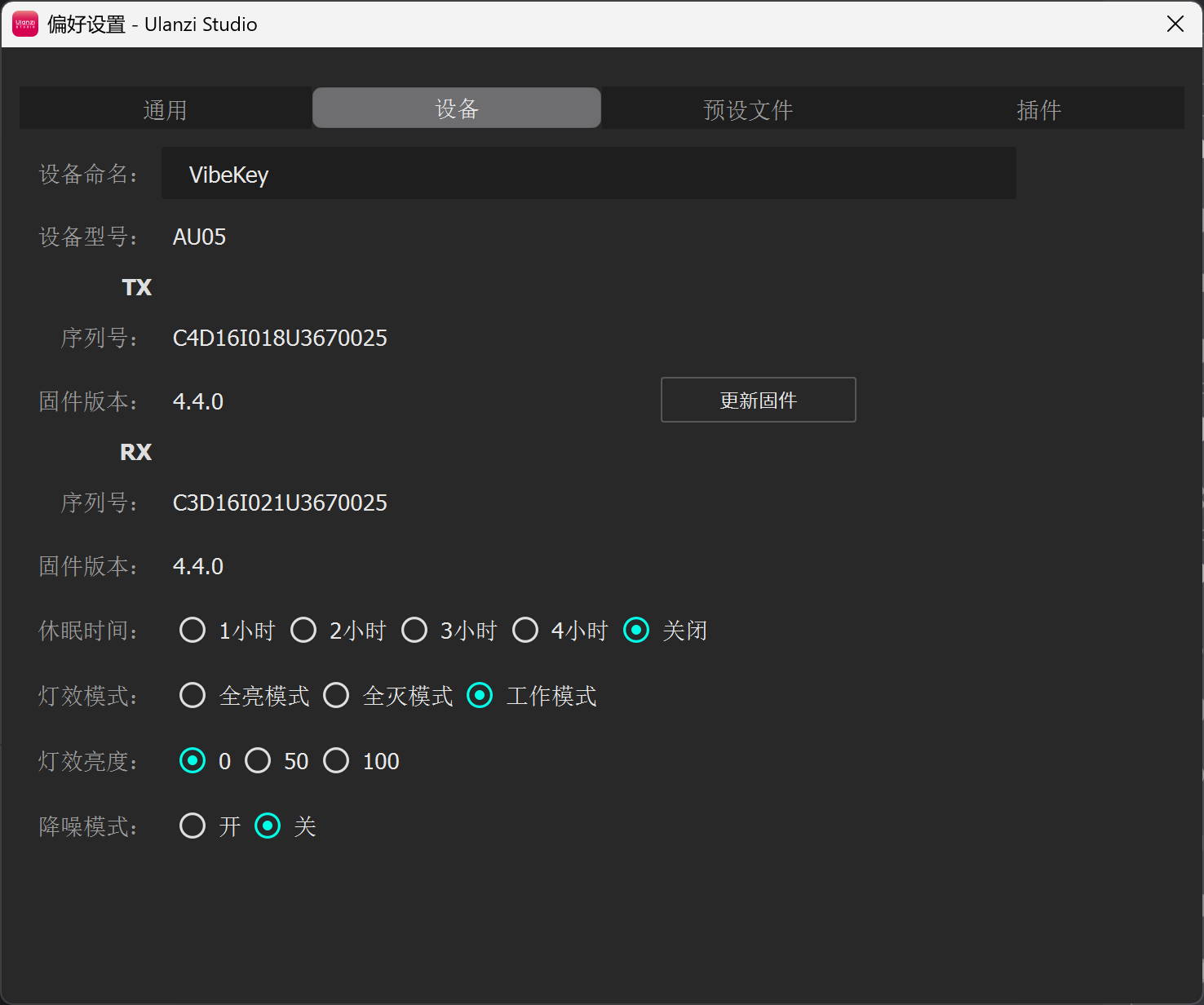
Vibe Key supports Always On, Always Off, and Working modes. Configure the mode under Ulanzi Studio Home → Preferences → Device → Lighting Mode. Working mode is the factory default.
- Always On: Useful on a desktop when you want the device status to remain visible.
- Always Off: Disables all indicators to avoid light distractions.
- Working: Uses lighting to show device or AI collaboration status and confirm that an action was triggered.
2.6 Sleep Timer
Regardless of lighting mode, the device enters standby after five minutes without input. It powers off after one hour in standby and can be awakened with any key.
Set the sleep timer under Ulanzi Studio Home → Preferences → Device → Sleep Time. Available values are 1, 2, 3, or 4 hours, plus Off to disable sleep.
2.7 Noise Reduction
Vibe Key supports noise reduction. Turn it on or off under Ulanzi Studio Home → Preferences → Device → Noise Reduction.
2.8 Create a Preset File
2.8.1 Built-in Default Preset
After installing and opening Ulanzi Studio, connect Vibe Key to use its default preset file.
2.8.2 Create Your Own Preset
- On the Home page, select the
+beside Preset Files. - Choose Create Default Preset, Create Associated Preset, or Import Local Preset.
- Name the preset file and select Confirm.
2.9 Automatic Preset Switching
Different AI tools often call for different controls. Ulanzi Studio can associate a preset with a specific app. When that app becomes the foreground window, the device loads its preset automatically. When you switch to an app without an association, the device returns to the default preset.
This removes the need to change pages or configurations manually and keeps the device synchronized with your current task.
2.9.1 Set Up Automatic Switching
- Open the AI app you want to associate.
- Open Ulanzi Studio and select Preferences in the upper-right corner.
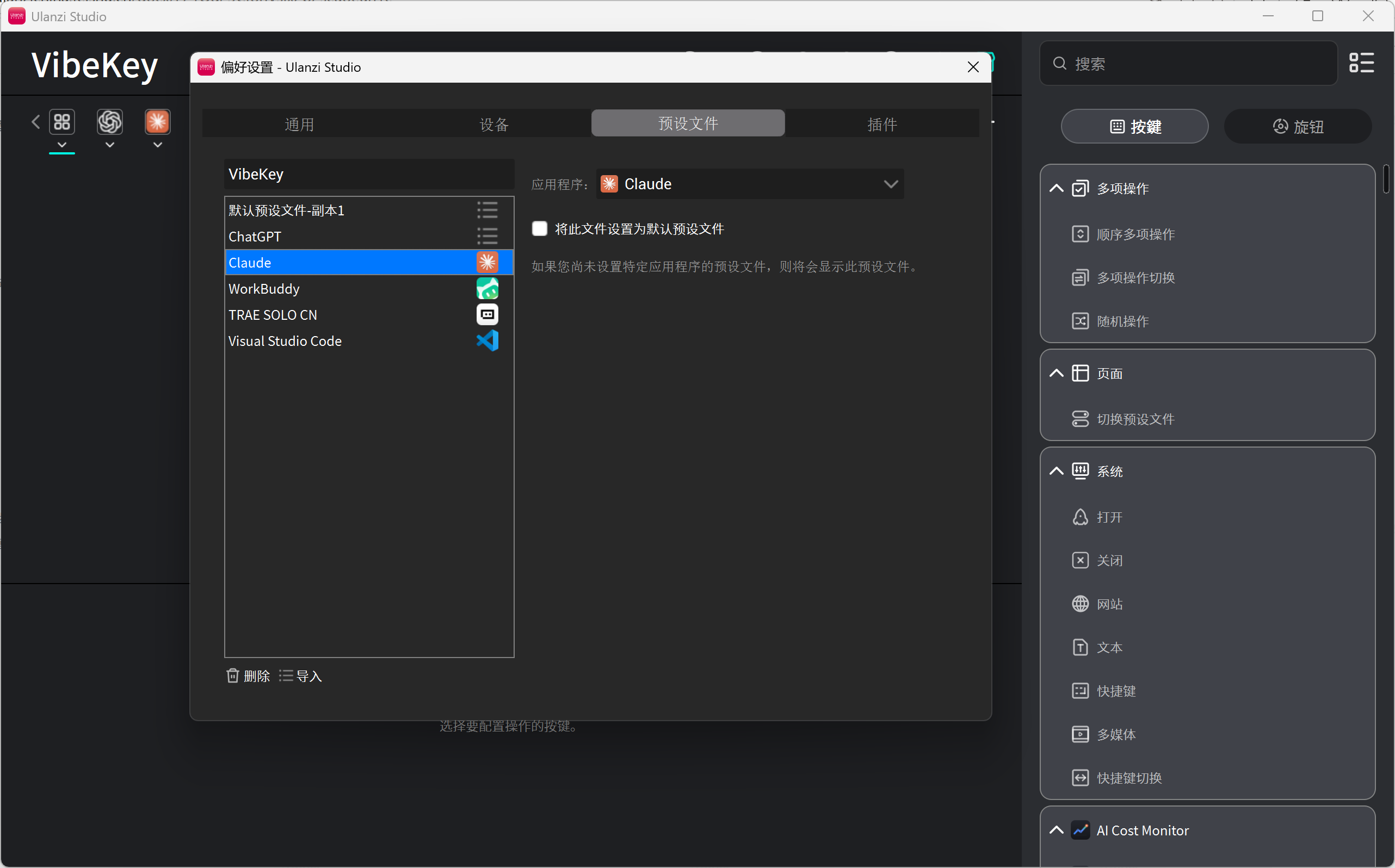
- Open Preset Files and select the preset to switch automatically.
- Under Application on the right, select the running target app from the list.
- The association takes effect immediately. When the app becomes the foreground window, the device loads the selected preset.
Start the target app before selecting it in Ulanzi Studio so the correct application window can be detected.
For more details, see the automatic preset switching tutorial.
2.9.2 Automatic-Switch Notification
Turn the preset-switch notification on or off under Preferences → General → Preset Settings.
3. Frequently Asked Questions
3.1 Common Questions
1. What is Vibe Key offline mode?
After the current preset has synchronized successfully, Vibe Key can continue executing shortcut configurations from that preset even after Ulanzi Studio closes. Fn keys are not currently available offline because they depend on a system allowlist; use another key value for offline triggering.
2. Which actions work offline?
Offline mode currently supports shortcut actions assigned to the knob and keys K1, K2, and K3. Features such as automatic software following and status feedback require Ulanzi Studio to remain open.
3. When does offline mode take effect?
All three conditions must be met:
- Vibe Key has connected to Ulanzi Studio at least once.
- The current preset synchronized successfully to the device.
- The current preset contains shortcut actions that support offline execution.
In short, Vibe Key remembers the shortcut configuration in the most recently synchronized preset and continues to execute it after Ulanzi Studio closes.
4. How does device power management work?
The device enters standby after five minutes by default, at which point the app disconnects. This five-minute standby delay cannot currently be changed because it helps conserve power. Press any key to reconnect almost immediately. Configure the longer sleep timer under Preferences → Device → Sleep Time.
5. Can the keycaps and switches be replaced?
Both can be customized. The device accepts standard cross-stem keycaps and uses custom hot-swappable Gateron Low Profile 3.0 Blue switches.
3.2 What Is the Difference Between Presets and Plugins?
A preset is a complete collection of key layouts and actions—a template for a working scenario. A preset can contain multiple key assignments, including shortcuts, media controls, and text input, and can be associated with an app for automatic switching.
A plugin is an independent module that provides a specific action, such as opening a URL, entering text, or controlling music. Install a plugin first, then drag it onto an empty key. Plugins are reusable building blocks rather than complete configurations.
| Item | Preset (Profile) | Plugin |
|---|---|---|
| Installation | Download from App Store → Preset Files | Download from App Store → Plugins |
| Usage | Select from the top of the main interface or switch automatically | Appears in the plugin list on the right and must be dragged onto an empty key |
| Association | A preset file on the device can be associated with only one app | A plugin can be reused by multiple presets |
| Scope | Complete workflow configuration containing multiple key-action combinations | One action unit, such as Shortcut, Delay, or Text |
4. Technical Support and Resources
4.1 Official Resources
| Resource | Link |
|---|---|
| UGC website | ugc.ulanzistudio.com |
| Official forum | bbs.ulanzistudio.com |
| Developer tools (SDK) | UlanziDeck Plugin SDK |
4.2 Community Platforms
| Platform | Account/link |
|---|---|
| Discord | Ulanzi Studio Discord |
| @ulanzi.studio | |
| ulanzi.studio | |
| Xiaohongshu | 4468316896 |
| Douyin | 26746264773 |
4.3 Contact Technical Support
Email: ustudioservice@ulanzi.com