Ulanzi Studio Software Guide (Vibe Key)
Welcome to the Vibe Key keypad microphone.
This guide helps you get started with Vibe Key and its companion software, Ulanzi Studio. It covers the product, installation and configuration, feature settings, and troubleshooting.
1. Getting Started
1.1 Product Overview
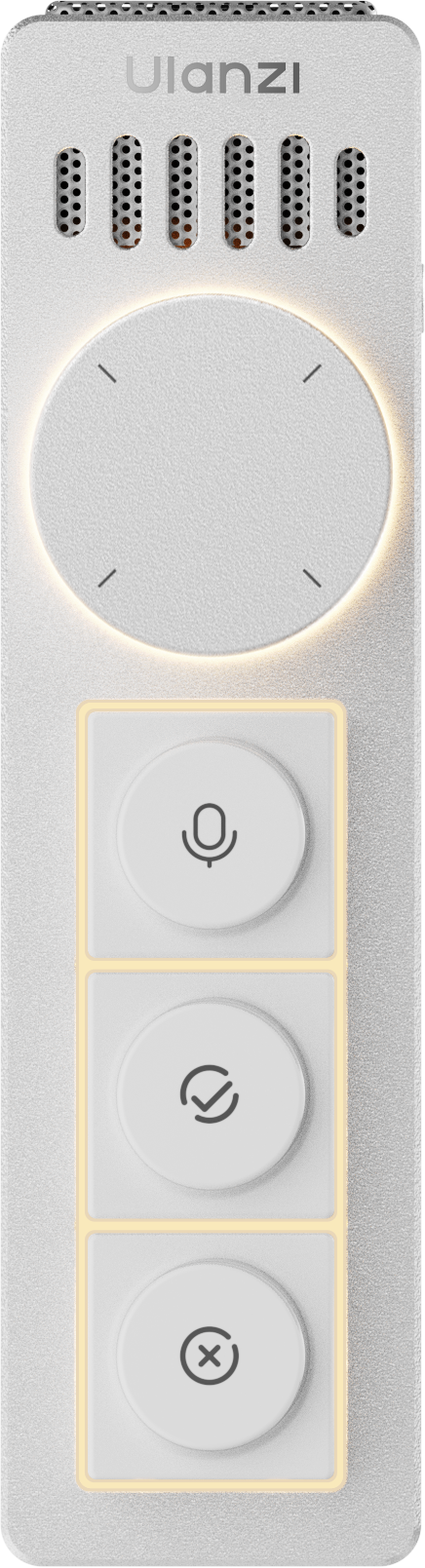
Hardware: Ulanzi Vibe Key (model AU05) is a smart microphone peripheral designed for AI workflows. It combines voice input, shortcut controls, and status lights to provide quick computer controls. Designed around frequent AI collaboration tasks, it makes working with agents more direct and efficient.
Three main keys and one knob cover common AI interactions:
- Voice input: Hold to speak, then release to send or execute an instruction.
- Confirm: Accept an AI-generated result or proceed to the next action.
- Cancel: Cancel, go back, or discard the current result.
- Knob: Assign scrolling, zooming, session switching, or another shortcut to suit your preferences.
Software: Ulanzi Studio is the companion desktop control app for Vibe Key. It lets you customize key and knob mappings, quickly access frequently used agent apps, and adjust hardware settings. Custom mappings require Ulanzi Studio to run in the background. Keep it minimized to the system tray for continued use. Closing the main window disables app-dependent custom mappings; the device can then execute only the most recently synchronized shortcuts in offline mode, without Fn keys or status-light features.
Package contents: One Vibe Key device, one USB-C Dongle receiver, one charging cable, and one set of product packaging and enclosed materials.
1.2 Download and Installation
1.2.1 Download Options
- China website
- International website
- Download and install the version for your operating system. Vibe Key requires Ulanzi Studio 3.3.6 or later.
| Platform | System requirements |
|---|---|
| Windows | Windows 10 or later |
| Mac (Apple silicon) | macOS 12.0 or later; Apple silicon only |
| Mac (Intel) | macOS 12.0 or later; Intel processors only |
1.2.2 Installation and Permissions
Windows: No additional permissions are required.
macOS: Accessibility permission allows the app to simulate keyboard input and enables device key mappings. Go to System Settings → Privacy & Security → Accessibility and enable Ulanzi Studio.
1.3 Connection and Pairing
1.3.1 First Connection
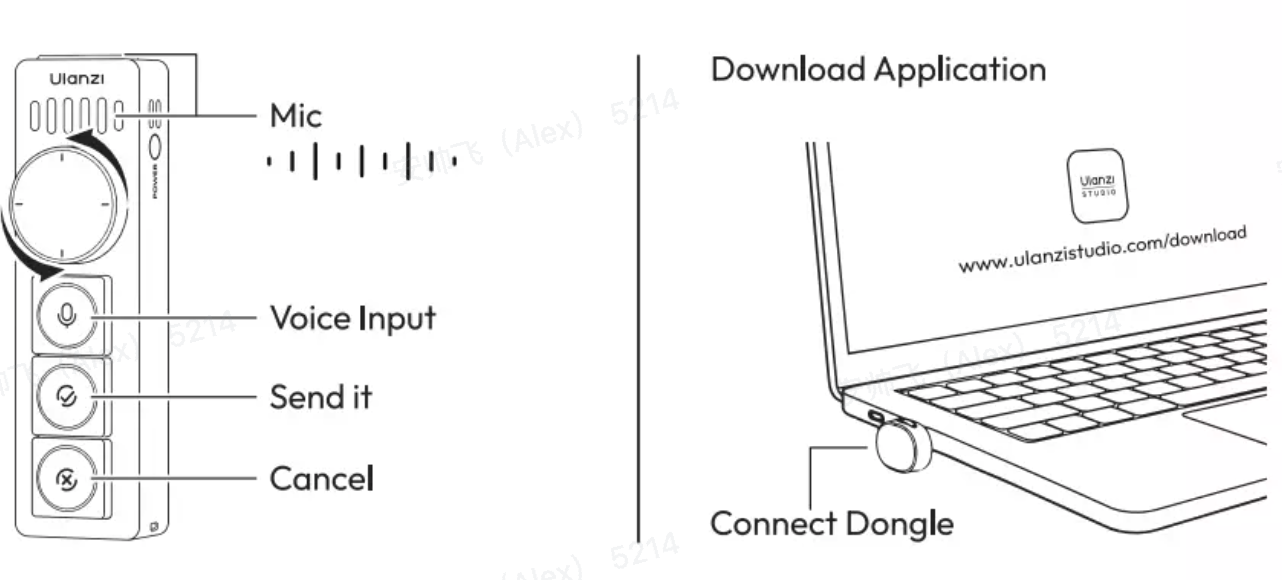
- Take out Vibe Key and the Dongle receiver.
- Connect the Dongle to a data-capable USB-C port on your computer.
- Press and hold the power button on the right side of the device for 2–3 seconds.
- The device connects automatically to its paired Dongle.
- When connected, the Dongle indicator and device knob light stay on.
Each device and receiver is paired one-to-one at the factory. After powering on the device, simply plug in the Dongle; no manual pairing is needed. USB hubs and port adapters are also supported.
On macOS, Keyboard Setup Assistant may appear once after pairing. Select Back to dismiss it.
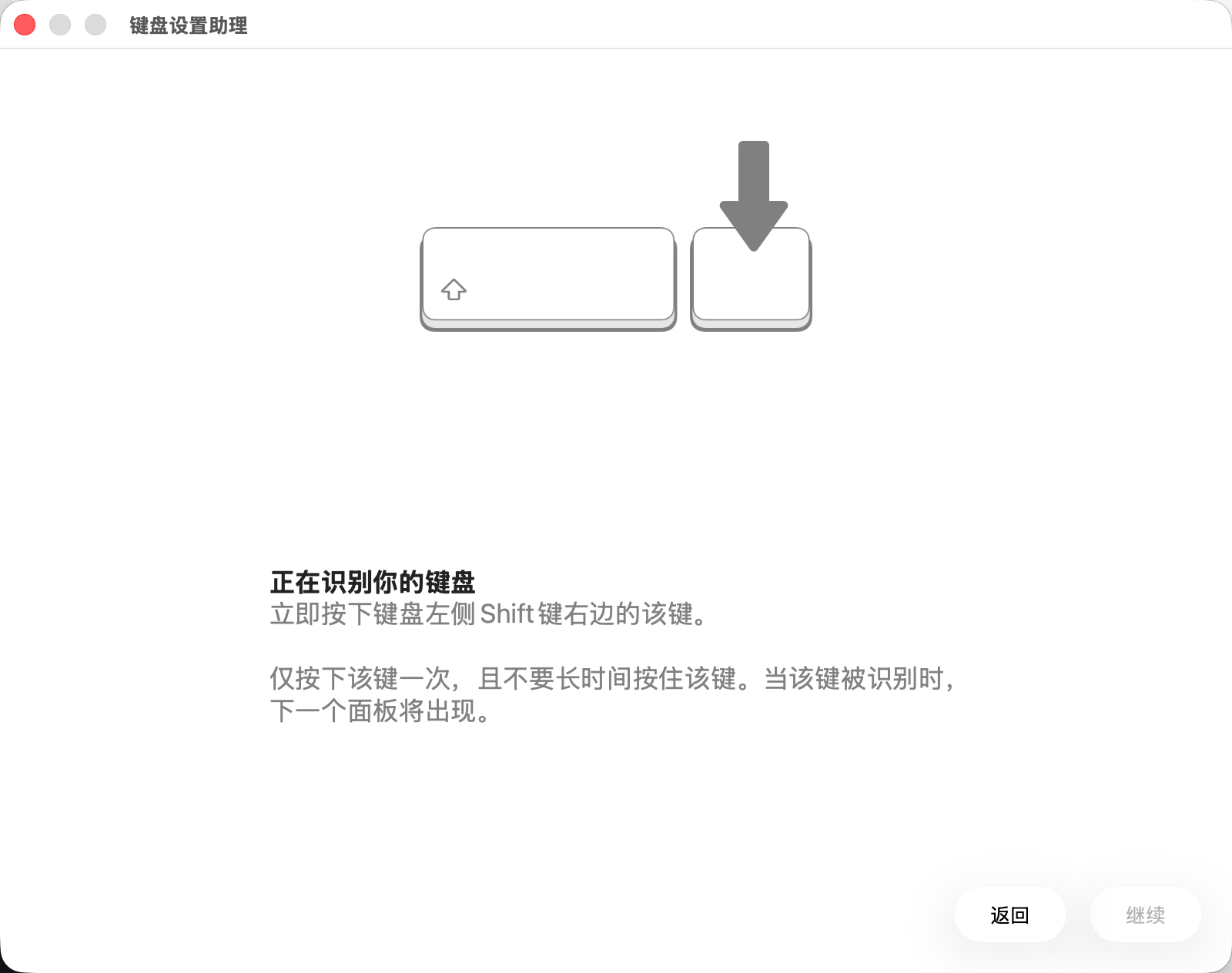
This first-connection prompt appears because macOS applies stricter identification rules to third-party input devices.
1.3.2 Connection Troubleshooting
Dongle connected to a port without power or data transfer:
- Symptoms: The receiver indicator is off, the knob light flashes slowly, and Ulanzi Studio cannot recognize the device.
- Cause: The Dongle is connected to a PD charging port or a hub below USB 2.0 specifications.
- Solution: Use a data-capable USB-C port supporting USB 2.0 or later.
1.4 Ulanzi Studio Configuration
1.4.1 First Launch
Ulanzi Studio automatically recognizes paired devices that are online and opens the corresponding device configuration page.
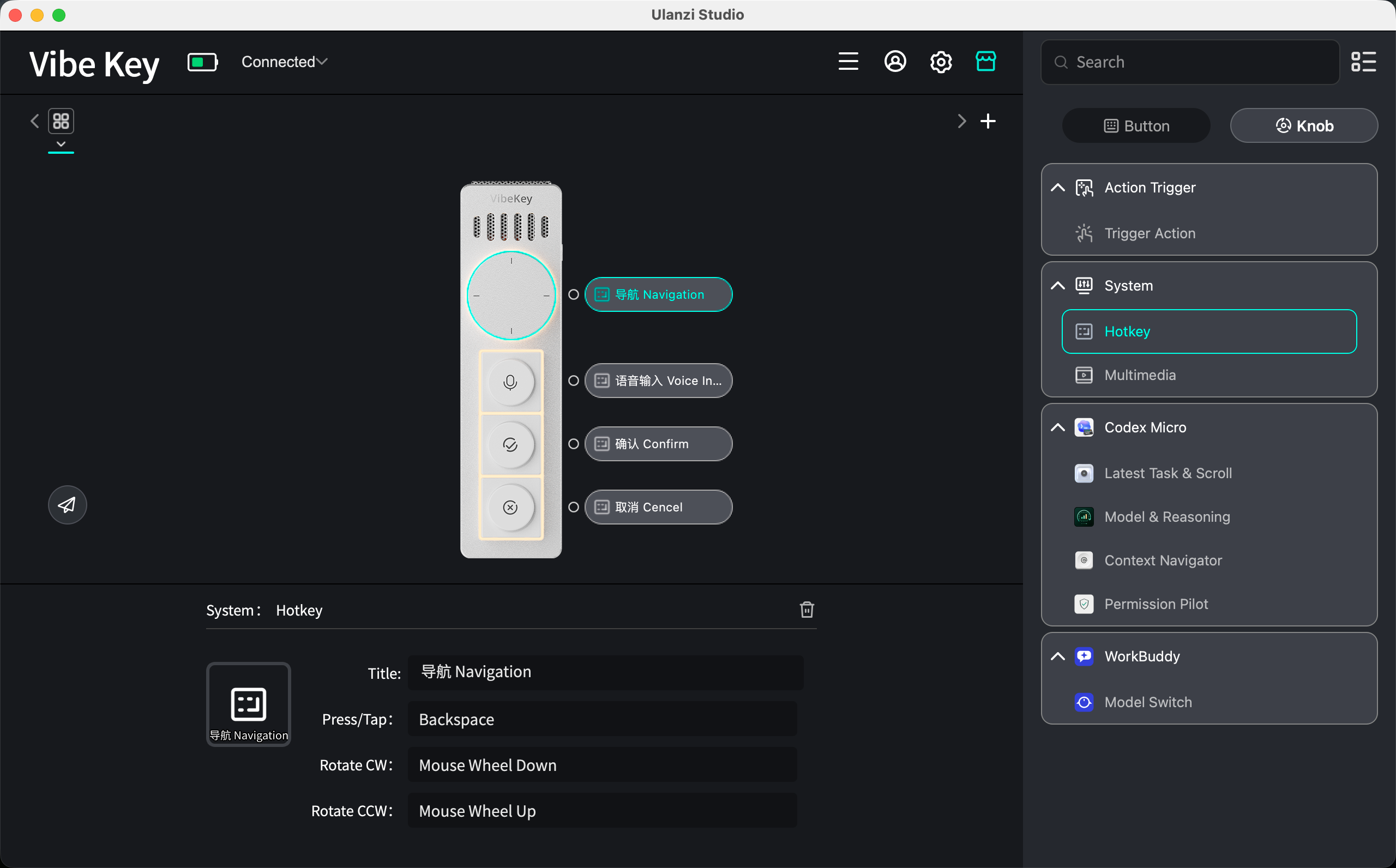
1.4.2 Default Key Mappings
| Key / knob action | Purpose | Windows default | macOS default | Description |
|---|---|---|---|---|
| K1 voice key (microphone icon) | Activate voice input | Win+H | Fn | The device captures audio but does not recognize or transcribe speech. Assign the activation shortcut of a third-party input tool, such as Fn for Typeless or Win+H for WeChat Input. |
| K2 confirm key (✓) | Confirm / accept an AI result | Enter | Return | Accept a generated result or proceed, just like the keyboard's Enter/Return key. |
| K3 reject key (×) | Cancel / reject an AI result | Esc | Esc | Cancel or reject the current result, or return to the previous state, just like Esc. |
| Press knob | Delete backward | Backspace | Backspace | Delete incorrectly transcribed characters without using the keyboard. |
| Rotate clockwise | Scroll down | Mouse wheel down | Mouse wheel down | Scroll the page down. |
| Rotate counterclockwise | Scroll up | Mouse wheel up | Mouse wheel up | Scroll the page up. |
TIP
These are the factory defaults. All keys can be customized in Ulanzi Studio. See 2.2 Key Function Configuration.
1.4.3 Audio Input Device Selection
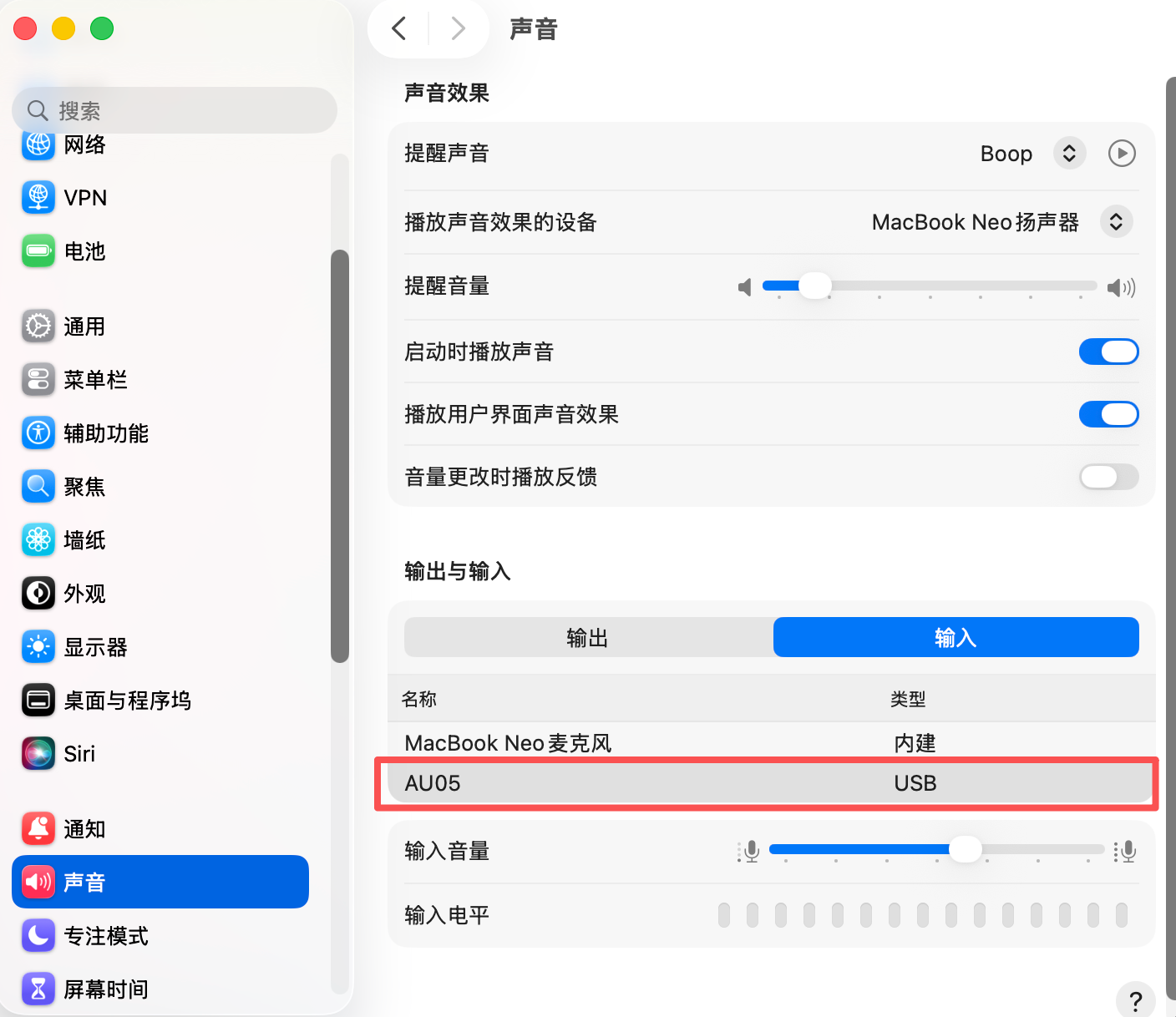
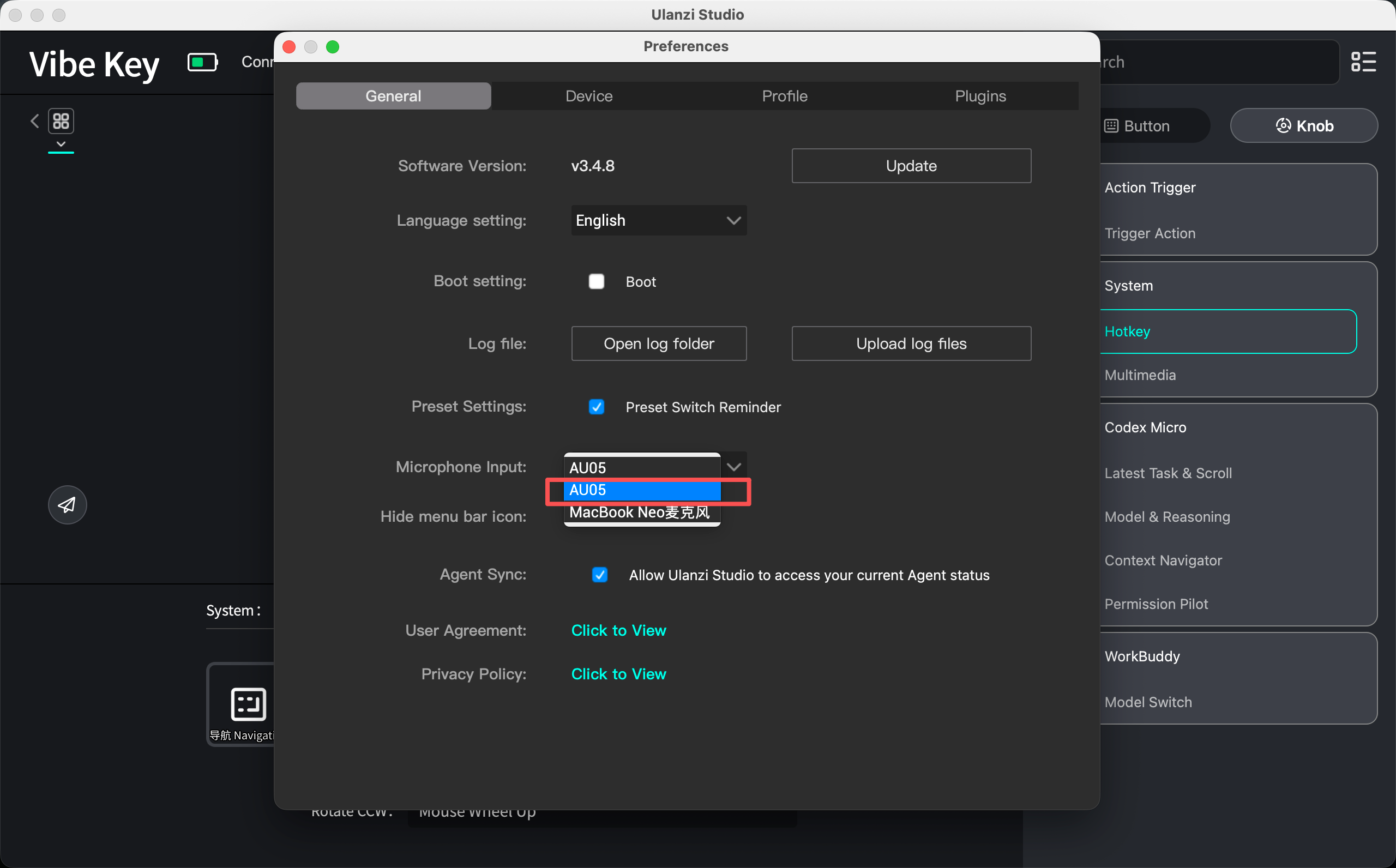
Before first use, check the microphone settings, select AU05 as the input device, and turn up the input volume.
- Windows: The system may prioritize another third-party input device. Go to Settings → System → Sound → Input and manually select AU05.
- macOS: System permissions require manual selection. Go to System Settings → Sound → Input and select AU05.
- You can also select AU05 directly in Ulanzi Studio under Preferences → General → Microphone Input.
1.5 Main Interface Overview
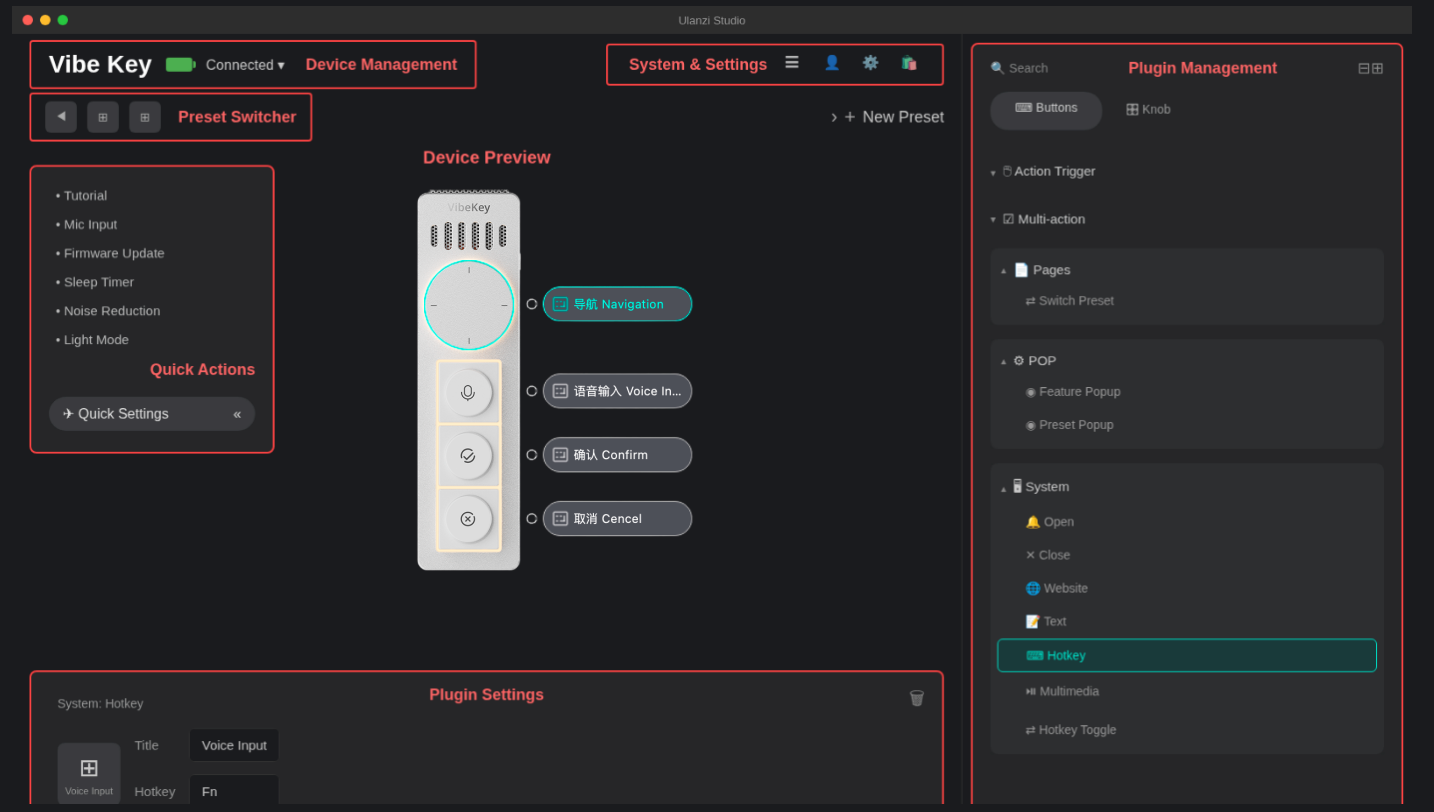
Ulanzi Studio uses a consistent skeuomorphic interface designed to be attractive and easy to use.
1.5.1 Interface Areas
- Device management: View the connected device name and battery level, and switch devices.
- System and settings: From right to left: App Store, Preferences, Account, and Explore More.
- Preset switcher: Select, inspect, move, delete, or rename presets.
- New preset: Create a default or linked preset, or import a local preset.
- Quick Actions: Quickly access common settings, features, and tutorials.
- Device preview: Check the device's current plugin configuration.
- Plugin management: Browse supported plugins and drag their actions onto the device preview.
- Plugin settings: Configure parameters for actions already assigned to the device.
2. Core Feature Settings
2.1 Voice Input
Vibe Key does not recognize speech itself. It acts as a hardware microphone and shortcut transmitter. Speech-to-text is performed by an AI input method or an AI agent's recording and transcription feature, activated through a mapped shortcut. Under Voice Input → Hotkey in the preset, assign the activation shortcut of your voice-input app. Complete this setup before first use; otherwise, the voice key will not respond.
2.1.1 Voice Input Setup
- Choose a voice-input app. For better transcription, use an agent's built-in voice input or a third-party tool such as Typeless (recommended), Flow, Doubao Input, or WeChat Input. See the compatibility table below.
- Confirm its activation shortcut. Check Settings → Shortcuts in the voice app. Test the shortcut with your keyboard first and verify that AU05 can capture audio and produce a transcription.
- Map the voice key. Drag Hotkey onto K1 in Ulanzi Studio. Enter the verified activation shortcut in the hotkey settings, using key recording or the shortcut menu on the right.
- Verify. Press K1 and speak, then check that your speech is transcribed correctly.
For Typeless, find its voice activation shortcut (Fn / Right Option) and enter the new key value in the voice-input plugin settings.
2.1.2 Compatibility Table
Vendors and apps use different implementations and compatibility requirements. Choose an input tool for your operating system and preferences; shortcut activation may behave differently between tools. The following list is not ranked.
| No. | App | Windows | macOS | Notes |
|---|---|---|---|---|
| 1 | Typeless | Yes | Yes | Global voice activation; no input-method switching required. |
| 2 | Flow Input | Yes | Yes (default Fn+Shift / Fn+Space) | On macOS, the app must be running for these shortcuts. Fn is unavailable offline; choose another shortcut if needed. |
| 3 | iFlytek Input | Yes | Yes (default Option+Fn) | On macOS, the app must be running for this shortcut. Fn combinations are unavailable offline; choose another shortcut if needed. |
| 4 | Doubao Input | No | Yes (default Fn) | Windows: unavailable while the app runs; close it to use offline mode. macOS: Fn requires the app to run and is unavailable offline. Other shortcuts can work both with the app running and offline. Switch to Doubao Input. |
| 5 | WeChat Input | Yes | Yes (default Fn) | Switch to WeChat Input. On macOS, shortcut-based hold-to-talk does not work correctly; use single-click Start Voice Input instead. |
| 6 | Qwen Input | No | Yes | Windows: unavailable while the app runs; close it to use offline mode. Global activation; no input-method switching required. |
| 7 | Sogou Input | Yes | Yes | Global activation; no input-method switching required. |
| 8 | Baidu Input | Yes | Not supported | A Mac version is not currently supported. |
| 9 | WorkBuddy | Yes | Yes | |
| 10 | Codex | Yes | Yes | |
| 11 | OpenClaw | Yes | Yes | |
| 12 | Claude | Yes | Yes | |
| 13 | Qwen | Yes | Yes | Switch to the Qwen app to use voice input. |
| 14 | Doubao | Yes | Yes | Switch to the Doubao app to use voice input. |
| 15 | Shandianshuo | Yes | Yes | |
| 16 | Zhipu | Yes | Yes | Global activation; no input-method switching required. On macOS, Fn / Fn+Space require the app to run. Fn is unavailable offline; choose another shortcut if needed. |
| 17 | Chatterfly | No | Yes | Windows: unavailable while the app runs; offline mode works. Global activation; no input-method switching required. |
2.2 Key Function Configuration
Basic setup:
- Select the Buttons tab in Plugin Management on the right, then choose an action such as System → Hotkey.
- Drag the action onto a key in Device Preview.
- Configure its parameters. You can record shortcuts, choose special modifier keys, and distinguish left and right modifiers.
2.2.1 Action Trigger Configuration
- Find Buttons → Action Trigger in Plugin Management.
- Assign actions for a single press, double press, and long press.
- Drag Hotkey or other actions onto the key in Device Preview.
- Configure the parameters, including shortcut recording, special modifiers, and left/right modifiers.
2.3 Knob Configuration
Vibe Key has one physical knob that supports rotation and pressing:
- Press / tap: Press the knob once.
- Rotate right: Turn clockwise.
- Rotate left: Turn counterclockwise.
Basic setup:
- Select the Knob tab in Plugin Management and choose an action such as System → Hotkey.
- Drag it onto the knob in Device Preview.
- Configure its parameters.
2.4 Lighting Modes
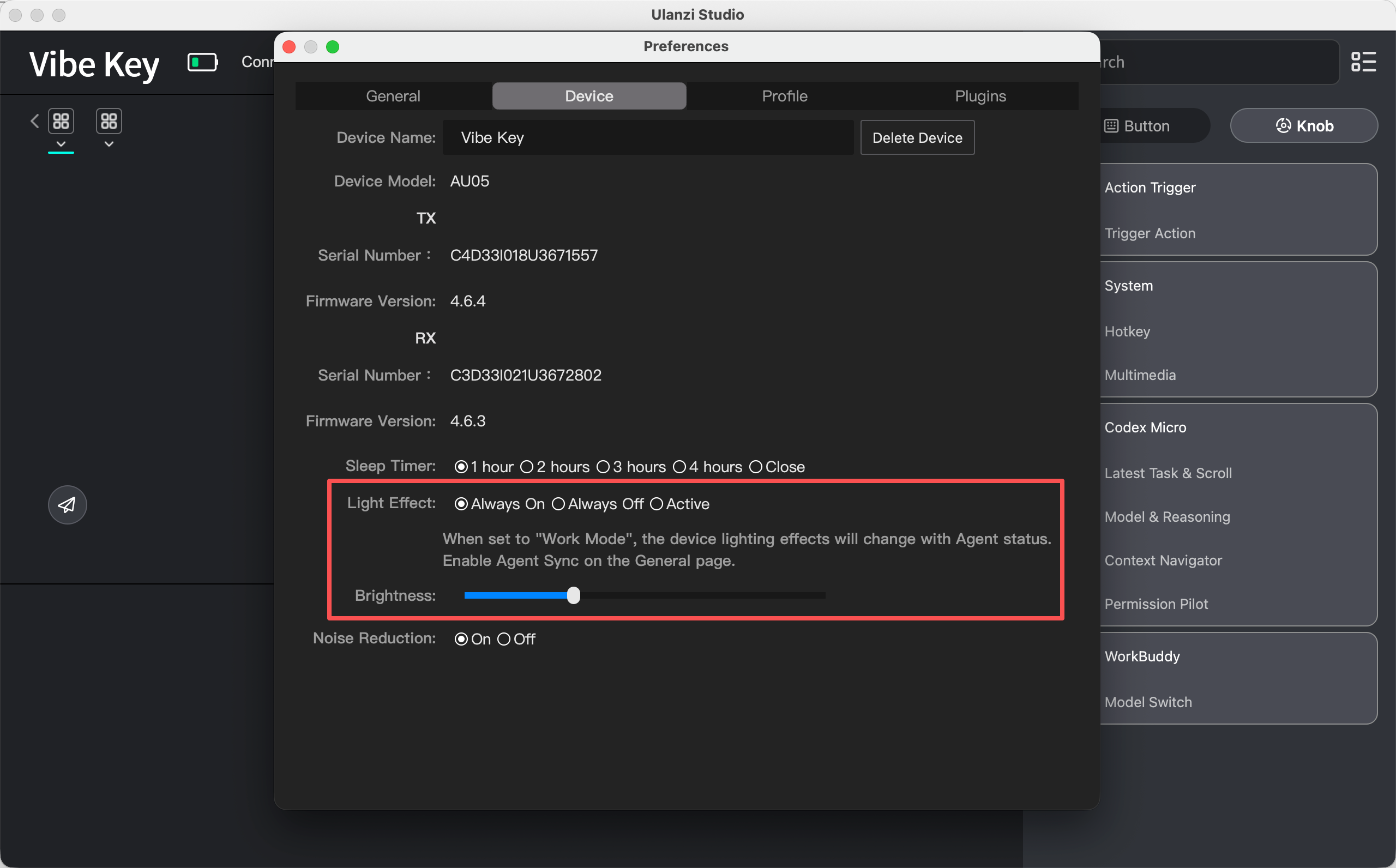
Vibe Key supports Always On, Always Off, and Working modes. Configure them under Preferences → Device → Light Effect. Working mode, shown as Active in the English interface, is the factory default.
- Always On: Keeps indicators lit for easy status monitoring on a desktop.
- Always Off: Turns off all indicators when light distractions must be avoided.
- Working (Active): Displays device and agent collaboration status in real time so you can confirm that actions have taken effect.
2.4.1 Using Hooks
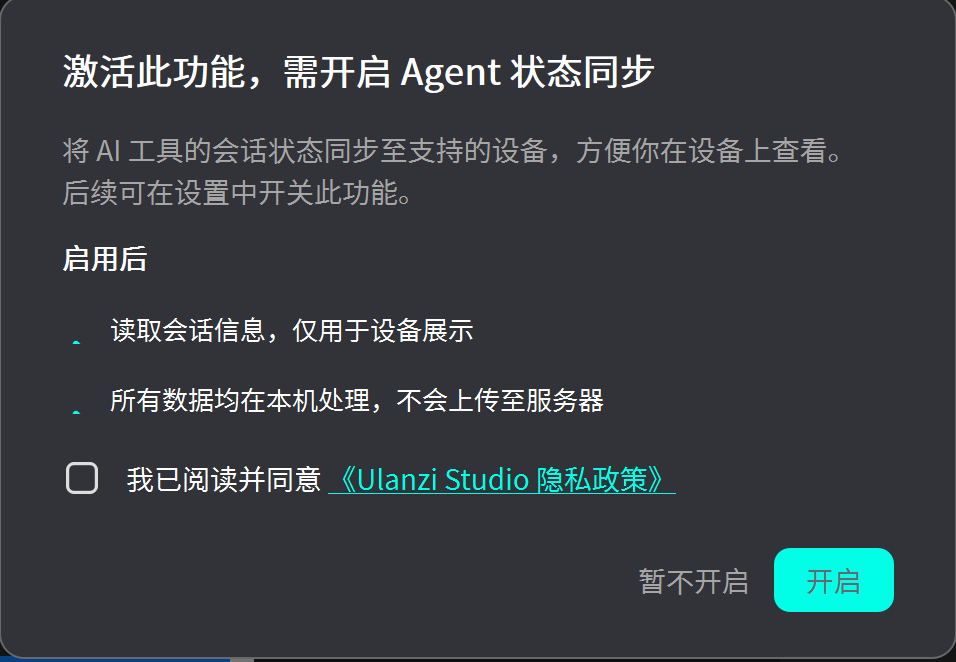
1. Select Working mode and enable Agent Status Sync. Select the checkbox confirming that you have read and agree to the Ulanzi Studio Privacy Policy, then select Agree and Enable. If ChatGPT or Claude Code is installed, Ulanzi Studio automatically installs the corresponding Hooks.
2. Allow Hooks in ChatGPT. On first use, ChatGPT opens Review hooks. Select Allow all or Allow selected to allow Ulanzi Studio's Hooks. If you miss the prompt, open Settings → Coding → Hooks. Only ChatGPT requires this step; Claude Code authorizes them automatically.
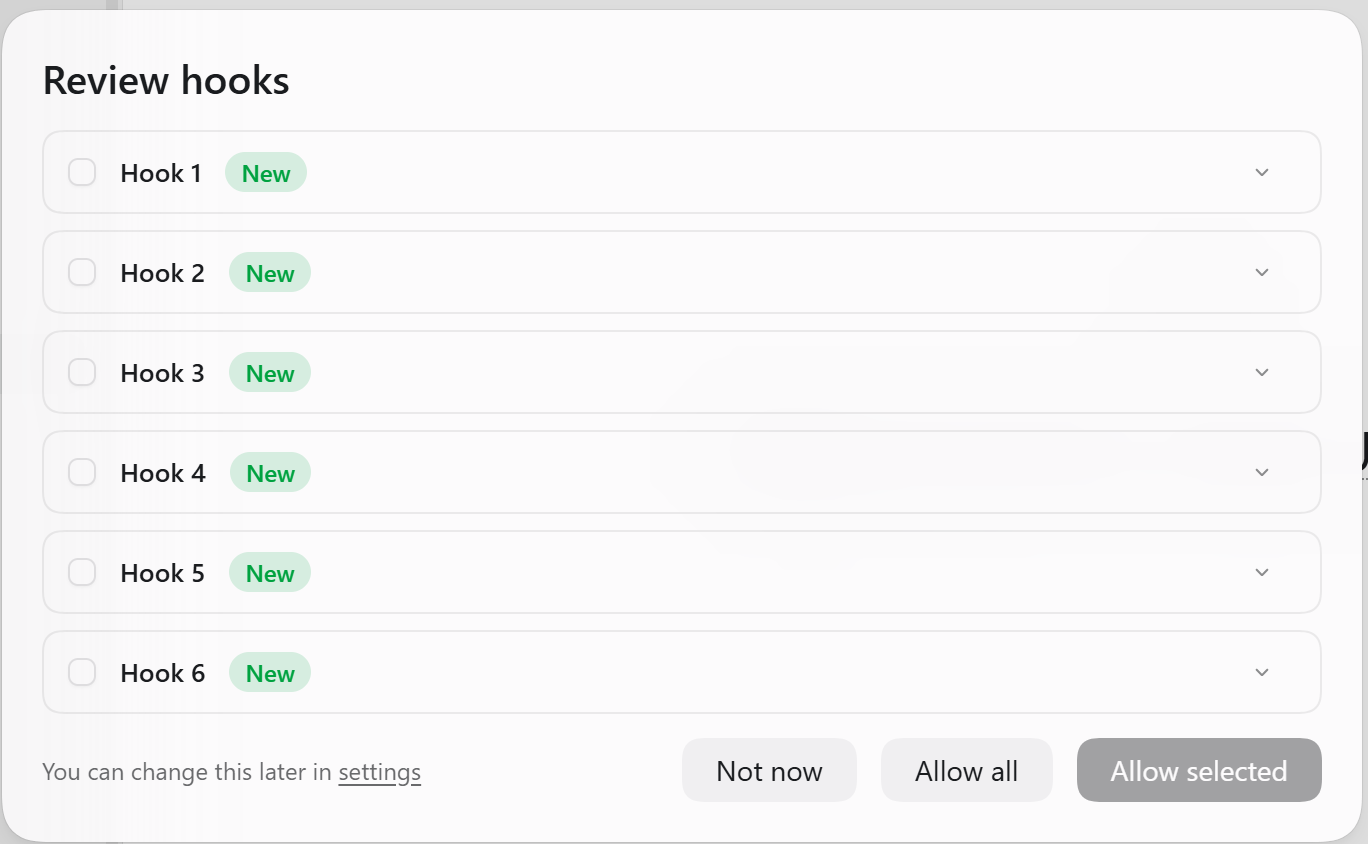
On first use, Hooks 1–6 are marked as new. Select Allow all or Allow selected to let them run.
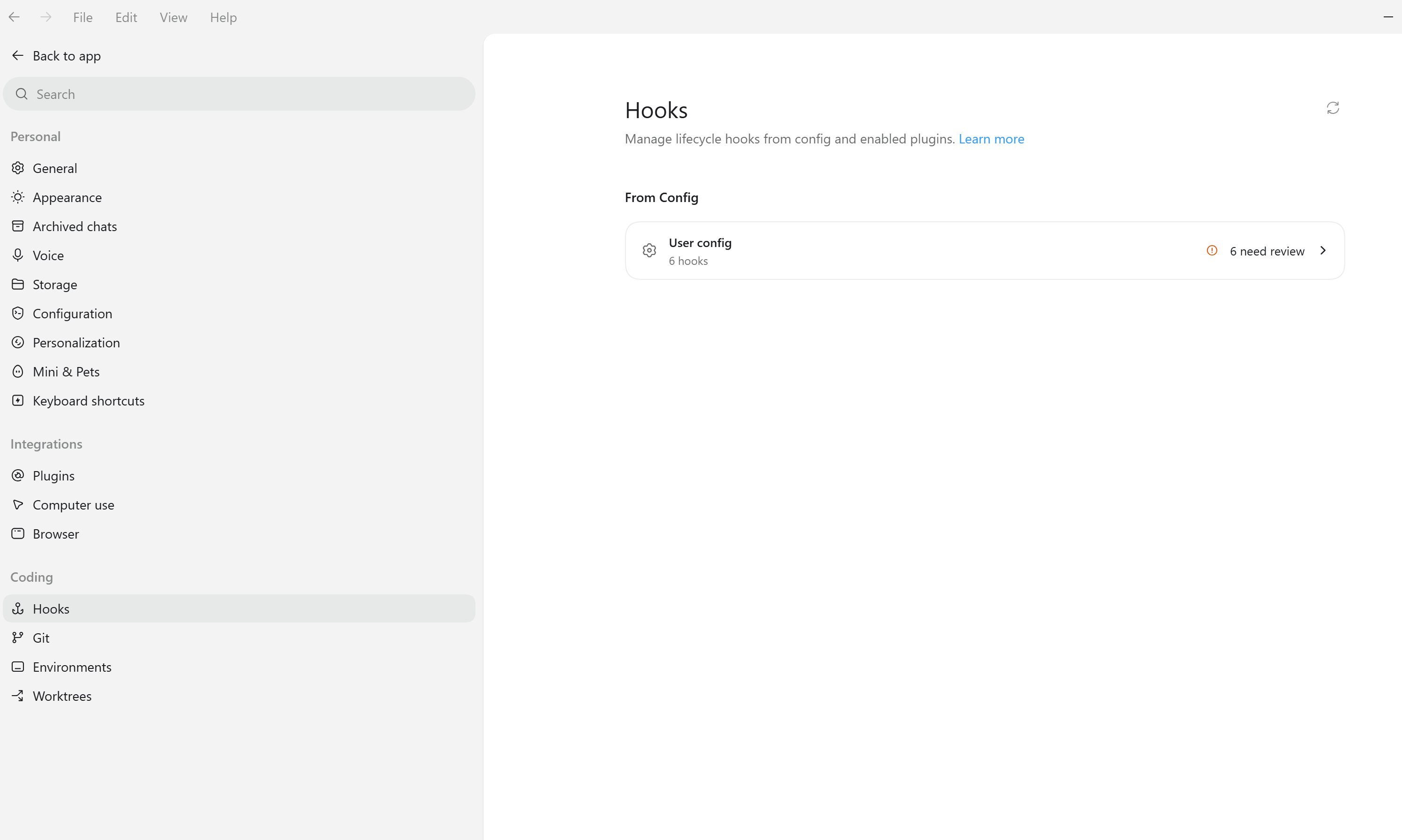
If you missed the dialog, open Settings → Coding → Hooks → From Config → User config. Six Hooks require review, indicated by 6 need review.
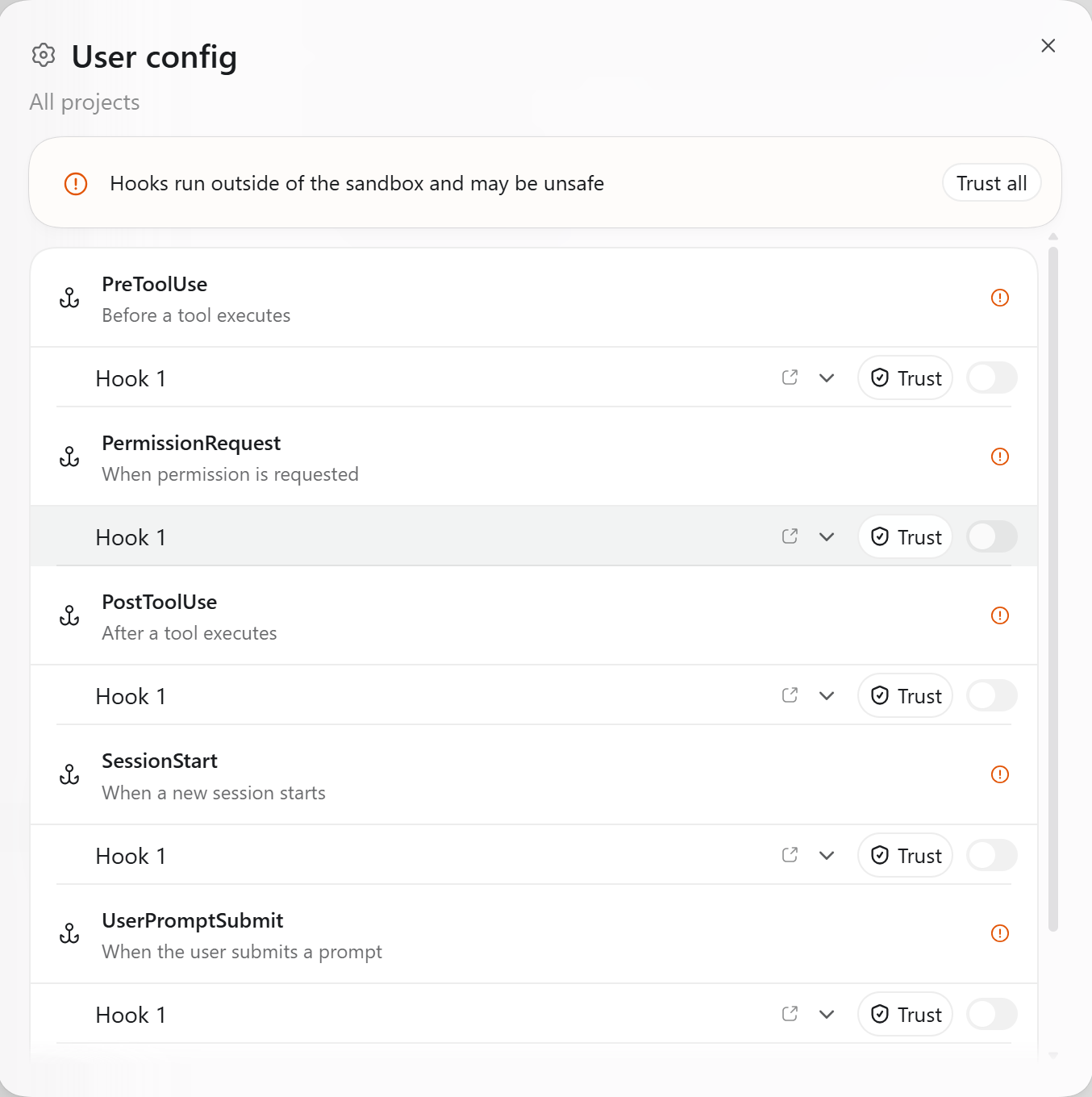
Select Trust for each Hook or Trust all in the upper-right corner.
3. Start a new session. Open ChatGPT or Claude, create a new session, and begin working.
4. Check the lights. Vibe Key displays the corresponding lighting feedback as the agent's status changes.
2.5 Sleep and Wake
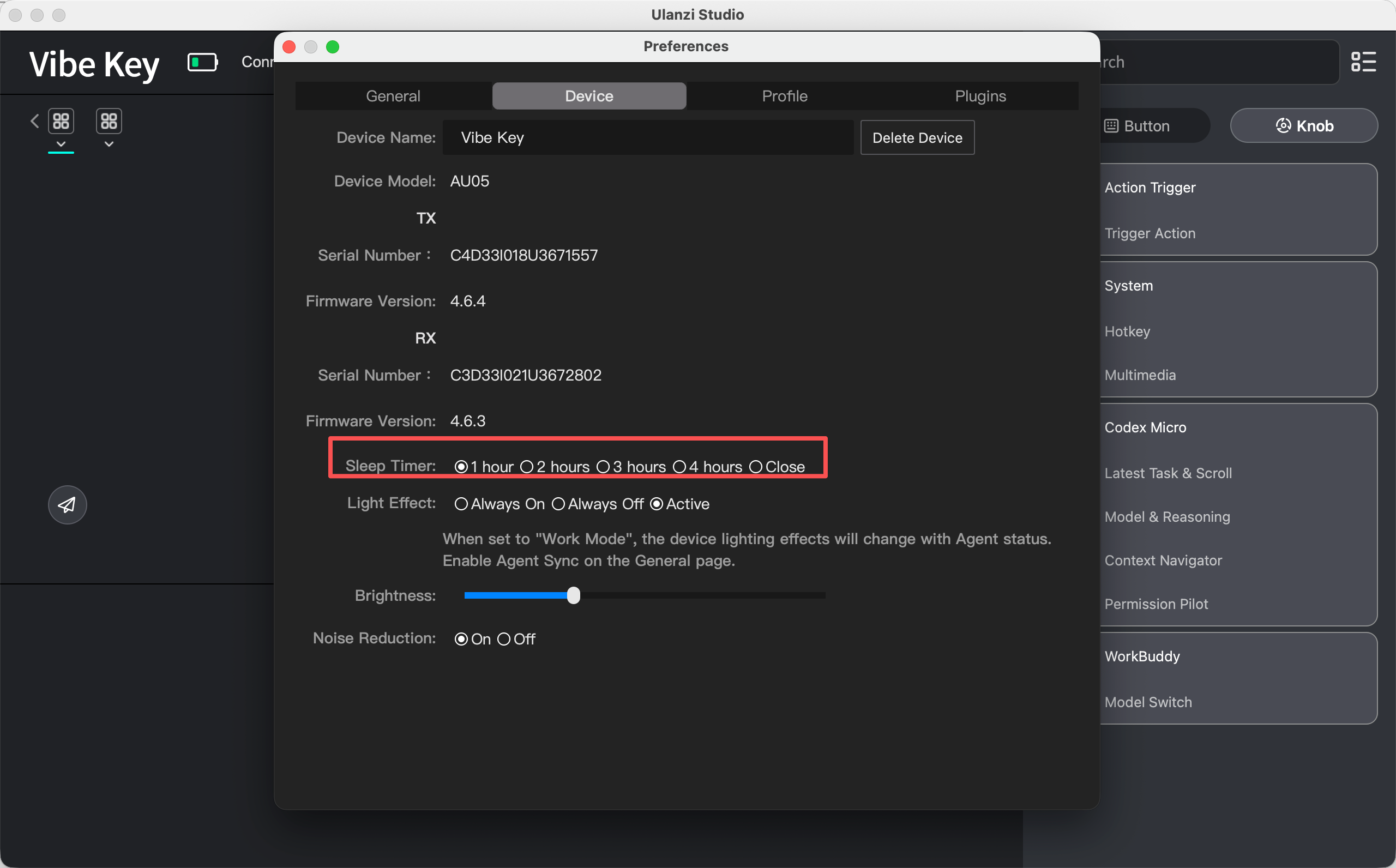
In any lighting mode, five minutes without input puts the device into low-power standby and disconnects it from the Dongle. Press any key to wake it and reconnect quickly. After one hour in standby, the device powers off automatically.
Adjust standby and sleep settings under Preferences → Device → Sleep Timer. Options are 1, 2, 3, or 4 hours, plus Close to disable sleep.
2.6 Noise Reduction
Turn noise reduction on or off under Preferences → Device → Noise Reduction.
2.7 Preset Management
2.7.1 Default Preset
After you install and start Ulanzi Studio and connect Vibe Key, the app provides a default preset.
2.7.2 Custom Presets
- On the Home page, select the
+beside the preset list. - Choose Create Default Preset, Create Linked Preset, or Import Local Preset.
- Name the preset and select Confirm.
2.8 Automatic Preset Switching
Different AI apps often call for different controls. Automatic preset switching associates a preset with an app: when that app becomes the foreground window, the device loads the assigned preset; switching to an unassigned app restores the default preset.
After linking an app, no manual switching is needed. The device follows your current task. For example, switching to ChatGPT loads its preset, while returning to VS Code restores a programming preset.
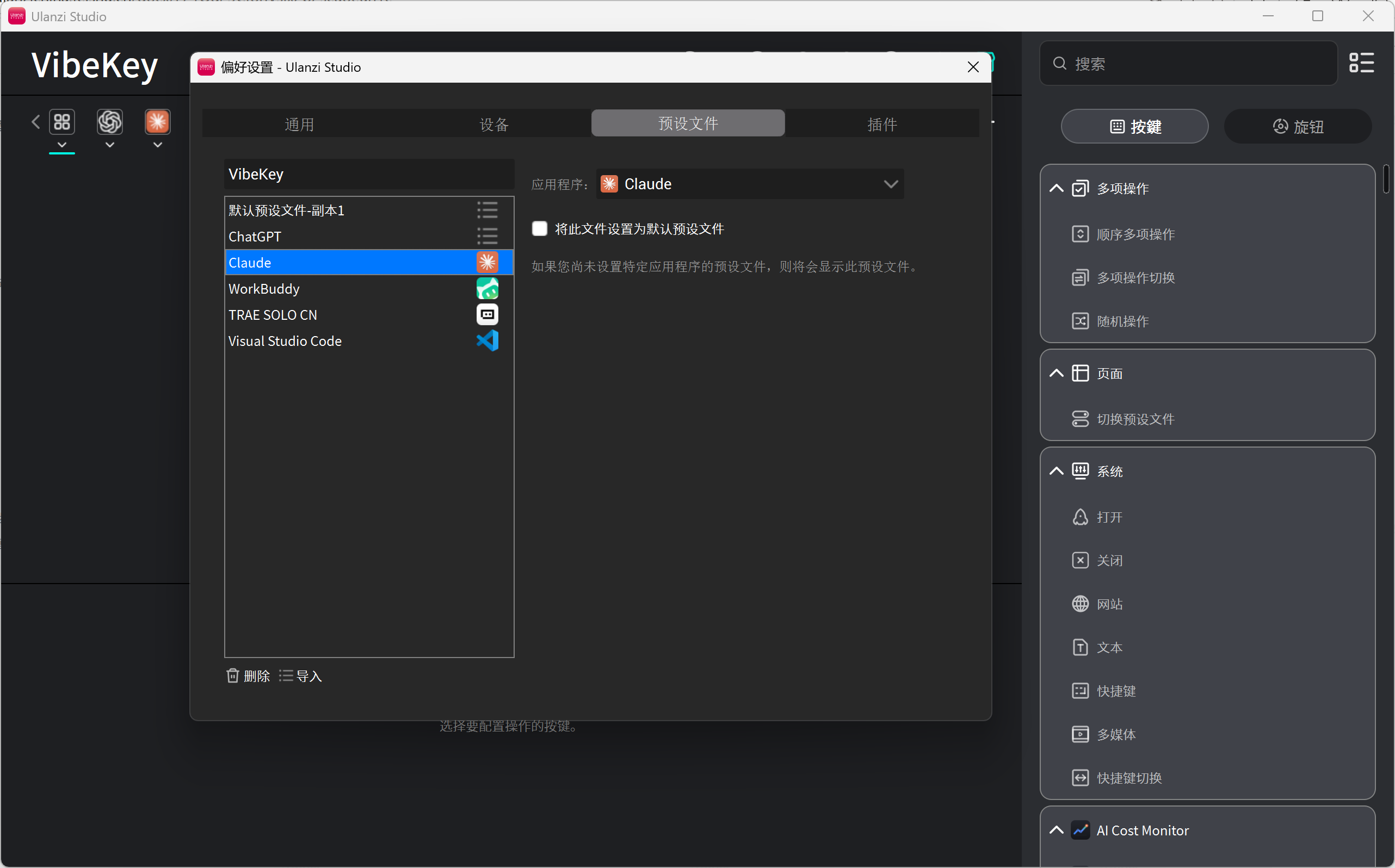
2.8.1 Link an App
- Start the app you want to link.
- Open Ulanzi Studio and select Preferences in the upper-right corner.
- Open Presets and select the preset you want to load automatically.
- Select the running target app from the Application list on the right.
- The association takes effect immediately. When that app is in the foreground, the device loads its preset.
Start the target app first so Ulanzi Studio can identify the correct application window.
For details, see Automatically Switch Ulanzi Studio Presets.
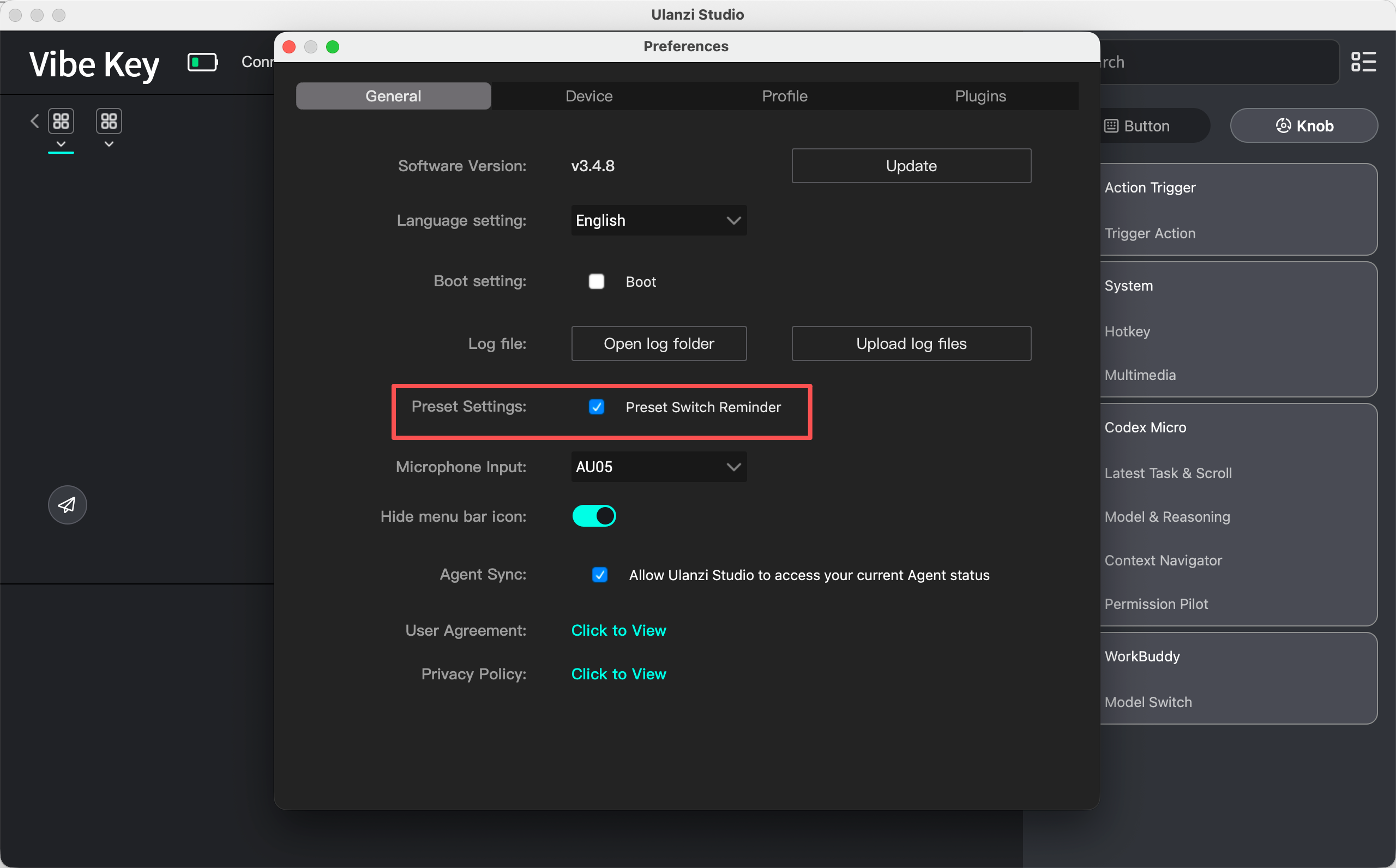
2.8.2 Switch Notifications
Enable or disable notifications under Preferences → General → Preset Settings.
2.9 Offline Mode and Battery Management
2.9.1 Offline Mode
After Ulanzi Studio closes, Vibe Key can still execute shortcuts from the last successfully synchronized preset. This is offline mode. Limitations: Only shortcuts are available. Fn keys (restricted by the system allowlist), automatic preset switching, and status lighting require Ulanzi Studio to keep running.
Keep the app minimized to the system tray for everyday use. Closing the main window disables app-dependent mappings and leaves only basic offline functions.
2.9.2 Battery and Charging
The battery icon in the Home page device area shows the battery level. A flashing red indicator means the battery is low. Charge through the Type-C port using a standard phone charger.
2.10 Firmware Updates and Factory Reset
2.10.1 Firmware Updates
Go to Preferences → Device → Update Firmware. Keep the Dongle connected securely and ensure the device has sufficient charge during the update. The latest firmware can fix sleep/wake issues, so updating promptly is recommended.
If an update is interrupted, unplug and reconnect the Dongle, restart Ulanzi Studio, and try again.
2.10.2 Factory Reset
Use a pin to press and hold the reset hole below the Type-C port. After resetting, pair the Dongle again and resynchronize the preset in Ulanzi Studio. Use this procedure when normal troubleshooting cannot resolve a device problem.
3. Frequently Asked Questions
3.1 Connection Issues
Q: Nothing happens when I plug in the Dongle.
A: Check that the port supports data rather than charging only, and try another port. Avoid poor-quality hubs. A steadily lit receiver indicator means the connection succeeded.
Q: Why does macOS show Keyboard Setup Assistant?
A: This is normal. Select Back to dismiss it.
Q: Which devices can I use it with?
A: Vibe Key is designed for computers and similar USB-C devices. Phones, tablets, and other mobile devices are not recommended.
Q: Does it transmit over Bluetooth?
A: Vibe Key supports only its 2.4 GHz Dongle connection. Its dedicated wireless link sends audio to the USB-C receiver, offering better audio quality, lower latency, and longer battery life than Bluetooth.
3.2 Voice Input Issues
Q: The voice key does not respond.
A: A third-party input tool may not be configured. The device does not record independently or recognize speech itself. Install a tool such as WeChat Input or Typeless, configure its activation shortcut, and map that shortcut to K1 in Ulanzi Studio. See 2.1 Voice Input.
Q: Why does activation still fail after configuring a shortcut?
A: Tools such as Doubao Input and Tongyi Input listen at the driver layer, and Ulanzi Studio may intercept their shortcuts while running. Close its background process and use offline mode, or switch to an app-layer input tool such as WeChat Input.
Q: Recording is abnormal, or the microphone is not recognized.
A: Select AU05 as the system's default input device. On macOS, check System Settings → Sound → Input; on Windows, change it in Sound settings. You can also select it under Ulanzi Studio Preferences → General → Microphone Input.
Q: Why is transcription inaccurate or full of errors?
A: Check whether the microphone is too far from your mouth, the environment is noisy, or you are speaking too quickly. Enable noise reduction in noisy environments and disable it in quiet ones; strong filtering may remove speech. The input tool's recognition quality also matters, so compare different tools.
Q: Why does voice input stop early or produce an incomplete recording?
A: Check whether the input tool uses hold-to-talk or click-to-start/click-to-stop. Hold-to-talk ends as soon as you release the key, so do not release it too early. Match the key trigger behavior in Ulanzi Studio to the input tool.
Q: I cannot record anything on macOS.
A: Microphone permission may be missing. Enable Ulanzi Studio under System Settings → Privacy & Security → Microphone. If you denied the initial prompt, enable it manually here.
Q: Shortcuts do not respond on macOS.
A: Enable Ulanzi Studio under System Settings → Privacy & Security → Accessibility. macOS restricts simulated keyboard input from third-party apps, so shortcuts cannot work without this permission.
Q: The voice key stops working after waking from sleep.
A: Reconnection takes approximately 1–2 seconds. Wait for the indicator to stabilize before pressing keys. If this happens frequently, extend or disable sleep under Preferences → Device → Sleep Timer.
Q: Is my voice data uploaded?
A: Vibe Key does not store or upload voice content. Your input tool performs recognition: local tools process it on your computer, while cloud services follow their own privacy policies.
3.3 Feature Issues
Q: Why do the keys stop working after Studio closes?
A: Custom mappings depend on Ulanzi Studio running in the background. Minimize it to the system tray instead of closing it. Offline mode supports only the last synchronized shortcuts and has limited functionality.
Q: A shortcut stopped working after a third-party app update.
A: Updates may change activation shortcuts. Check the mapped keys in Ulanzi Studio again or use an updated official preset.
Q: Can I replace the keycaps and switches?
A: Yes. The device uses standard cross-stem keycaps and Gateron Low Profile 3.0 switches with hot-swap support.
Q: Does it support onboard recording?
A: No. Vibe Key is a microphone input device that sends audio directly to your computer for a straightforward recording workflow. If your workflow requires an onboard recording backup, another device may be more suitable.
4. Technical Support and Resources
4.1 Official Resources
| Resource | Link |
|---|---|
| UGC website | ugc.ulanzistudio.com |
| Official forum | bbs.ulanzistudio.com |
| Developer tools (SDK) | UlanziDeckPlugin-SDK |
4.2 Community Platforms
| Platform | Account / link |
|---|---|
| Discord | Ulanzi Studio Discord |
| @ulanzi.studio | |
| ulanzi.studio | |
| Xiaohongshu | 4468316896 |
| Douyin | 26746264773 |
4.3 Contact Technical Support
Email: ustudioservice@ulanzi.com