Dial Mini Software Usage Guide
Welcome to Ulanzi Studio. This guide covers connecting, configuring, and using the core features of Dial Mini (D100N).
1. About Ulanzi Dial Mini
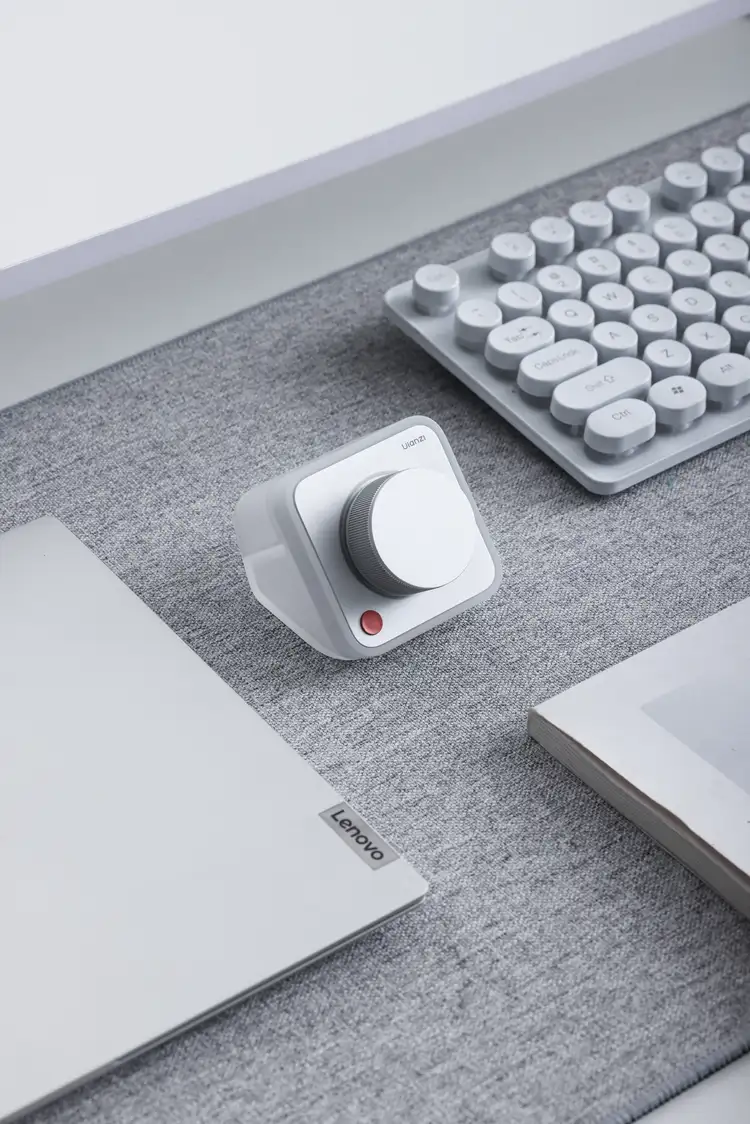
| Item | Details |
|---|---|
| Product name | Dial Mini |
| Model | D100N |
| SKU | I026 |
Dial Mini is a cleanly designed desktop dial controller with multi-device connectivity, customizable controls, and software integration.
1.1 Who It Is For
- Users who care about a refined and consistent desktop setup
- Office users who want to reduce repetitive work and shortcut memorization
- Creators working in CapCut, Photoshop, Lightroom, DaVinci Resolve, and similar applications
- Vibe Coding and smart-desktop users working with tools such as Home Assistant
1.2 Key Features
- Minimal design: An anodized aluminum dial and a clean industrial design that fits a wide range of desk setups.
- Expanded software experience: Multiple presets, wireless configuration, the POP function wheel, Ulanzi Studio, and the UGC preset ecosystem.
- Frosted transparent base: The included acrylic base provides continuous power and a stable connection.
- Dual-mode connectivity: Bluetooth BLE 5.1 with a range of at least 10 meters, plus wired USB. A wired connection takes priority when the cable is connected.
- Customization and status lighting: Customize dial actions and all eight POP wheel sectors. Work lighting can show AI collaboration status.
| Scenario | Description |
|---|---|
| Everyday desktop use | Adjust volume or brightness, and move through browser pages. Volume control works with the factory default preset. |
| Creative work | Adjust a CapCut timeline, modify values in Photoshop or Lightroom, and switch images using the dial and POP. |
| Home Assistant lighting | Connect to a smart-desktop ecosystem and use the physical dial to control lighting and ambience. |
2. Ulanzi Studio
Ulanzi Studio Desktop is a control-panel application for creators, streamers, and office users. Its customizable layouts provide quick access to software and hardware controls.
2.1 Core Capabilities
- Software integrations for direct control of common tools and platforms
- Custom keys, dials, and presets
- Windows and macOS support
- Device support for Ulanzi D200, D200H, D100H (Bluetooth/wired), D200X, TC002, Vibe Key (AU05/AU05-X), and Dial Mini (D100N)
2.2 Common Use Cases
- Video editing, photography, and design
- Game streaming and online teaching
- Everyday office productivity
- Smart-home and desktop automation
- Podcasting and audio production
3. Quick Start
3.1 System Requirements
| Platform | Requirement |
|---|---|
| Windows | Windows 10 or later |
| Mac (Apple silicon) | macOS 12.0 or later, Apple silicon build |
| Mac (Intel) | macOS 12.0 or later, Intel build |
3.2 Download Ulanzi Studio
- Mainland China: Ulanzi Studio download
- Other regions: Ulanzi app downloads
Download and install the version that matches the computer's operating system.
3.3 Connect and Identify the Device
- Open Ulanzi Studio V3.4.4 or later.
- Connect Dial Mini to the computer with its USB data cable, or add it as a Bluetooth device in Ulanzi Studio.
- Select the detected Dial Mini from the device list to open its configuration page.
4. Main Interface
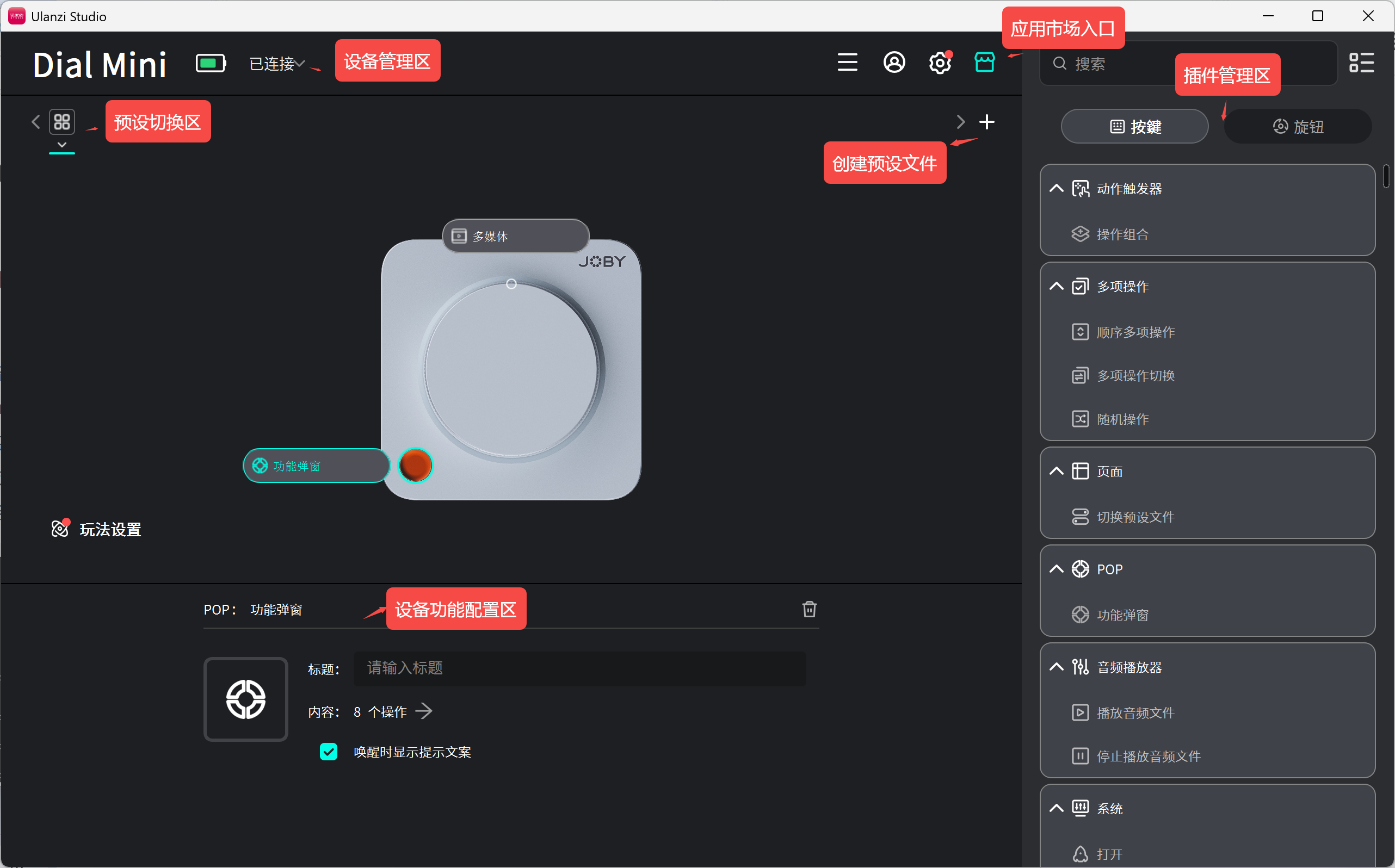
The Ulanzi Studio interface contains five primary areas:
- Device management: View and switch the active device.
- Preset selector: Switch between preset files.
- Marketplace: Open it with the App Store button in the upper-right corner.
- Plugin list: Browse supported plugins on the right.
- Device configuration: Drag plugin actions onto the key or dial.
5. Core Features
5.1 Dial Mini Controls
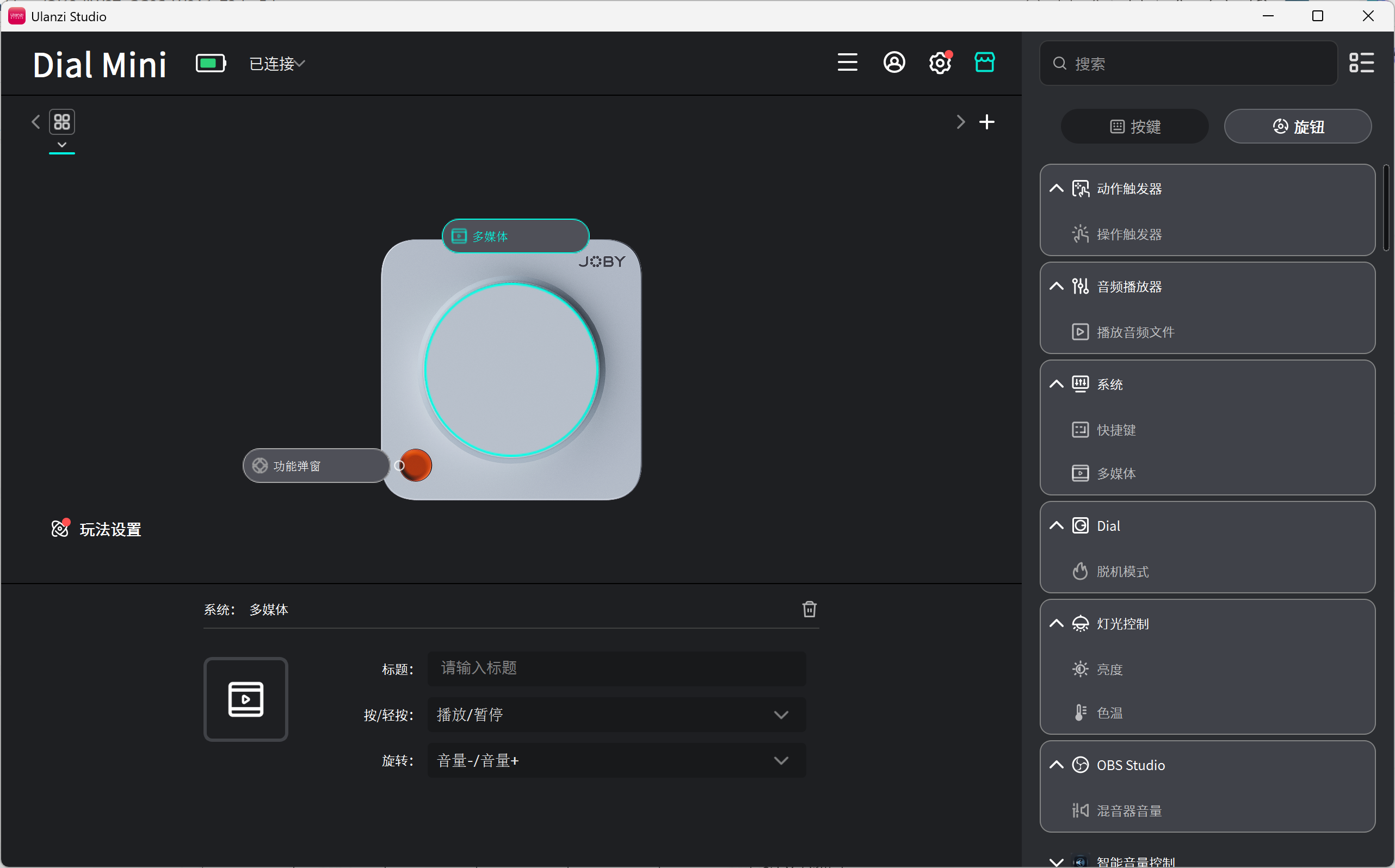
Dial Mini combines one primary key and one dial for frequently used actions.
5.2 Configure the Key
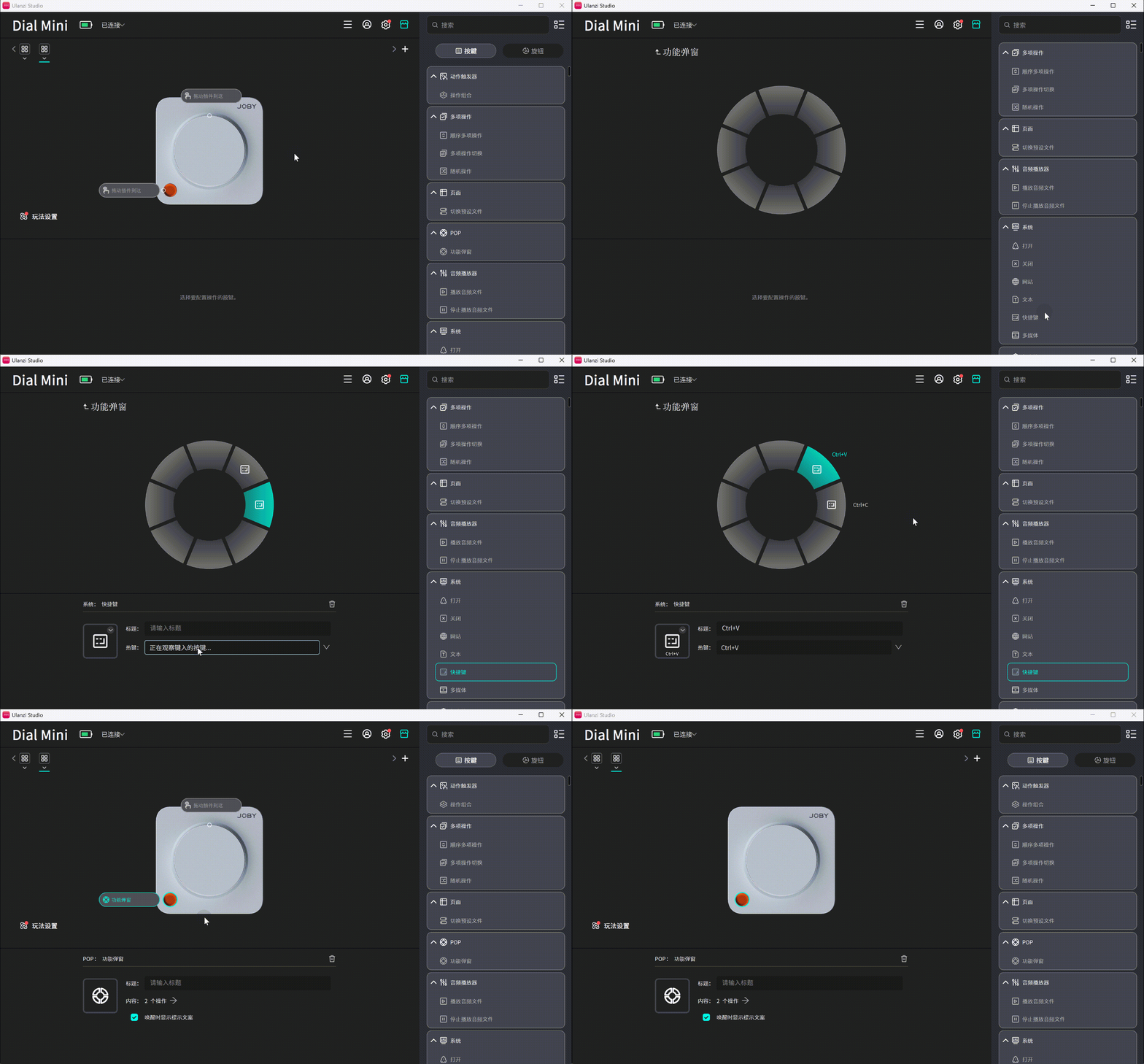
- Select the Key tab in the plugin panel, then choose an action such as Shortcut.
- Drag the action onto the key in the device preview.
- Configure the action parameters.
5.3 Configure the Dial
The physical dial supports these gestures:
- Rotate right: turn clockwise
- Rotate left: turn counterclockwise
- Press: press the dial straight down
- Press and rotate right: hold the dial down and turn clockwise
- Press and rotate left: hold the dial down and turn counterclockwise
Configuration steps:
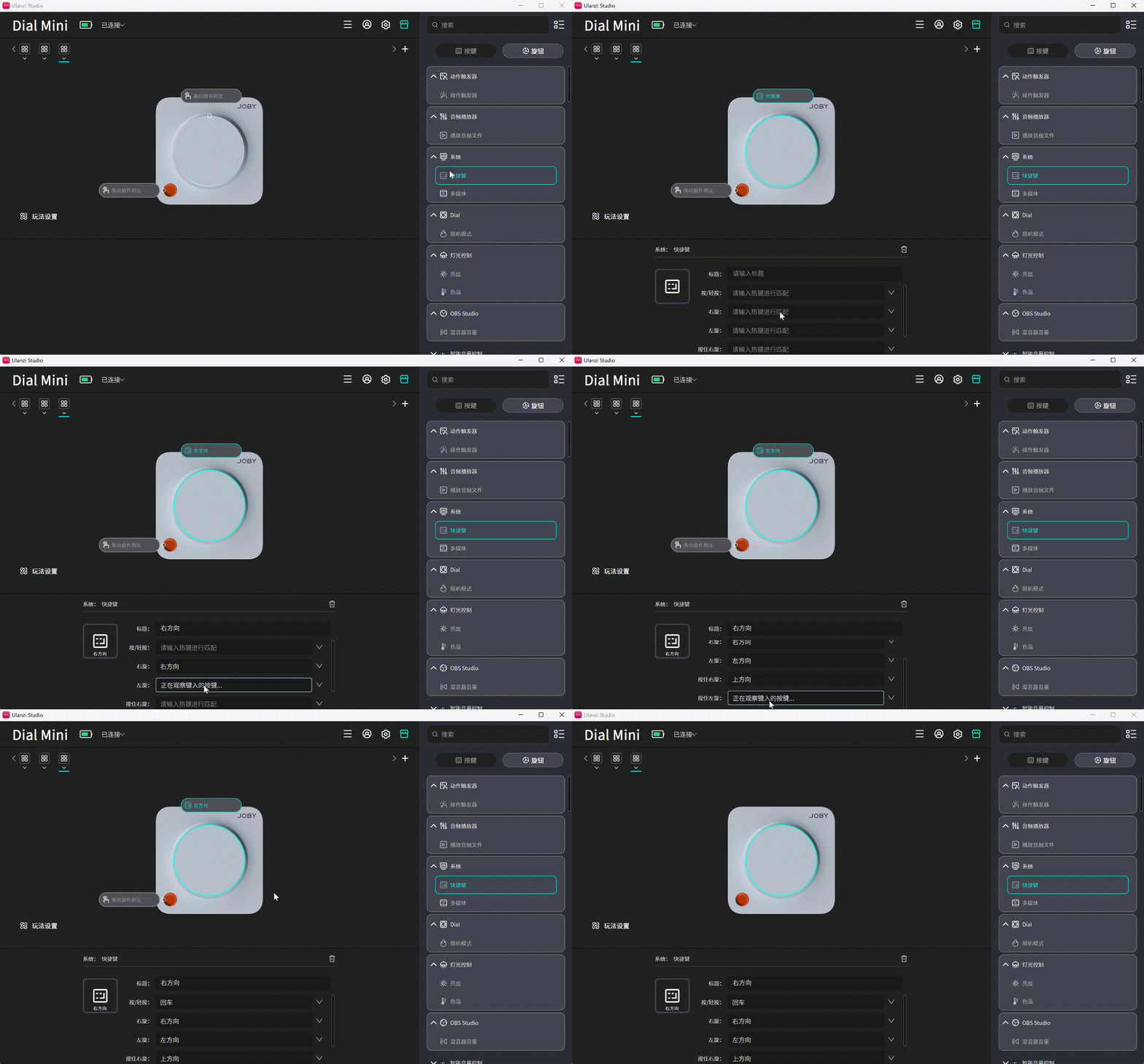
- Select the Dial tab in the plugin panel and choose an action.
- Drag the action onto the dial in the device preview.
- Configure the action parameters.
5.4 POP
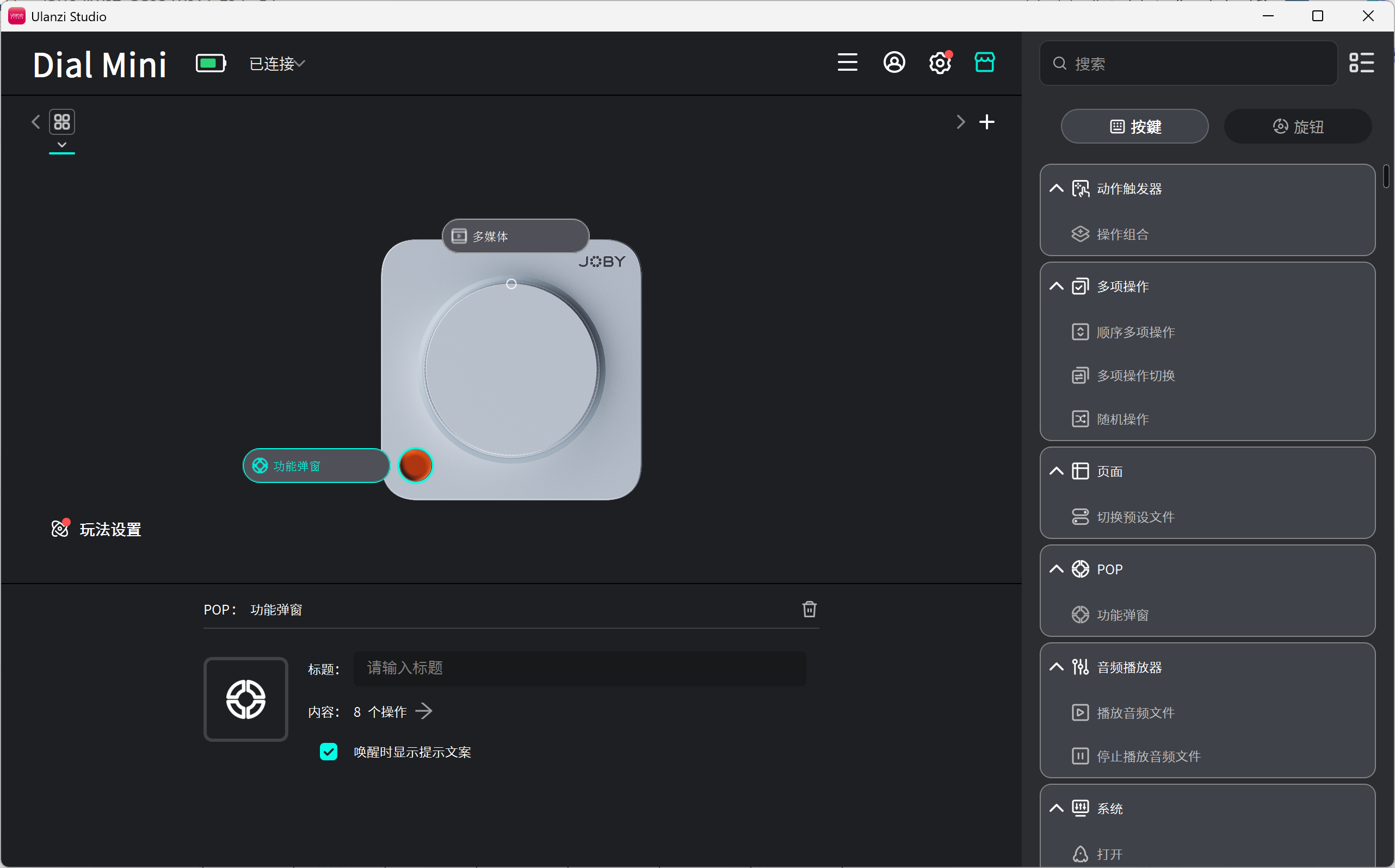
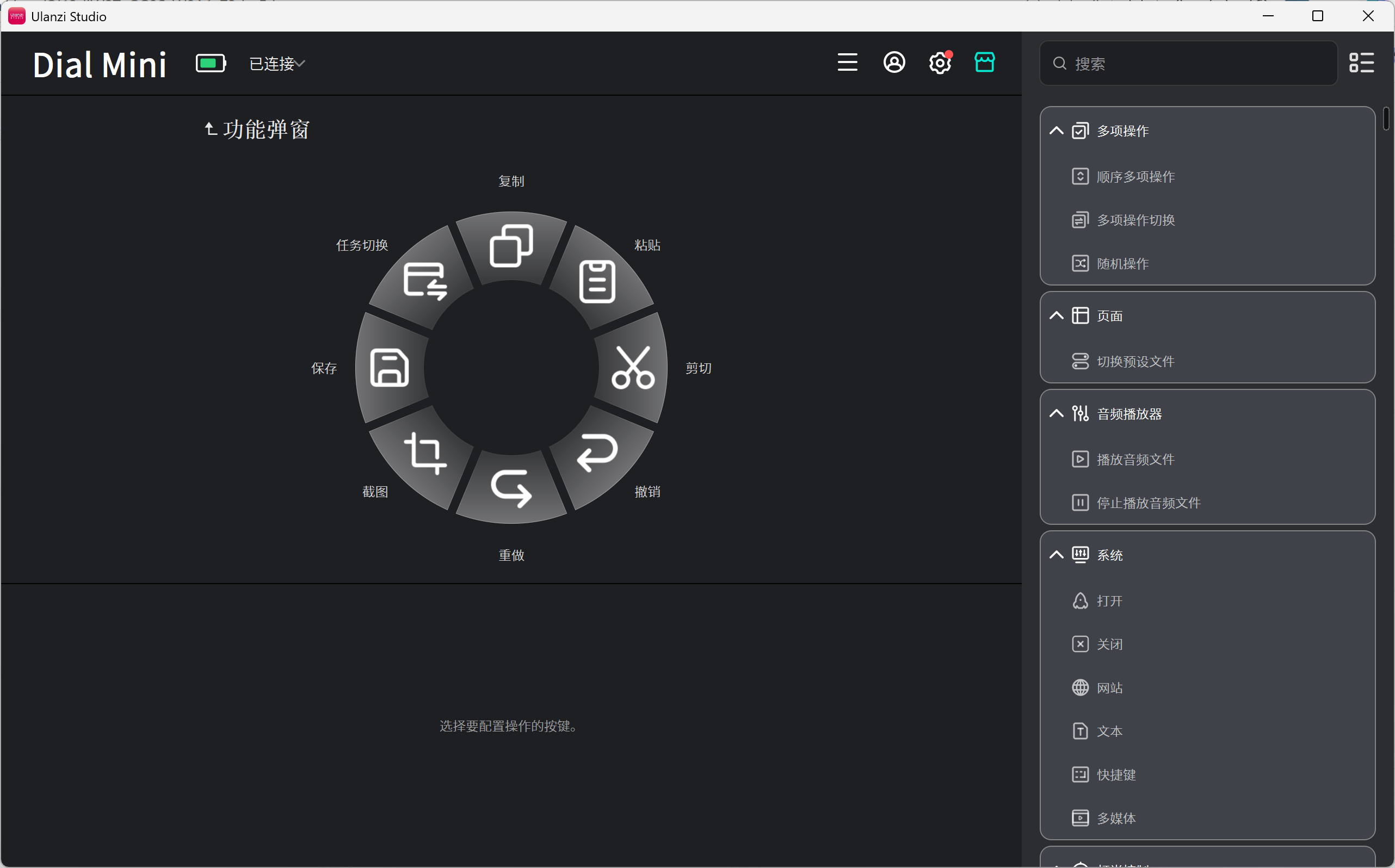
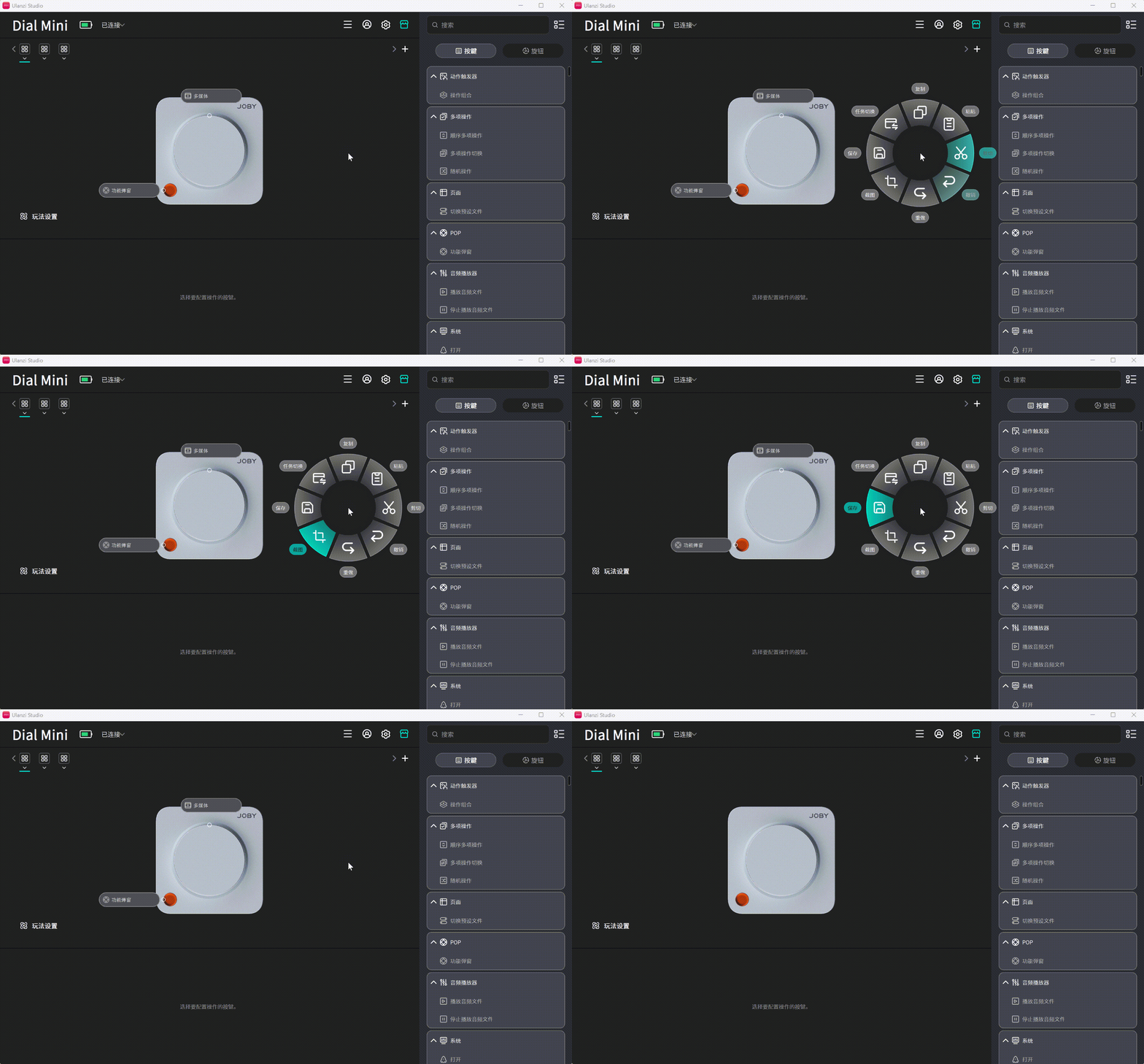
POP stores eight functions under one key. Press the POP key to show a radial menu, rotate the dial to move the selection, and press the dial to run the selected function.
Configuration steps:
- Confirm that the device is connected.
- Find POP in the plugin list on the right side of the Studio home page.
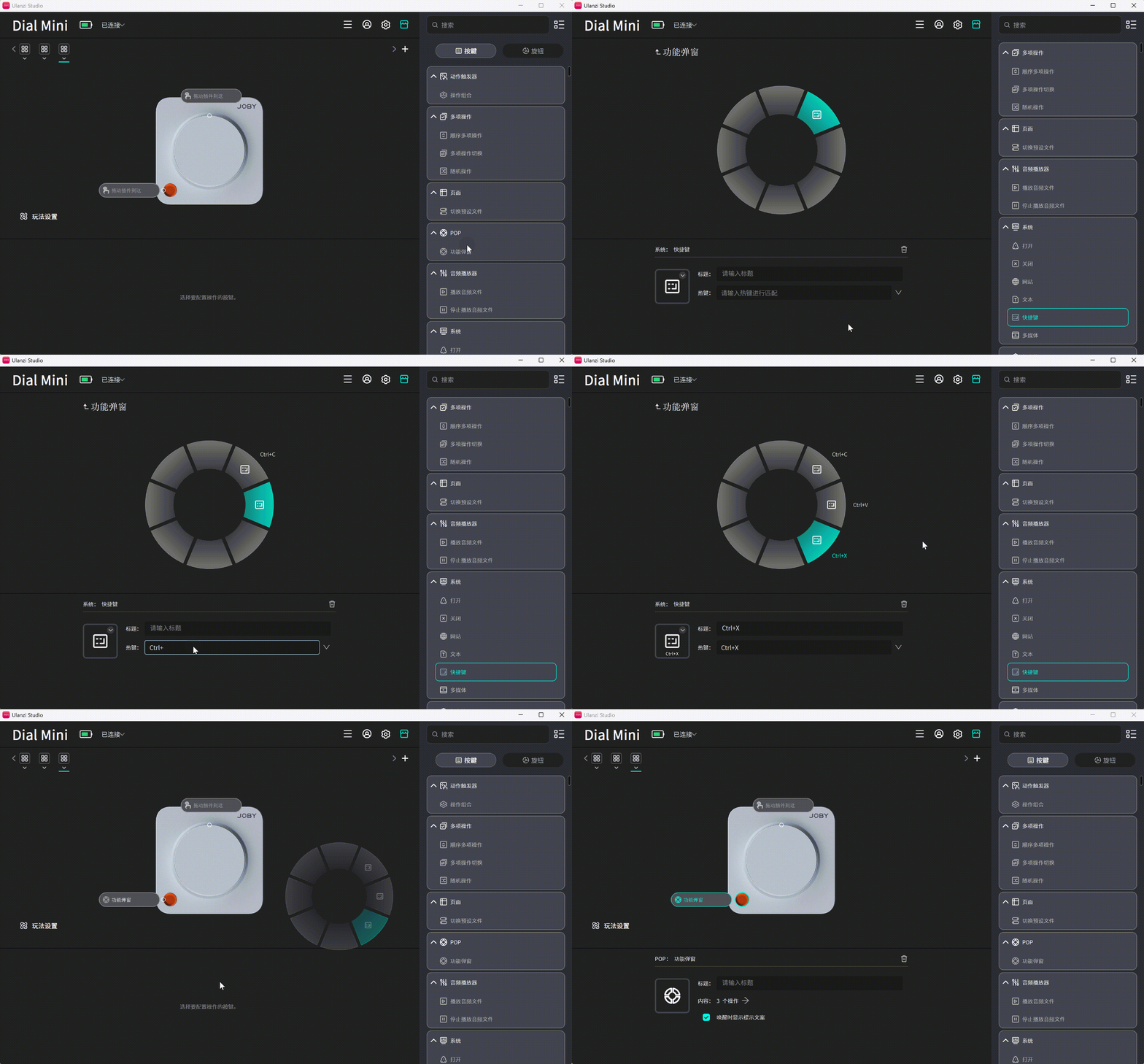
- Drag Function Popup onto any available key slot.
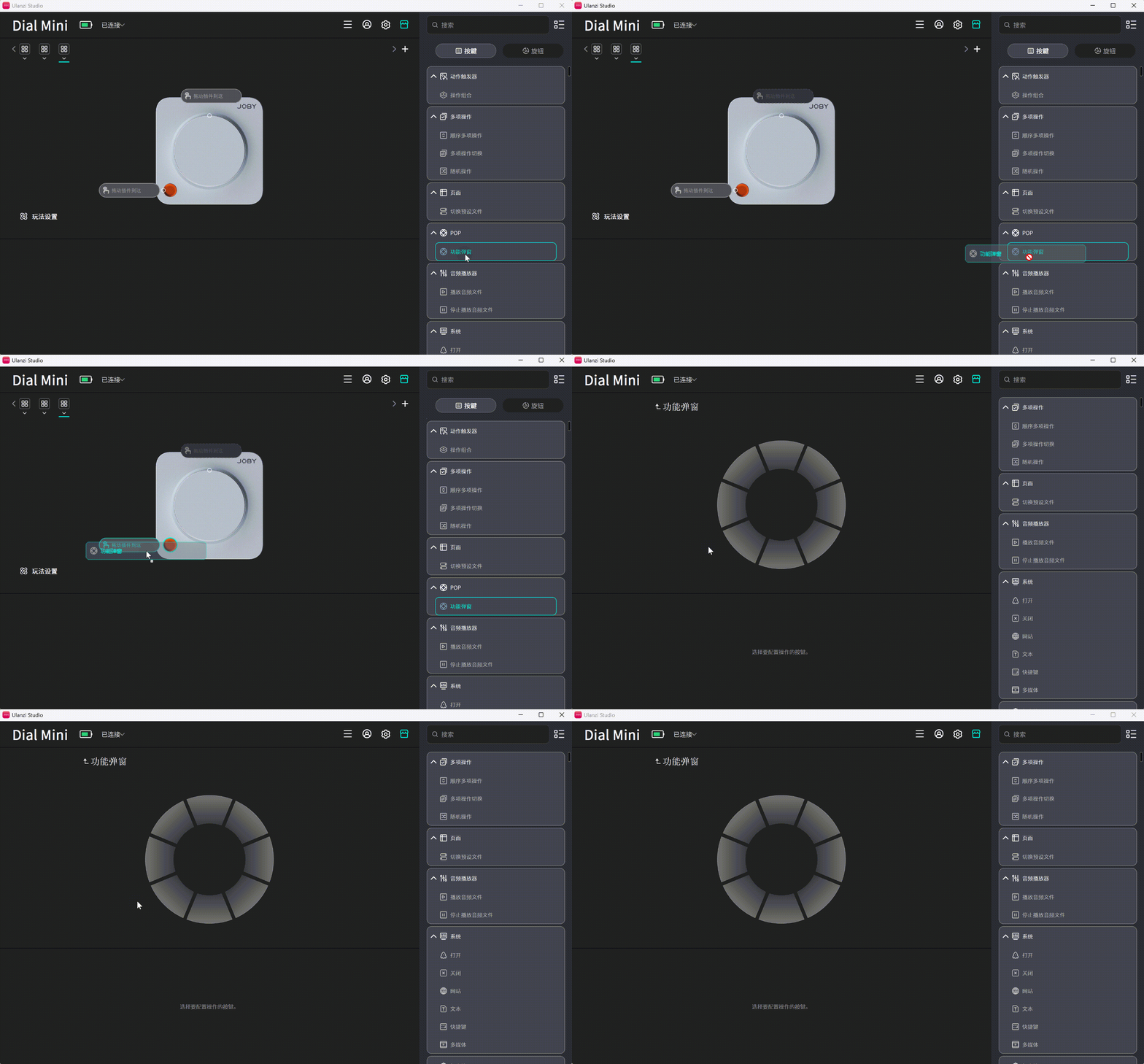
- Select the POP key to open its configuration panel and assign the eight function slots.
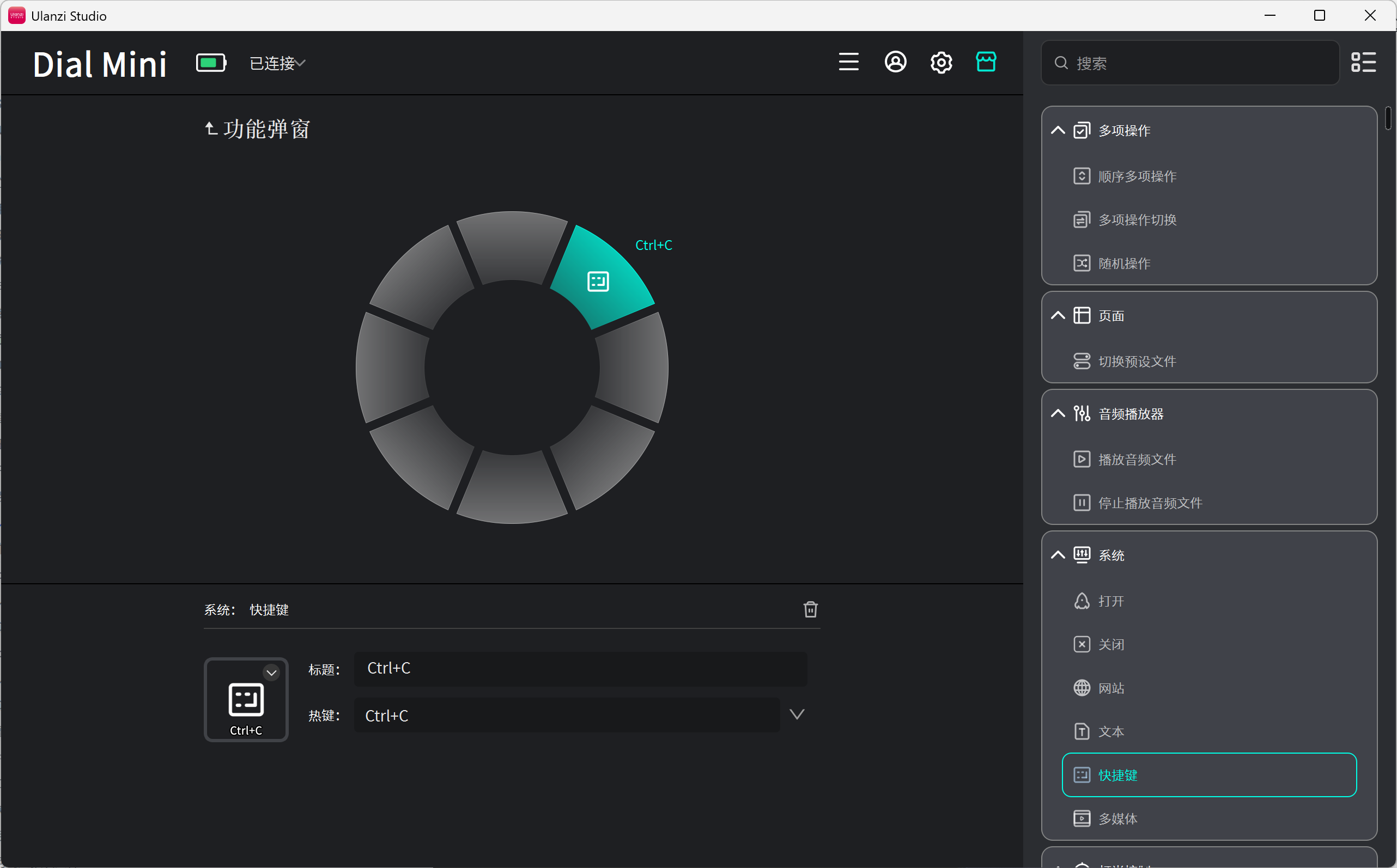
After configuration, press the assigned key to open the popup:
5.5 Action Triggers
Action Trigger lets one key run different actions for a single press, double press, or long press. It also lets the dial run different actions for rotate left, rotate right, press, press-and-rotate left, and press-and-rotate right.
Key: Configure an Action Combination
- Drag Action Combination from the plugin list onto any key slot.
- Release the mouse; a key icon appears in the slot.
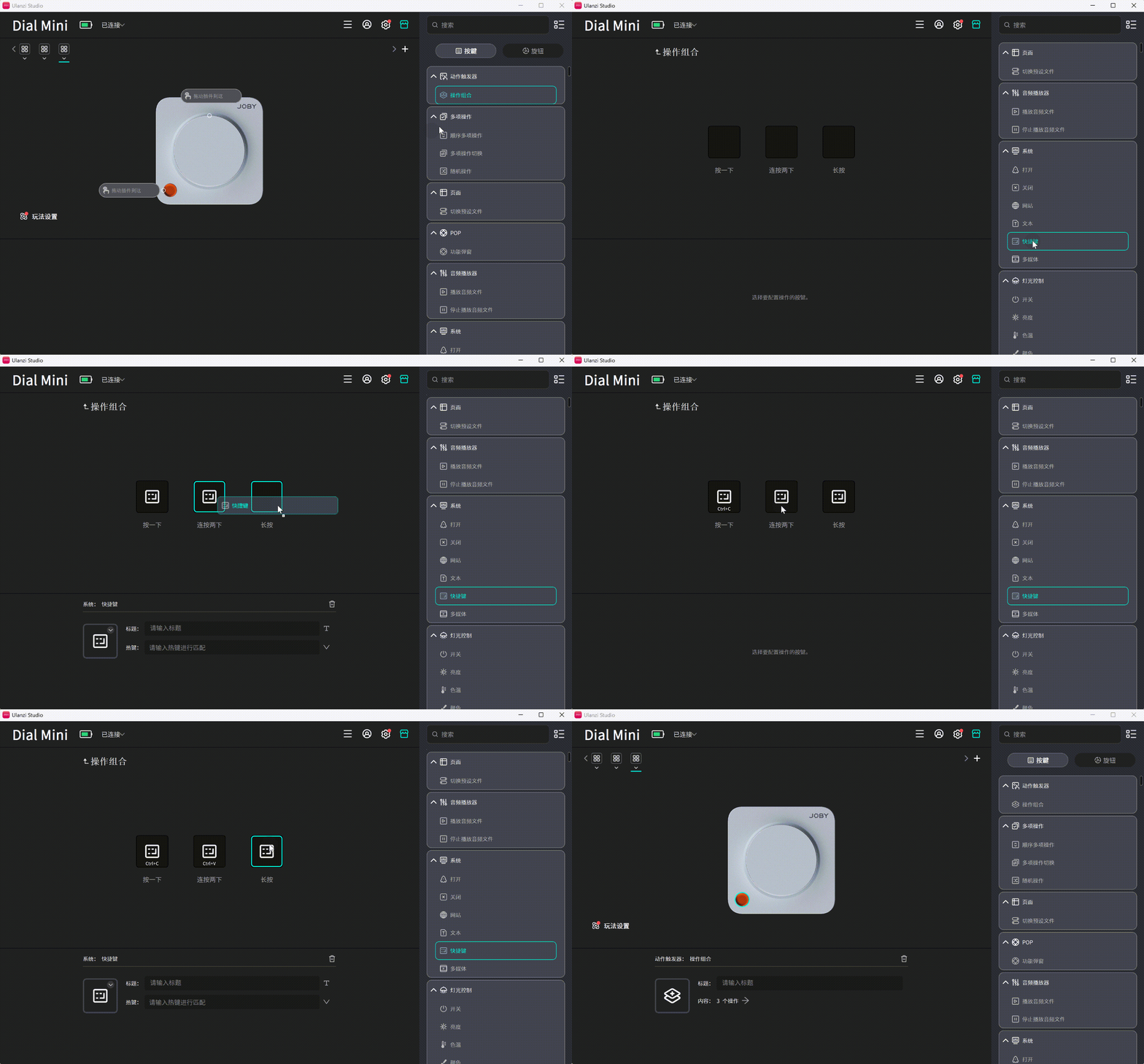
Select the key slot to display three action blocks:
| Position | Gesture | Trigger |
|---|---|---|
| Block 1 | Single press | Press and release once quickly |
| Block 2 | Double press | Press twice within the detection interval |
| Block 3 | Long press | Hold beyond the detection interval |
Each block can contain a keyboard shortcut, an app/website/file opener, media controls, text input, page switching, preset switching, or another supported action.
Dial: Configure an Operation Trigger
- Drag Operation Trigger from the plugin list onto the dial slot.
- When the dial icon appears, select it to open the configuration panel.
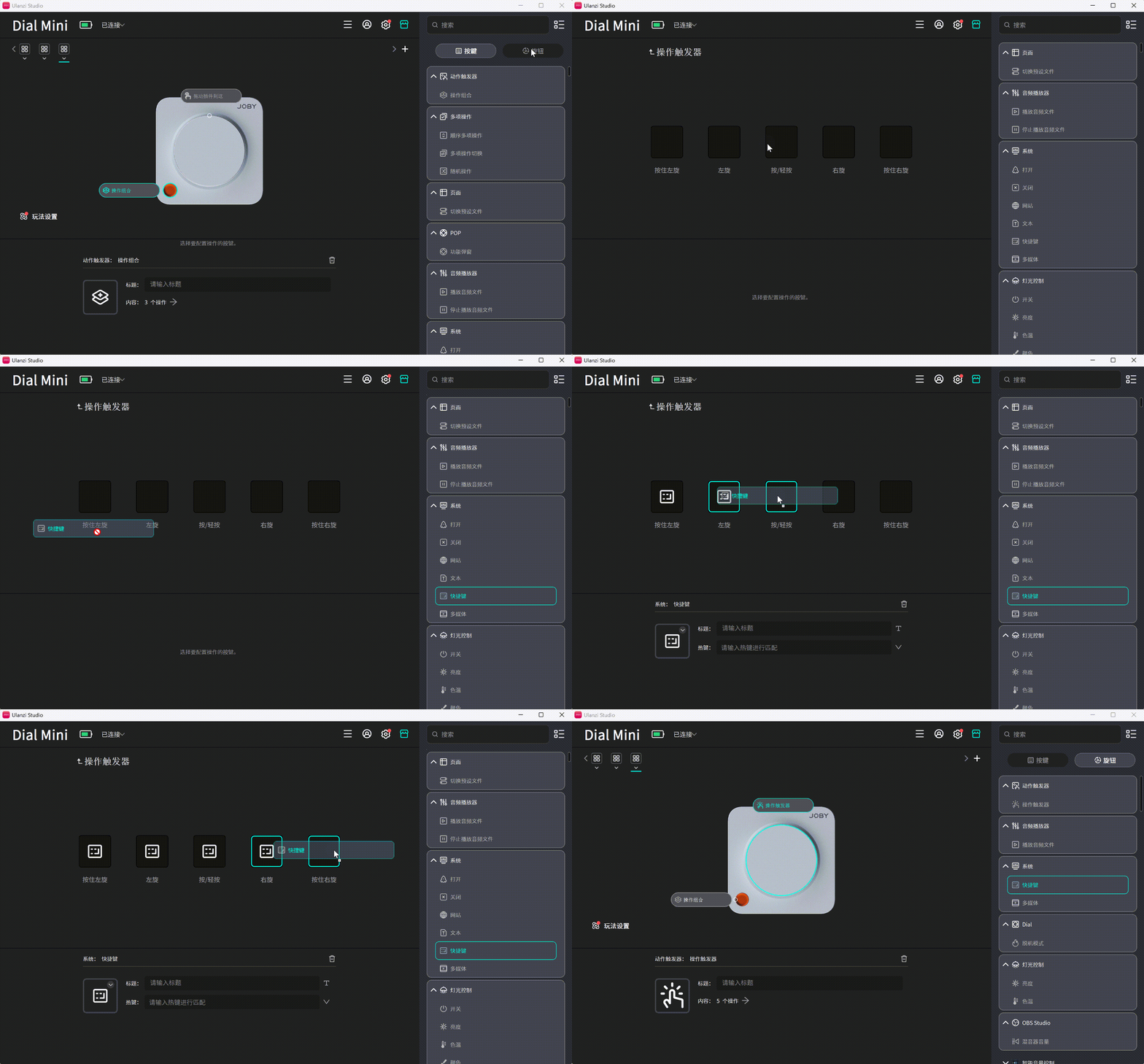
The panel provides five gestures:
| Position | Gesture | Official name | Operation |
|---|---|---|---|
| 1 | Press | Single Press | Press the dial straight down without rotating |
| 2 | Rotate left | Rotate CCW | Turn counterclockwise without pressing |
| 3 | Rotate right | Rotate CW | Turn clockwise without pressing |
| 4 | Press and rotate left | Press + Rotate CCW | Hold the dial down, then turn counterclockwise |
| 5 | Press and rotate right | Press + Rotate CW | Hold the dial down, then turn clockwise |
5.6 Lighting Modes
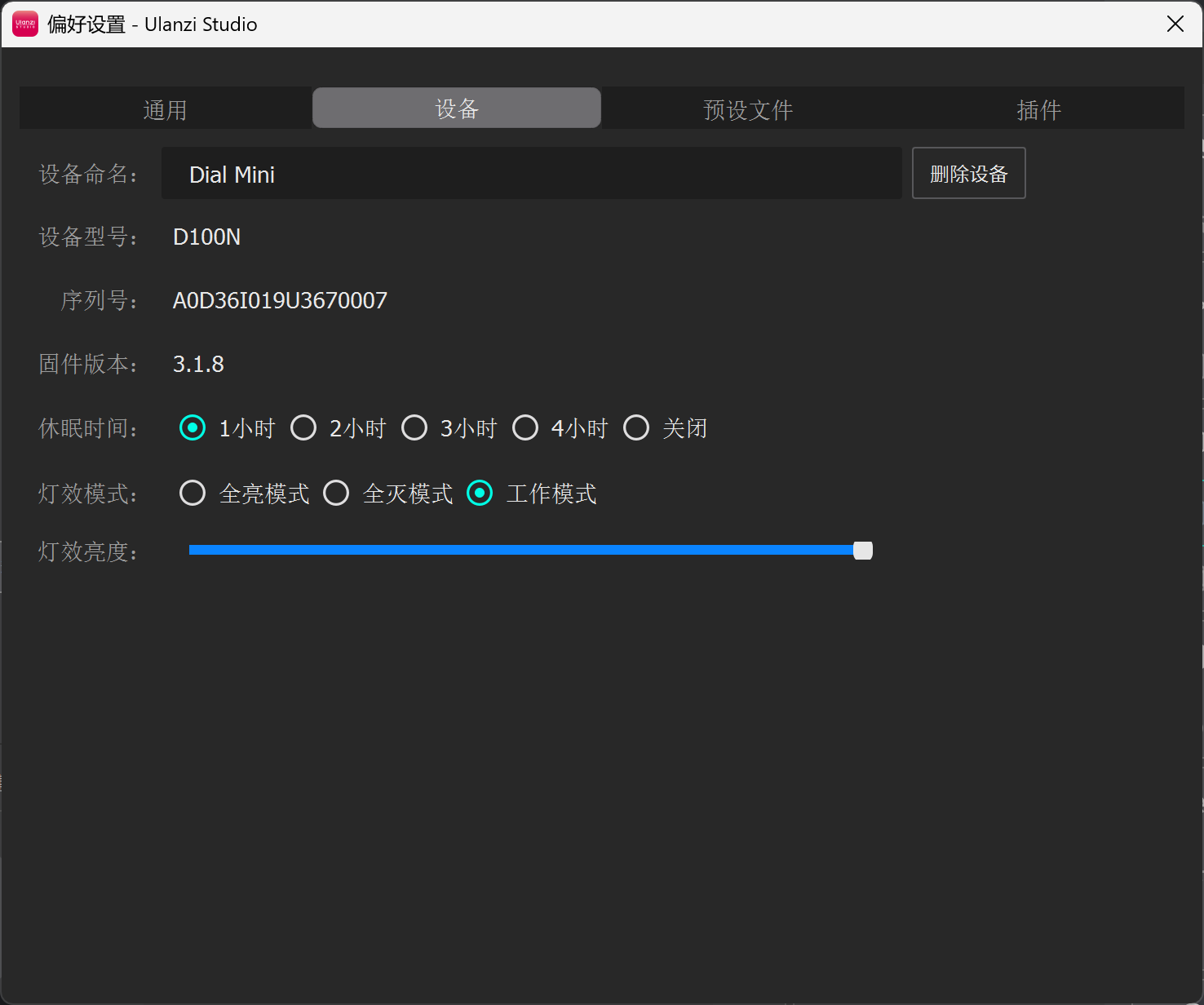
Dial Mini supports Always On, Power Saving, and Work lighting modes. Configure them at Ulanzi Studio Home → Preferences → Device → Lighting Mode. The factory default is Always On.
- Always On: Keeps device status easy to see on a desktop.
- Power Saving: Reduces power use and lighting distractions.
- Work: Uses lighting to reflect device or AI collaboration status.
Work mode currently supports status display for Claude and ChatGPT (formerly Codex).
5.7 Automatic Preset Switching
Automatic preset switching binds a preset file to an application. When that application becomes the foreground window, the device loads its preset automatically. When focus moves to an unbound application, the device returns to the default preset.
- Open the application to bind, such as ChatGPT, Claude, WorkBuddy, or Trae.
- Open Ulanzi Studio and select Preferences in the upper-right corner.
- Open Preset Files and select the preset that should switch automatically.
- In the Application list on the right, choose the currently running target application.
- The binding takes effect immediately.
Open the target application before choosing it in Ulanzi Studio so that the correct window can be identified. The automatic-follow switch is located at Preferences → General → Preset Settings.
5.8 Sleep Timer
After five minutes without input, the device enters standby. After one hour in standby, it powers off. Press any key to wake it. Configure the timer at Ulanzi Studio Home → Preferences → Device → Sleep Time.
Available settings are 1 hour, 2 hours, 3 hours, 4 hours, and Off.
5.9 Create a Preset File
Default Preset
After installing and opening Ulanzi Studio, connect Dial Mini to use its default preset.
Create a Preset
- On the home page, select the + beside the preset file selector.
- Choose Create Default Preset, Create Linked Preset, or Import Local Preset.
- Enter a preset name and confirm.
5.10 Creative Application Presets
The marketplace provides these Dial Mini presets:
- Image creation: Photoshop, Adobe Lightroom Classic, and PixCake
- Video creation: CapCut, Adobe Premiere Pro, and DaVinci Resolve
Search for and download the required preset from Ulanzi Studio → App Store.
6. Presets and Plugins
A preset is a complete key layout and function configuration—a reusable workspace template. A preset can contain multiple key actions and can be linked to an application for automatic switching.
A plugin is an independent function module, such as opening a URL, entering text, or controlling music. After installation, drag the plugin onto a key or dial to use it.
| Item | Preset (Profile) | Plugin |
|---|---|---|
| Installation | App Store → Preset Files | App Store → Plugins |
| Usage | Select it at the top of the home page or switch automatically | Find it in the plugin panel and drag it onto an empty key |
| Association | A device preset can be linked to one application | A plugin can be reused by multiple presets |
| Scope | A complete workflow containing multiple key actions | One functional unit, such as a shortcut, delay, or text action |
7. Technical Support and Resources
7.1 Official Resources
| Resource | Address |
|---|---|
| UGC website | ugc.ulanzistudio.com |
| Official forum | bbs.ulanzistudio.com |
| Developer SDK | UlanziDeckPlugin-SDK |
7.2 Community Platforms
| Platform | Account or channel |
|---|---|
| Discord | Ulanzi Studio Discord channel |
@ulanzi.studio | |
ulanzi.studio | |
| Xiaohongshu | 4468316896 |
| Douyin | 26746264773 |
7.3 Contact Support
Email: ustudioservice@ulanzi.com
8. Device Comparison
| Category | D200 | D200H | D200X | D100H Dial | TC002 | Vibe Key | D100N Dial Mini |
|---|---|---|---|---|---|---|---|
| SKU | A015 | A044 | A045 | I003 | TC002 | AU05 | I026 |
| Primary hardware | 14 LCD keys | 14 LCD keys + 7-in-1 dock | 14 LCD keys + 3 dials + 2 page keys + 8-in-1 dock | 1 main dial + 7 physical keys | 16×52 RGB pixel matrix | 1 dial + 3 keys | 1 dial + 1 POP key |
| Dock | None | USB 3.0 (5G) | USB 3.2 (10G) + HDMI | None | None | None | None |
| Connection | 1.5 m data cable | 1.5 m data cable | 1 m data cable | Bluetooth, up to 3 devices | Wi-Fi | USB dongle | Wired + Bluetooth |
| Interaction | Visual keys | Device hub functions | Keys and dials | Physical controls | Pixel-style information display | Physical controls | Physical controls |
| Visual display | Yes | Yes | Yes | No | No | Yes | No |
| Typical users | Entry-level creators, office users | Creators, streamers | Users needing more dials and ports | Editors, photographers | Desk-setup, gaming, student, and DIY users | AI programming and Vibe Coding users | Creators, office users |